


Setting up your hotel
Wix Hotels by HotelRunner: Making Bulk Updates
Bulk updates are a great way to make large changes to the rates, availability and restrictions of your room types at the same time.
You can also choose which sales channels you want to apply the bulk updates to. This is useful if you offer a discount through particular sales channels, but not others.
Important:
This article refers to the latest version of Wix Hotels by HotelRunner. We are in the process of releasing Wix Hotels by HotelRunner but it's not available to everyone yet. Sign up for more information about Wix Hotels by HotelRunner and join the beta.
For information on the previous version of Wix Hotels, click here.
Changing availability when you already have a reservation on specific dates can lead to overbooking. Make sure to exclude these dates with existing reservations when updating availability.
Tip:
We recommend you update the price and availability for all open seasons (when you accept reservations) on your calendar before applying bulk updates. This helps to ensure you apply the correct rates at the correct times.
To make bulk updates:
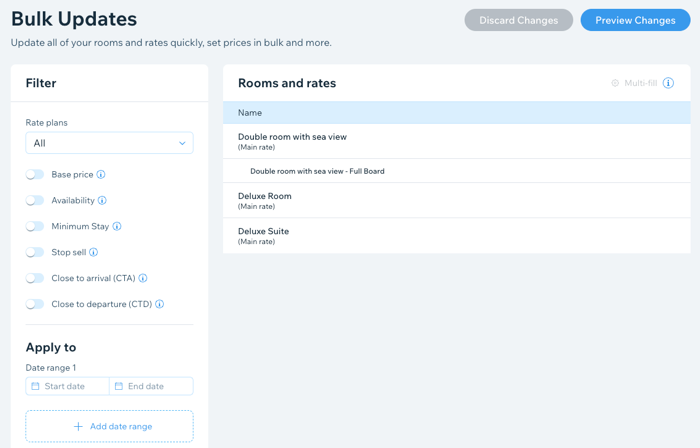
Go to Bulk Updates in your site's dashboard.
Click the Rate plans drop-down and select the relevant rate plan(s) you want to update.
Enable the toggles next to the filters you want to add:
Base price: Update the price of your base rates during a specific timeframe.Fixed: Enter a new base price beside the relevant rooms.
Adjustment: Enter the percentage or fixed amount increase or decrease to your base price next to the relevant rooms.
Availability: Enter how many rooms of a given type you have available during a specific timeframe. Confirm the number is accurate to avoid double-bookings.
Minimum Stay: Encourage longer stays by setting a minimum stay restriction. This can help ensure more capacity during the off-season.
Stop sell: Block the sale of specific rates for a period of time. This is useful to protect revenue during the off season.
Close to arrival (CTA): Restrict guests from arriving on specific dates. This is helpful during busy periods when you need to lighten the workload for your staff.
Close to departure (CTD): Restrict guests from departing on certain dates. This is helpful during busy periods when you need to lighten the workload for your staff.
Choose a date range for your bulk updates under Apply to.
(Optional) Click + Add date range to apply these bulk updates to another time.
Click the Days drop-down to apply the bulk updates to specific days of the week.
Click the Channels drop-down to apply the bulk updates to a specific channel.
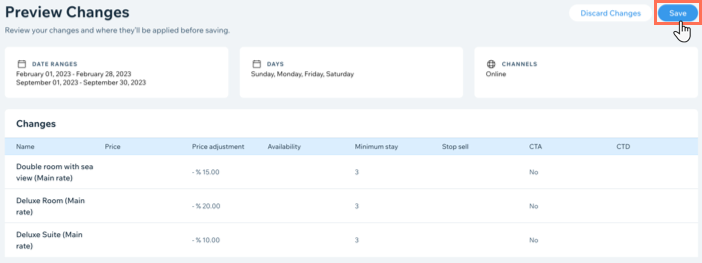
Click Preview Changes at the top right.
Review your bulk updates, then click Save.
(Optional) Repeat steps 3-10 to apply different bulk updates to other room types.
Tips:
Use the Multi-fill button to quickly apply the same updates to multiple rooms at the same time.

As you add more filters to a bulk update, you may need to scroll across to enter the information.