


Setting up your hotel
Wix Hotels by HotelRunner: Creating and Managing Your Tax Categories
Important:
This article refers to the latest version of Wix Hotels by HotelRunner. We are in the process of releasing Wix Hotels by HotelRunner but it's not available to everyone yet. Sign up for more information about Wix Hotels by HotelRunner and join the beta.
For information on the previous version of Wix Hotels, click here.
Streamline your tax management with tax categories in Wix Hotels by HotelRunner. You can create and customize various tax categories that align with your specific taxation needs. Assign these tax categories to different rooms or services, ensuring accurate and consistent tax calculations.
Tax categories are also a useful way of creating mandatory add-ons, such as a cleaning fee, as opposed to optional extras.
In this article, learn more about:
Creating a tax category
Ensure the appropriate taxes are applied to each booking, saving you and your staff time and reducing the risk of errors. Tax categories are mandatory, as opposed to extras, so they are a great way of adding on fees or services that your guests will need.
Note:
Make sure you create the relevant revenue accounts that correspond to your tax categories. For example, you might offer bungalows that include a cleaning fee as part of the price.
You may also offer camping accommodations, which don't include a cleaning fee. In this case, you would need separate revenue accounts for both property types to accurately keep track of relevant fees and taxes.
Show me some examples of tax categories
Here are some examples of how you can set up different Tax categories for different purposes. Make sure to consult with your tax advisor about the kinds of taxes you are legally required to collect.
Cleaning fees
You can use tax categories to add a cleaning fee for your guests after their stay. Choose from a fixed amount or a fixed percentage. You can then also choose whether to include the cleaning fee in the price of the room.
State sales taxes
Make sure you comply with your local, state and federal tax laws by applying any and all relevant taxes to your rooms and any services that you provide.
(Value Added Tax) VAT
Your government may require you to add a consumption tax to the price of your accommodations, or services you provide.
Local Occupancy Tax or Tourism Development Tax
Your state government may require you to apply this tax to help fund tourism and development initiatives in your area.
To create a tax category:
Go to Tax Categories in your site's dashboard.
Click + Add Tax Category.
Enter the Tax category name.
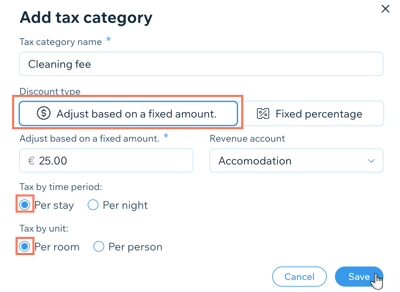
Click to select the relevant Discount type:Adjust based on a fixed amount: Enter the relevant amount in the field provided.
Fixed percentage: Enter the relevant percentage amount. Click to select the Included in price toggle if you want your guests to be able to see the tax category when they book. For example, if you create a tax category for your room cleaning services, you may want guests to be aware of the fee before booking to avoid confusion later.
Select the relevant option from the Revenue account drop-down.
Tip: Be sure to assign the tax category to the correct revenue account for accurate bookkeeping.Under Tax by time period, click to select the relevant checkbox: Per stay or Per night.
Under Tax by unit, click to select the relevant checkbox: Per room or Per person.
Click Save.
Editing your tax categories
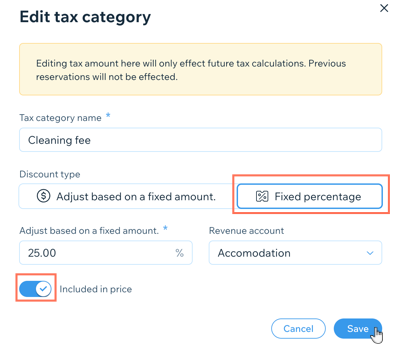
You can adjust your tax categories at any time, guaranteeing that your pricing remains up-to-date and compliant with your local tax regulations. Any changes you make to existing tax categories only affect future tax calculations. Existing reservations are not affected by the changes.
To edit a tax category:
Go to Tax Categories in your site's dashboard.
Click Edit next to the relevant existing tax category you want to edit.
Adjust the Tax category name, Discount type, Revenue account, and other details as required.
Click Save.
Deleting tax categories
You can delete old or redundant tax categories whenever you need. This is useful if local or state tax regulations change and you need to quickly replace old tax categories.
To delete a tax category:
Go to Tax Categories in your site's dashboard.
Hover over the tax category you wish to delete.
Click the More Actions icon
 next to the tax category.
Click Delete.
Click Delete again to confirm.