top of page

Wix Forms FAQ

Wix Forms: Managing Your Forms from the Dashboard

The Forms dashboard shows a list of all the forms you've created. From this dashboard, you can edit your forms, see how a form appears to visitors, and review the submissions table with all the data from those who submitted.

Screenshot of forms dashboard with more actions button selected, highlighting the display of different management options

Note:

This article refers to managing site forms. Learn more about managing standalone forms.

To manage your forms from the dashboard:

New Forms

Old Forms

  1. Go to Forms in your site's dashboard.

  2. Manage your forms using the available options:

Preview a form

See how the form appears on your live site.

  1. Click the More Actions icon  next to the relevant form.

  2. Click Preview.

Create a new form

  1. Click + Create Form at the top right.

  2. Create and customize your form in the form builder.

  3. Click Save.

  4. Click Back to Forms at the top left.

  5. (Optional) Add the form you just created to your site:Click the More Actions icon  next to the relevant form.
    Click Add to site.
    Click Go to Editor.
    Click Add Existing Form.
    Select the form you just created.

screenshot of the add elements panel in wix editor with add existing form highlighted

Edit a form

  1. Hover over the relevant form.

  2. Click Edit Form.
    Note: You will be redirected to the form builder.

  3. Create and customize your form.

  4. Click Save.

Delete a form

  1. Click the More Actions icon  next to the relevant form.

  2. Click Delete.

  3. Click Delete in the pop-up to confirm.

screenshot of delete forms and submissions pop up displaying information on form deletion, option to cancel or delete

View form submissions

  1. Click the More Actions icon  next to the relevant form.

  2. Click View submissions.
    Note: You can also access the submissions table by clicking the number of submissions next to the relevant form.  Learn more about viewing and managing form submissions.
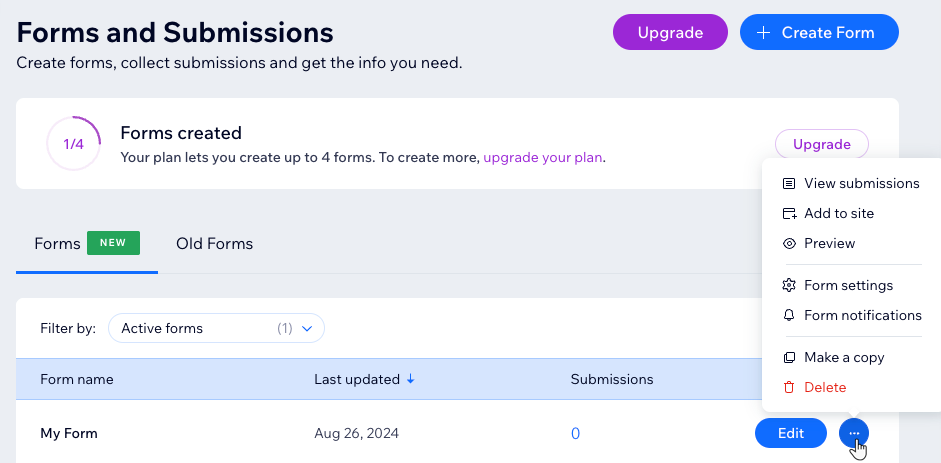
The Forms and Submissions dashboard for the new Wix Forms, showing the form management options

Tip:

See how many forms you can create at the top of the Forms and Submissions dashboard. To add more forms to your plan click Upgrade.

Need A Professional Website?
Contact Us 
Today!

Wix Stores: Setting Up Affiliate Marketing with the Goaffpro App

Wix Contacts: About Your Contact Panel

Wix Contacts: Using Pinned Actions in Your Contact Panel

Wix Contacts: Creating a Test Contact

Wix Contacts: Changing a Contact's Subscription Status

Wix Contacts: Adding and Managing Custom Contact Fields

Wix Contacts: Creating and Using Contact Labels

Wix Contacts: Creating a Segment

Wix Contacts: About Segments

Wix Contacts: Exporting Your Contacts

Wix Contacts: Troubleshooting Contact Importing Issues

Wix Contacts: Importing Contacts by Uploading a CSV File

Wix Contacts: Importing Contacts from a Gmail Account

Wix Contacts: Managing Your Contact List

Wix Contacts: Manually Adding a Contact

Wix Contacts: An Overview

Wix Forms: Creating a Coupon

Wix Forms: Setting Up Tax on Your Form

Wix Forms: The Difference between the New and Old Wix Forms

Wix Forms: Viewing Form Submissions from Your Dynamic Pages

Wix Forms: Managing Your Forms from the Dashboard

Wix Forms: Choosing an Address Field

Wix Forms: Adding and Setting Up a Donation Form

Wix Forms: Adding Submission Limits to Your Forms

Wix Forms: Adding and Managing Rules

Wix Forms: Upgrading Wix Forms

Wix Forms: Adding and Setting Up a Multi-Step Form

Wix Forms: Adding Payments to a Site Form

Wix Forms: Enabling Double Opt-In for Subscribers

Wix Forms: Adding and Setting Up a Subscribe Form

wix experts
Graphic2Traffic web design
©
bottom of page