Managing your events
Wix Events: Viewing Your Events
Important:
Some event viewing options may not be available to all users. However, they will be released soon.
Manage your events by tracking their status in your site's dashboard and monitoring which ones are displayed on your live site. Additional features include viewing event drafts, filtering published events, and customizing the event display in your dashboard.
In this article, learn more about:
Viewing event drafts
When creating a new event, it's saved as a draft in the Drafts tab of your site's dashboard. This allows you to manage details, set up the event at your own pace, and publish it when ready.
To view event drafts:
Go to Events in your site's dashboard.
Click the Drafts tab on the left (under Events).
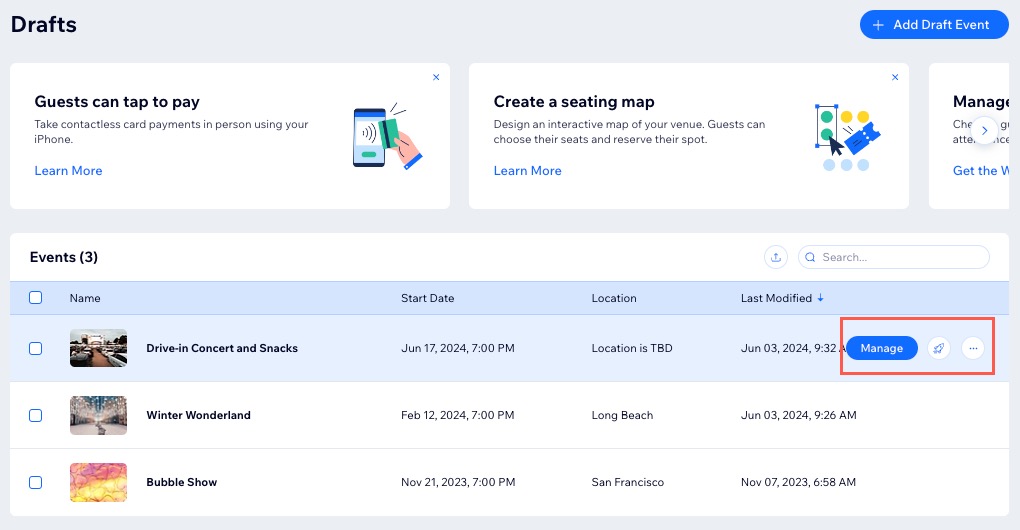
Hover over the relevant draft event and choose what you want to do:Manage your event: Click Manage to edit your event details such as tickets and seating, registration settings and exclusive features.
Publish your event: Click the Publish icon to make your event live on your site.
Duplicate / Delete your event: Click the More Actions icon to duplicate or delete your event.
Filtering your published events
Filters simplify finding specific published events. You can view a list of your published events and apply a status filter to show upcoming, past, or canceled events. Additionally, you can filter by category to further refine your search and quickly locate events.
Tip:
The option to filter by category appears only if you created categories.
To filter your published events:
Go to Events in your site's dashboard.
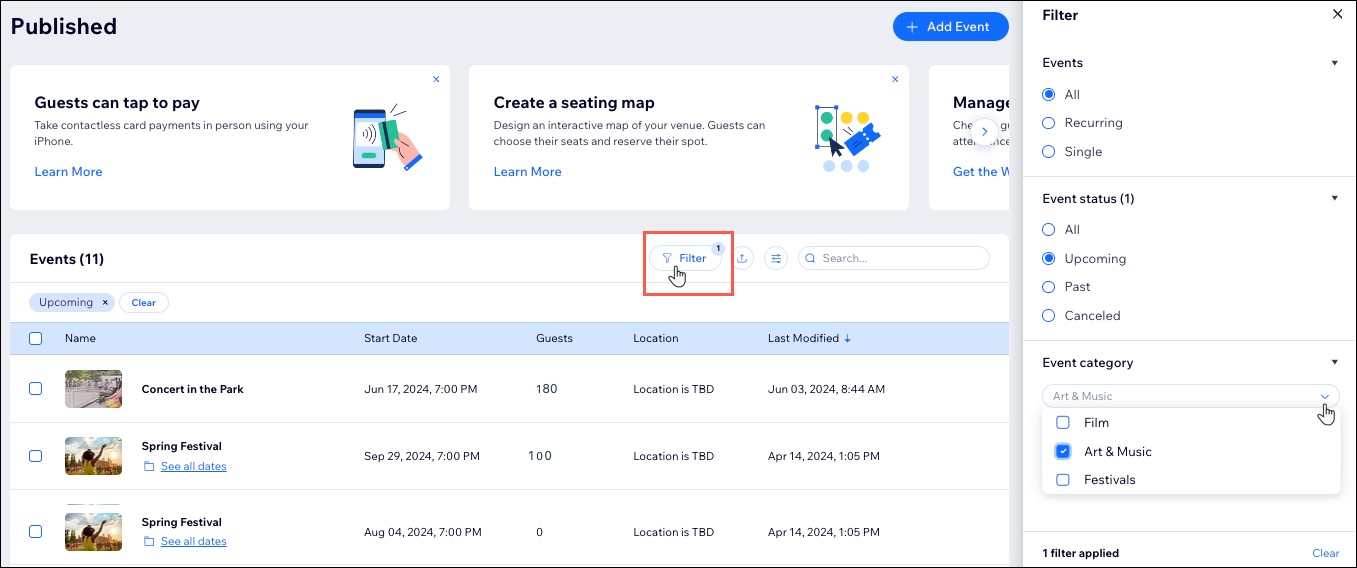
Click Filter next to Events.
Choose what you want to customize:Events: Choose the type of events you want to view: All, Recurring, or Single.
Event Status: Select the status of the events to display: All, Upcoming, Past, or Canceled.
Event Category: Click the drop-down menu and select a category to filter the events accordingly.
Customizing the display of events in your dashboard
Enhance your event management experience by customizing the display of events in your dashboard. This allows you to customize the columns based on your preferences, making it easier to navigate through your event listings efficiently.
To customize the display of your events:
Go to Events in your site's dashboard.
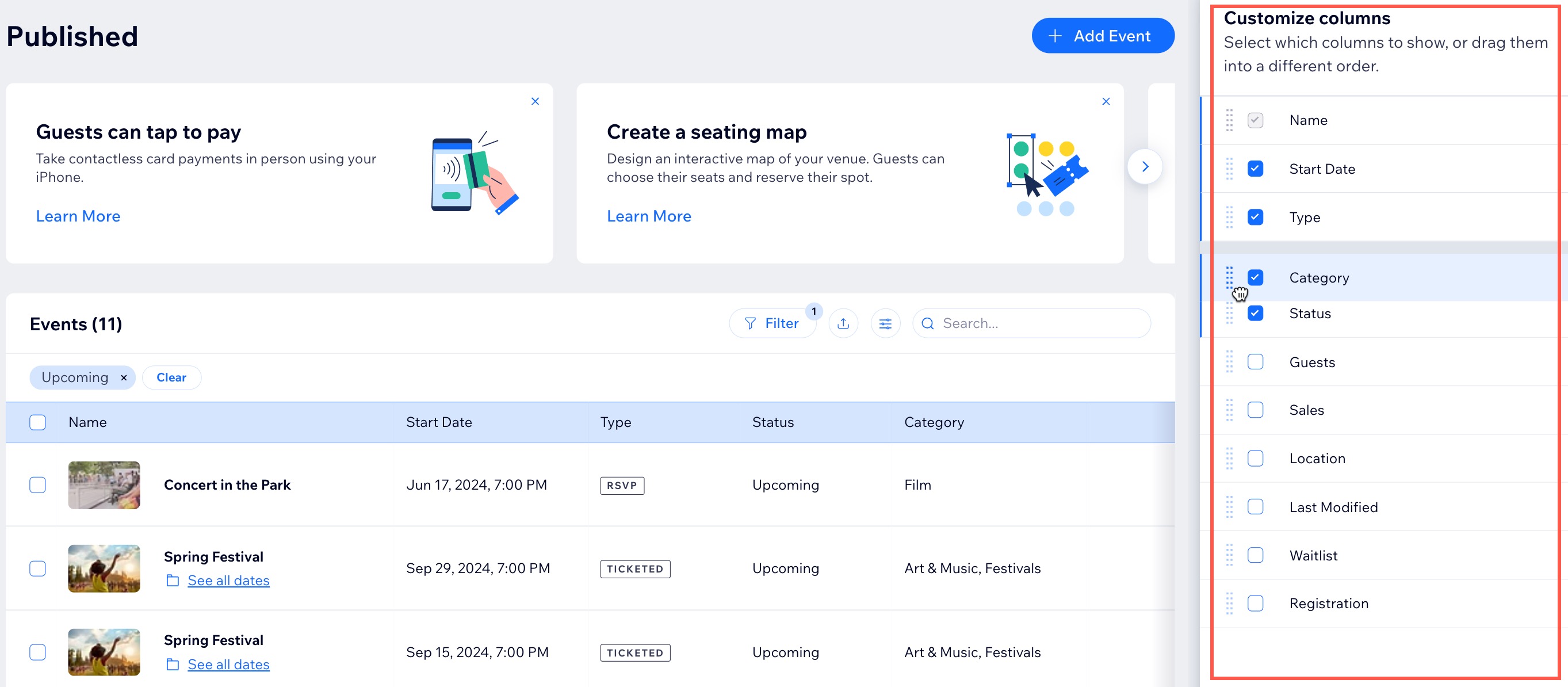
Click the Customize Columns icon
 next to Events.
Choose how you want to customize your columns:Show / Hide columns: Select the checkbox(es) next to the columns you want to display or deselect those you want to hide.
Reorder columns: Drag and drop the column names to arrange them in your preferred order.
Viewing events on your live site
Wix Events gives you the flexibility to display all published events or to select exactly the ones you want to display on a particular page (e.g. all upcoming events, all upcoming events in a category, selected events).
Learn more about how to set which events are displayed on a site page.
Tip:
Don't see the event you expected to find on a site page? Check to see if it's still a draft.
FAQs
Click a question below to learn more about viewing your events:
How can I see all dates for my recurring event?
Go to Events in your site's dashboard.
Click See all dates under the relevant recurring event to see a list of the individual dates this event takes place.
Tip: From here you can add more dates and customize each occurrence of the recurring event.

Can I change the details of a recurring event?
You can make changes to the "event template" when it's a draft. After you publish, you can make changes only to individual occurrences.
How can I access the event link after publishing my event?
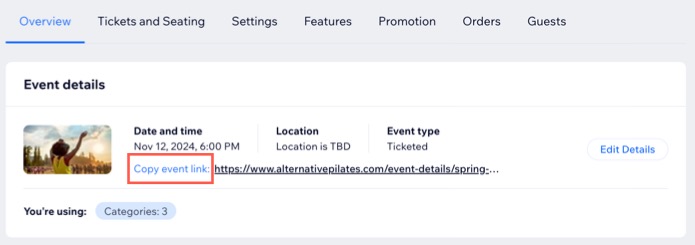
After publishing your event, you can access the event link on the Overview tab of the relevant event. Click Copy event link to quickly share with potential guests.