


Managing your guests
Wix Events: Limiting Registration and Creating Waitlists for RSVP Events
Stay in control of your RSVP event by limiting the number of guests who can register. You decide what happens when the event is full.
You can automatically display an RSVP closed ribbon:

Alternatively, you can let guests add their names to your waitlist.
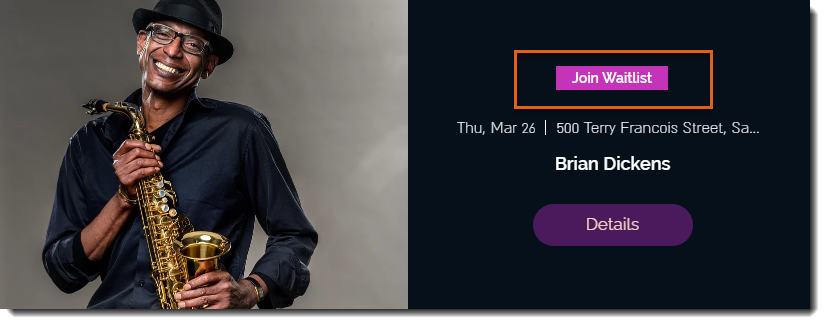
Note:
Waitlists are not available for ticketed events. You can, however, limit the number of tickets available to be purchased.
In this article, learn more about:
Limiting registration and enabling waitlists
In the registration tab you can set a limit on the number of people who can attend your event and decide whether to offer a waitlist option.
To limit registration and enable waitlists:
Go to the Events tab in your site's dashboard.
Select the relevant event.
Select the Settings tab at the top.
Click Edit next to Registration Settings.
Select Limited Guests.
Enter the limit in the Limit the number of guests field.
Select what happens when then guest limit is reached:Close Registration: Guests can no longer register.
Add guests to a waitlist: Guests can continue to register, but are added to a waitlist.
Click Save.
Viewing the waitlist
In the Events tab in your site's dashboard, you can see at a glance how many people RSVP'd and how many are on the waitlist.
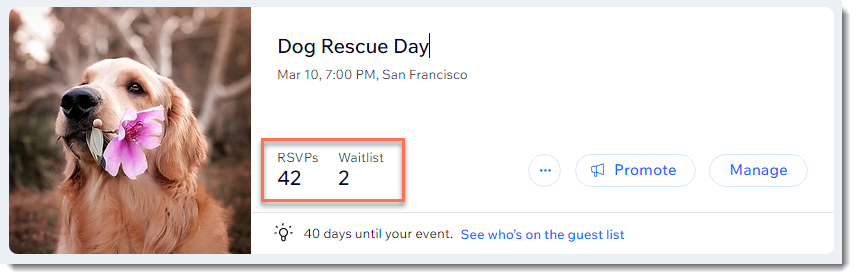
To view the complete waitlist:
Go to Events in your site's dashboard.
Select the event you want to view.
Select the Guests tab at the top.
Click the Filter by drop-down and select Waitlist.
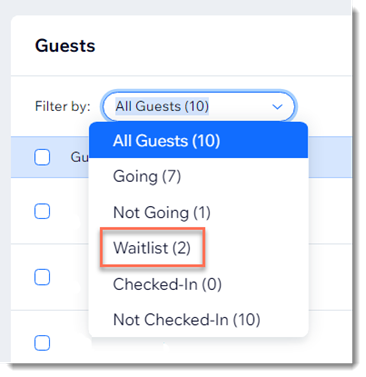
Adding someone on the waitlist to an event
You have the ability to manually add anyone who is on the waitlist to your event.
To add someone to the event:
Go to Events in your site's dashboard.
Select the relevant event.
Select the Guests tab at the top.
Click the Waitlist drop-down next to the relevant person.
Select Going.

Increasing the number of guests who can register
When you increase the maximum number of guests who can register for your RSVP event, an automated email is sent to the people on your waitlist. Additional guests register on a first come, first served basis.
To edit the automated email and increase the guest limit:
Go to the Events tab in your site's dashboard.
Select the relevant event.
Click the Settings tab at the top.
(Optional) Edit or disable the automated email sent to people on the waitlist:Disable the email: Click the toggle next to Waiting List Email to disable it.
Edit the email:Scroll down to the Waiting List Email and click Edit.
Edit the email text and click Save.
Increase the number of guests who can register:Click Edit next to Registration Settings.
Increate the number of guests allowed in the Limit the number of guests field.
Click Save.