top of page

Designing Wix Events

Wix Events: Displaying a Standalone Wix Events Button

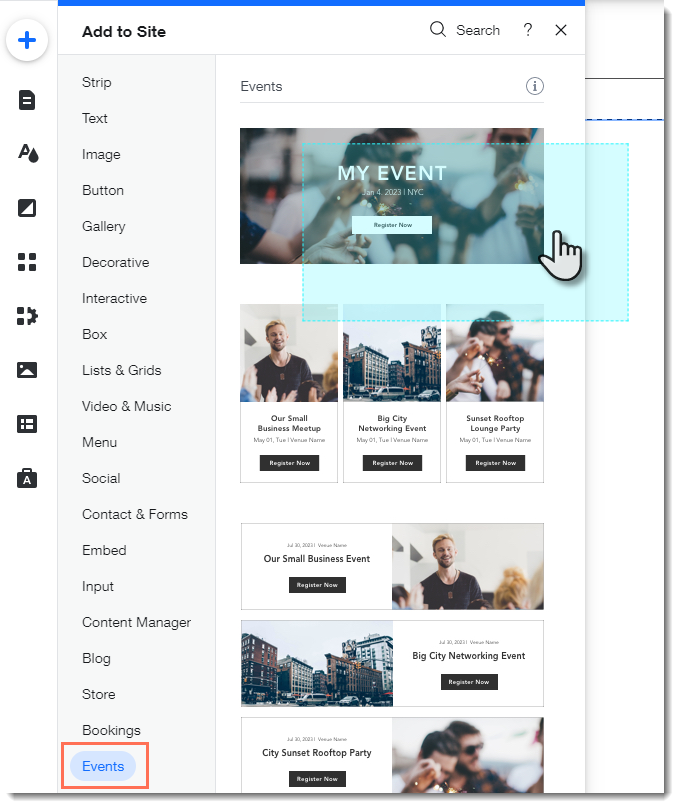
If you write about an event somewhere on your site other than the Wix Events page, you can add a standalone event button. This makes it easy for interested site visitors to book.

Note:

The standalone event button is currently not available in Editor X.

To add an event button:

  1. Click Addon the left side of the Editor.

  2. Select Events.

  3. Drag the single event display to the page.
  1. Click the Wix Events app in the Editor.

  2. Click Display Events.

  3. Under What do you want to show?, select A Single Event.

  4. Select the relevant event.

  5. Click the Layout tab.

  6. Select Button.

  7. (Optional) Edit the button:Click the Text tab to edit the button text or add a label.
    Click the Design tab to edit the look of the button.

Need A Professional Website?
Contact Us 
Today!

Keeping the Free Wix URL

Subdomains Overview

About HTTPS and SSL

About Domain Propagation

Replacing Your Site URL with Another Domain Name

Domain Hosting with Wix

About Domains

Wix Studio App: An Overview

About CSS Editing

Working With Layers

Using Global Sections

Using the Inspector Panel

Adding Mouse Effects

Adding Mouse Effects

Adding and Customizing Lottie Animation Files

Adding Header Scroll Effects

Adding an Entrance Animation

Adding a Scroll Animation

Adding a Loop Animation

Creating a Custom Click or Hover Interaction

Adding a Preset Click or Hover Interaction

About Animations

Adding and Setting Up Flexboxes

Working with Docking, Margins and Padding

Setting the Size of Your Elements

Using the Inspector Panel

Building a Responsive Site

Designing Across Breakpoints

Creating a Physical Product

Using AI to Create an Online Store

wix experts
Graphic2Traffic web design
©
bottom of page