


Wix Contacts FAQ
Wix Contacts: Manually Adding a Contact
Manually add someone to your contact list. Contacts can be anyone related to your business, including leads, subscribers to your email campaigns, or customers. If someone takes an action on your site such as filling out a 'Contact' form, they are automatically added to your contact list.
Want to import a list of contacts?
You can import a contact list directly from a CSV file or from a Gmail account.
To manually add a contact:
Go to Contacts in your site's dashboard.
Click the + Create New drop-down at the top right and select Contact.
Enter the contact's information including first and last name, primary email address, primary phone number, and physical address.
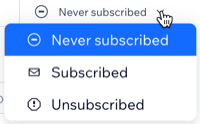
Note: Where a contact has more than one email address or phone number, their Primary email or Primary phone will receive all communications. Any additional email address or phone number is stored for your reference.(Optional) Click the Never subscribed drop-down next to the Primary email and/or Primary phone field to select a subscription status:
(Optional) Click the Add New Field drop-down at the bottom left to add more fields. You can choose from an additional field or create a custom field.Additional field: Select a field to add it to your contact.
Custom fields:Click Custom Field.
Click the Field Type drop-down menu to select the relevant type of information: Text, Number, Date, or URL.
Enter the new field name.
Click Add.
Click Save to save your new contact.
What's next?
Access your new contact's card by selecting their name in the contact list. From here you can add labels, upload attachments, and add notes and tasks about this contact.