Wix Chat FAQ
Wix Chat: Customizing the Chat Icon on Your Mobile Site
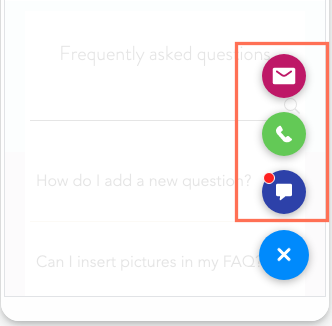
When you install Wix Chat, it automatically adds a Quick Action Bar (QAB) to your mobile site. With a QAB, visitors can easily start chatting with you from their mobile phones as well as perform any other shortcuts you've added.
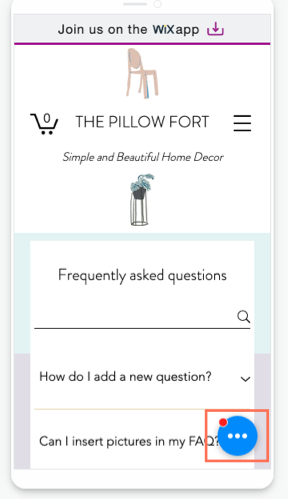
Depending on the number of actions in the QAB, the customization options differ. If chat is your only action, the design is pulled from your desktop site. If you have multiple actions, you can choose a design from the preset QAB themes.
Want to remove the chat icon completely?
You cannot remove Wix Chat from your mobile site without removing it from your desktop site. To remove the chat function entirely from both desktop and mobile, delete Wix Chat.
Vote for the ability to remove chat from mobile only in this feature request.
Customizing the chat icon when Wix Chat is the only action in the QAB
If Wix Chat is the only action in your QAB, the color of the mobile chat icon is pulled from the Design tab in your desktop chat settings. To change the color of the icon, go to your Editor from desktop and update the Minimized Chat settings. Learn more about customizing this and other aspects of your chatbox
Note:
The chat icon color is the same for desktop and mobile.
Customizing the chat icon when there are multiple actions in the QAB
If your QAB has multiple actions, your design options for the chat icon are limited to the QAB preset designs. By default, the chat icon is blue. You can change the color scheme of the icons and customize the border and shadow of the QAB from the mobile Editor. Learn more about designing your QAB