


Wix Chat FAQ
Wix Chat: Adding the WhatsApp Channel to Your Chatbox
Add the WhatsApp channel to your Wix Chat chatbox to allow visitors to choose whether to chat to you via your site's chat or a WhatsApp account. This flexibility encourages your visitors to get in touch and makes it more convenient for them to maintain the conversation.
Important:
When you add WhatsApp to your chatbox, messages go directly to the WhatsApp account attached to the phone number you provided during setup. Visitors messaging you can view the name, phone number and profile image of this WhatsApp account.
To manage incoming WhatsApp messages in your Wix Inbox, connect your WhatsApp account to Wix Inbox.
Before you begin:
Make sure you've added Wix Chat to your site so you can add the WhatsApp channel.
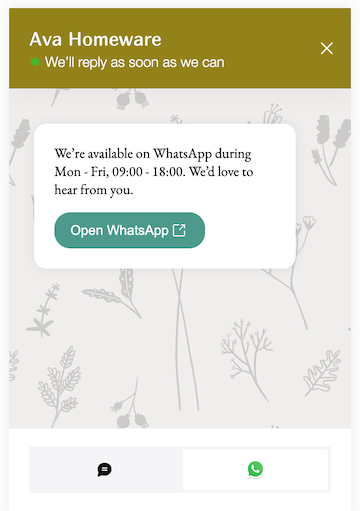
To add the WhatsApp channel to your chatbox:
Go to the Channels tab in your Chat Settings.
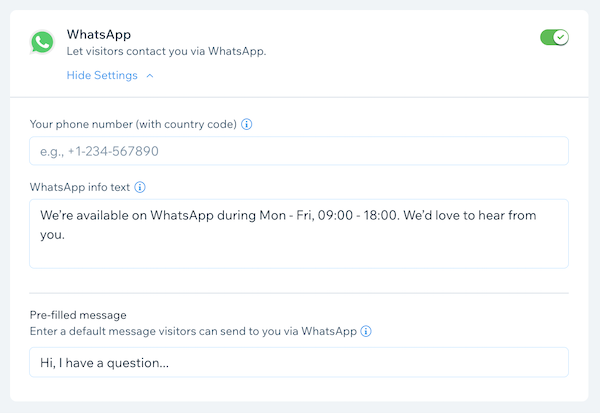
Click the toggle next to WhatsApp to let visitors contact you via WhatsApp in your chatbox.
Note: Click Get Started if this is your first time setting up chat channels.Enter your phone number in the Your phone number (with country code) field. This phone number should be the one linked to the WhatsApp account you'd like to use.
Note: Make sure you enter your phone number in full international format: a plus sign (+) followed by the country code, city code and local phone number, e.g. +1 408 XXX XXXX. Remember to remove any leading 0s.(Optional) Enter an info message (e.g. availability hours) in the WhatsApp info text field. This message appears in your chatbox when visitors select 'WhatsApp' as their preferred chat method.
(Optional) Enter a default message in the Pre-filled message field. Visitors can edit or change this message before they send it to you.
Click Save Changes at the top right.
Looking for more channels?
Messenger and phone calls will be added as additional chat channels soon. Click Set Email Reminder next to the relevant channel in the Channels tab to get notified when the channel becomes available.