


Emails, SMS, and promotions
Wix Bookings Troubleshooting: Emails Not Received
When one of your clients books or cancels a service, Wix emails you, your client and the staff member providing the service. If you find that you or your staff are not receiving emails from Wix Bookings, follow the steps in this article to try and resolve the issue.
Important information:
Email notifications are not sent for bookings made in preview mode.
If you're using a merchant account (e.g. PayPal, Stripe, Authorize.net), the email notification goes to the email address associated with that account.
Notifications about bookings and cancellations also appear at the top of your site dashboard.

Step 1 | Check your MX records if using your own domain
If the email address you're using for your Wix account is your domain's email address (i.e. example@yourdomain.com), check that your MX records are set up correctly and your domain is properly connected.
Step 2 | Confirm the relevant email addresses are correct
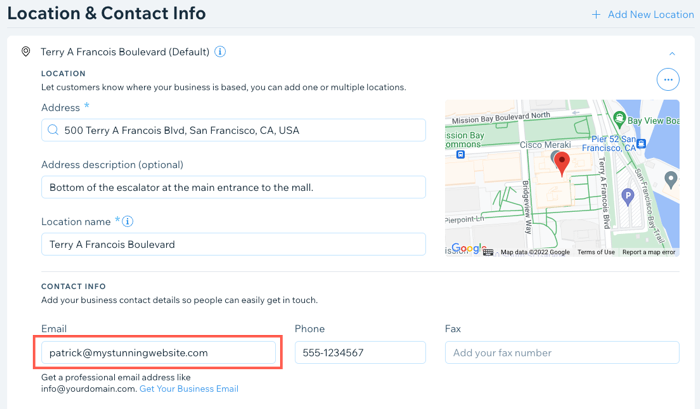
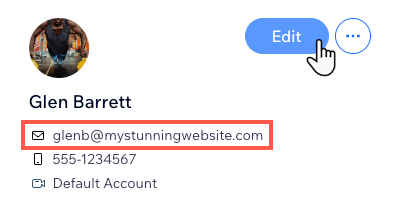
Your notification emails go to the address you enter in the Business Info tab in your site's dashboard. Your staff's notification emails go to the address listed in the staff tab of the dashboard. If necessary, edit these email addresses to the correct ones and save your changes.
To confirm your email address is correct:
Go to Business Info in your site's dashboard.
Check the email address under Location & Contact Info and edit if necessary.
To confirm a staff member's email address is correct:
Go to Staff in your site's dashboard.
Hover over the relevant staff member and click Edit.
Enter the staff member's correct email address if required.
Repeat steps 2 - 3 as necessary for other staff members.
Step 3 | Send a test email to confirm that you can receive emails
Send yourself a test email to make sure that your email address is receiving emails.
To send a test email:
Go to Booking Settings in your site dashboard.
Click Emails & SMS notifications.
Click Edit next to Send clients an email confirmation when they book.
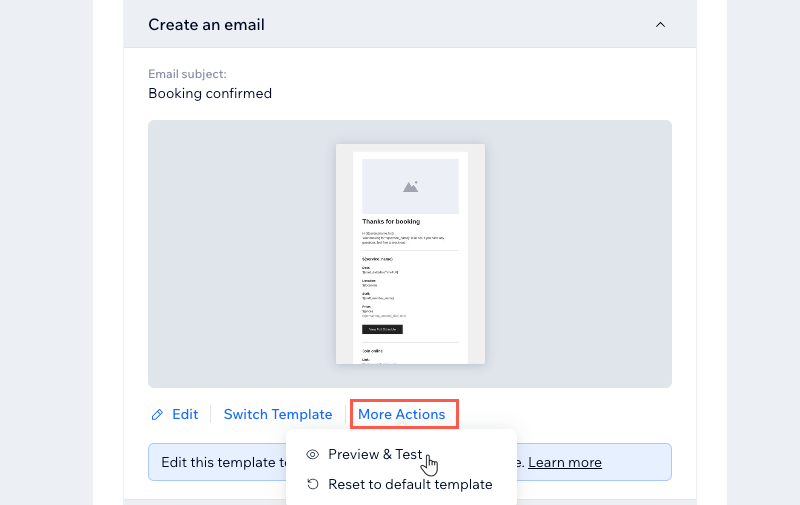
Scroll down to the Create an email section and click More Actions under the email preview.
Click Preview & Test.
Click Send Test Email in the top right.
Enter your email address in the Send to field.
Enter the Subject, Sender's name, and Reply-to email.
Click Send.
Click Done.
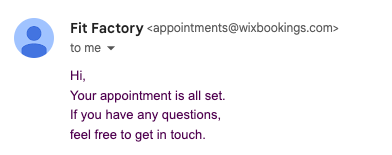
Check your email inbox for the test email.
Step 4 | Check your email account's spam folder
Check your email account's spam or junk folder to see if emails from appointments@wixbookings.com are being directed there in error. If they are, make sure to whitelist appointments@wixbookings.com.
Step 5 | Check with your email provider to see if Wix emails are blocked
If the test email didn't arrive, even after whitelisting emails from appointments@wixbookings.com, try contacting your email provider to ask if Wix notification emails are being blocked. If they are, ask your email host to whitelist them.
Still need help?
If the problem persists, contact us and please provide us with the following information:
The primary email address used to receive emails.
The tested email addresses used during troubleshooting.
Information from the latest service that was booked (within the last 5 days) for which you did not receive a confirmation email, including these details:Client's name
Client's email address
Date and time of service booked
Type of service booked