


Managing your calendar & bookings
Wix Bookings: Manually Scheduling an Appointment
You can manually schedule appointments for your clients directly through your booking calendar. This gives you the flexibility to manage your calendar efficiently and accommodate clients who may prefer to book over the phone or in person. This can be useful, for example, for booking clients in for follow-up appointments right after a session.
Notes:
It is not possible to book appointments for two different customers using the same email address.
The steps below are for manually creating a single service appointment for your clients. You can now also create multiple service appointments for your clients following these steps.
To manually add an appointment:
Go to Booking Calendar in your site's dashboard.
Click Add or select a time slot on the calendar.
Select Appointment.
Enter the Client name.
Note: For new clients, enter their name and then click + Add [New client name] to contacts. You can then enter their email and phone number to finish creating the new contact.Click Continue.
Click to select the service.
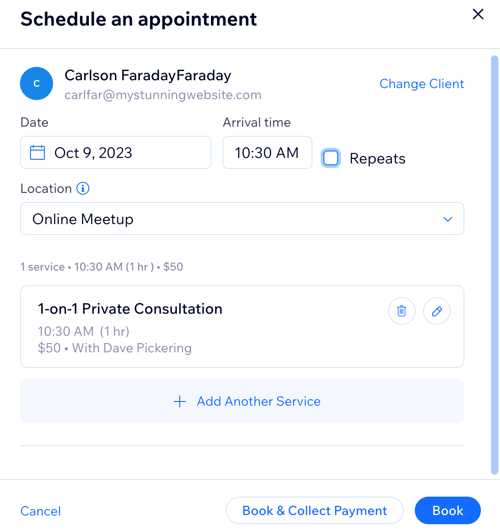
Enter the date, arrival time and location for the service.
(Optional) Click to select the Repeats checkbox if you want to create a recurring appointment:Select how frequently the recurring appointments take place from the Repeats drop-down.
Select the number of times the appointments repeat from the For drop-down.
(Optional) Click the Edit icon
next to the relevant service to modify it:
Edit any of the following details:Change service: Choose if you want to select a different service.
Session starts: Select the start time of the appointment.
Duration: Select how long the session will last.
Staff member: Choose the relevant staff member in charge of the appointment.
Note: If the selected staff member is not available at the specific date or time, a yellow scheduling conflict notification appears. You can still book the appointment and make the necessary arrangements with your staff.
Payment options: Choose how or when your client will be charged, depending on which payment plan.
Click Save.
(Optional) Click + Add Another Service and repeat steps 6-9.
Tip: Repeat these steps for any additional services you want to add. When you click any of the services in the booking calendar, you can see the number of bookings within the same order.(Optional) Choose if you want to update your client:Click the Notify via SMS checkbox to send an SMS notification with appointment details.
Click the Notify via email to send an email with appointment details.
Click Book.
Tips:
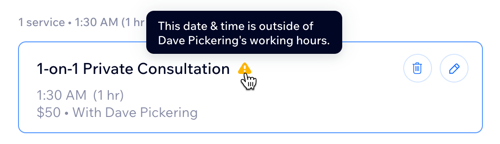
A notification appears if:You are scheduling the appointment outside working hours.
You haven't assigned a staff member to the service.
There’s another appointment booked at that time.
You can still go ahead with the booking; this is just to help prevent double bookings. If you’re booking a recurring session, any conflicts appear on the schedule summary page.
To schedule a similar session for the same client, select the relevant appointment on the calendar, then click Book Again. Fill in the appointment details to finalize the new booking.
