Managing your calendar & bookings
Wix Bookings: Managing Your Business with the Booking Activity Panel
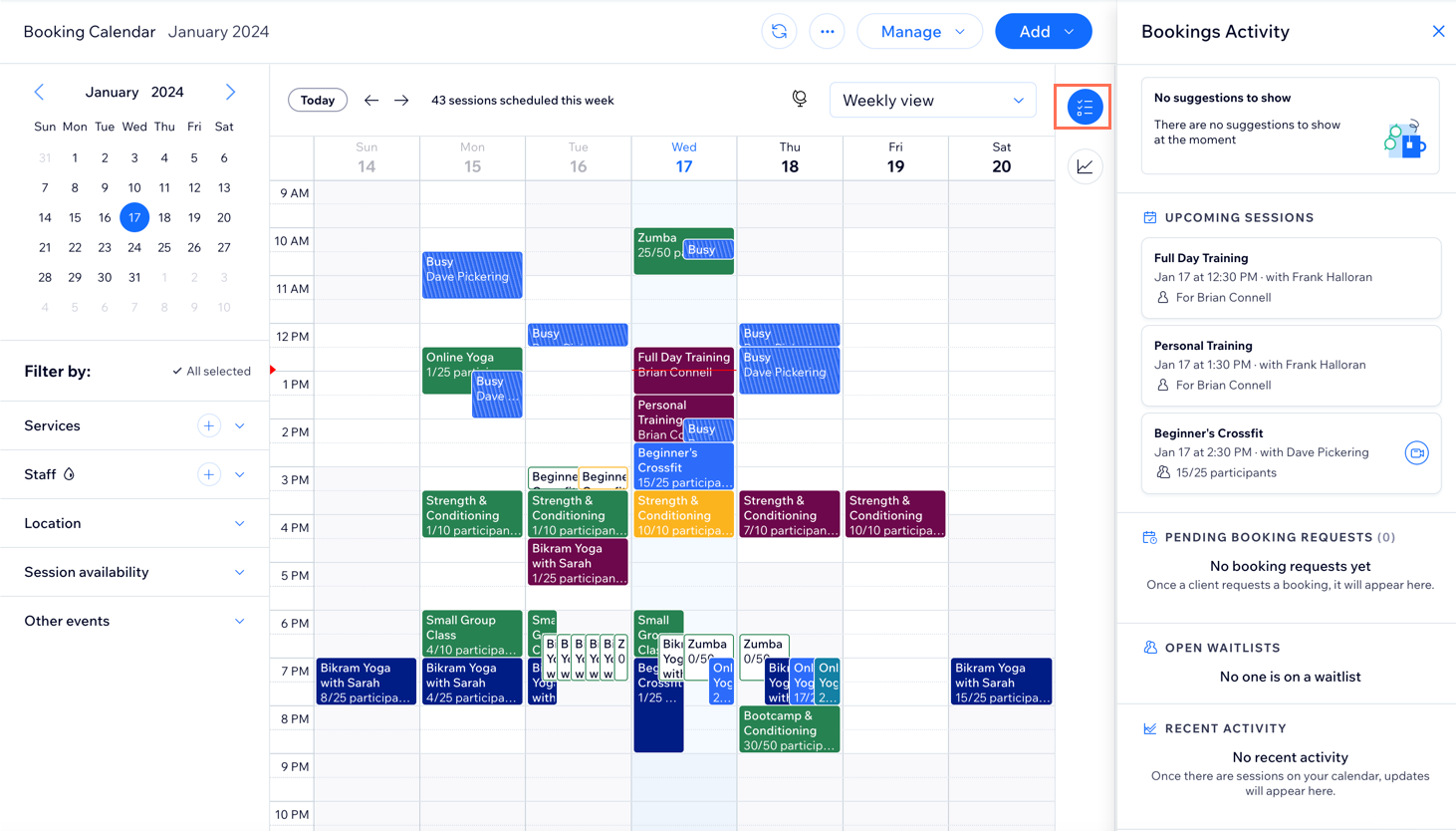
Manage your schedule, bookings and staff all in one place from the Booking Activity section of your Booking Calendar. See your upcoming sessions, pending booking requests, waitlists and more.
In this article, learn more about:
Pending booking requests
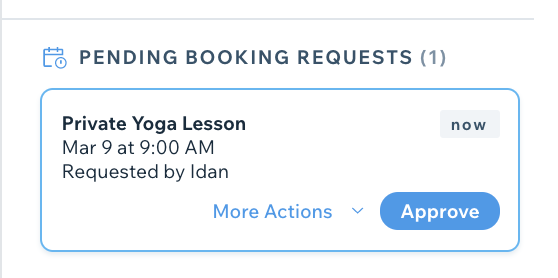
Check and approve your appointment booking requests from this widget. It shows three requests at a time, but you can see how many there are in total at the top. You can quickly approve, decline or reschedule each booking request to see the remaining requests.
Note:
This widget only appears for services where you activate manual approval for bookings.
To manage your pending booking requests:
Go to the Booking Calendar in your site's dashboard.
Click the Booking Activity icon
 at the top right.
Hover over the relevant booking request under Pending Booking Requests.
Choose what you want to do next:Click Approve.
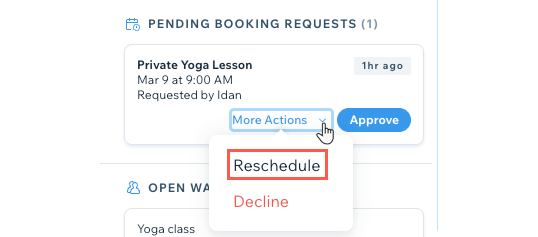
Click More Actions to either decline the booking request or propose a new time.
Open waitlists
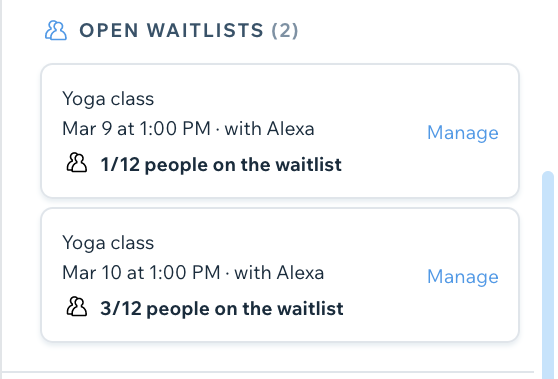
Make sure your sessions are full by reviewing and managing your waitlists with the Open waitlists widget. You can see up to three of your waitlists at a time, and their total number at the top. When you update or remove a waitlist, another appears in its place.
To manage your waitlist:
Go to the Booking Calendar in your site's dashboard.
Click the Booking Activity icon
at the top right.Click Manage on the relevant booking request under Open Waitlist.
Update your waitlist as necessary by adding clients to the session or removing them from the waitlist.
Note:
Only waitlists with at least one participant appear in the widget.
Suggested for you
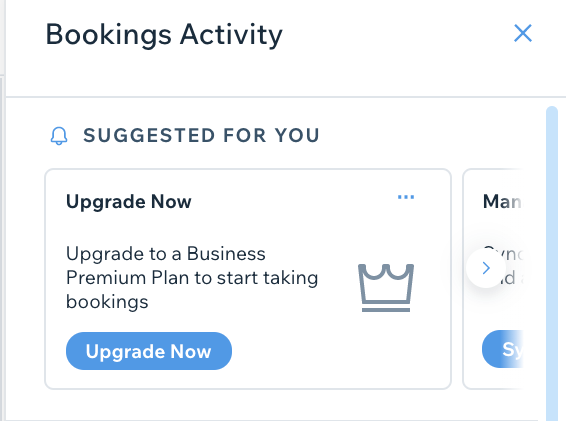
Stay up to date with the latest offerings and new features on Wix Bookings with the Suggested for you widget. The widget contains several suggestions to keep your site running as efficiently as possible.
To check your suggestions:
Go to the Booking Calendar in your site's dashboard.
Click the Booking Activity icon
at the top right.Click the arrows to scroll through the latest news and updates on the Suggested for you widget.
Click on any suggestion to begin updating your site as required.
(Optional) Click More Actions
 to hide or remove any suggestions. When you remove an offer, you won't see it again. When you hide it, it reappears after a period of time.
Upcoming sessions
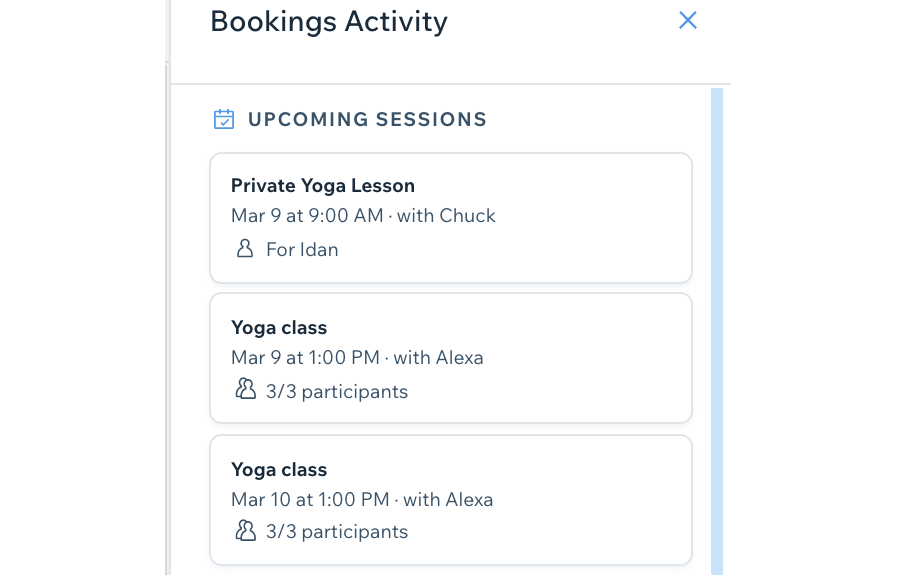
View the details of your next three upcoming sessions using the Upcoming Sessions widget. You can also launch your online sessions directly from the widget.
To view your upcoming sessions:
Go to the Booking Calendar in your site's dashboard.
Click the Booking Activity icon
at the top right.Scroll to view Upcoming sessions.
(Optional) Click Start Zoom Meeting
 to begin an upcoming online session.
Recent activity
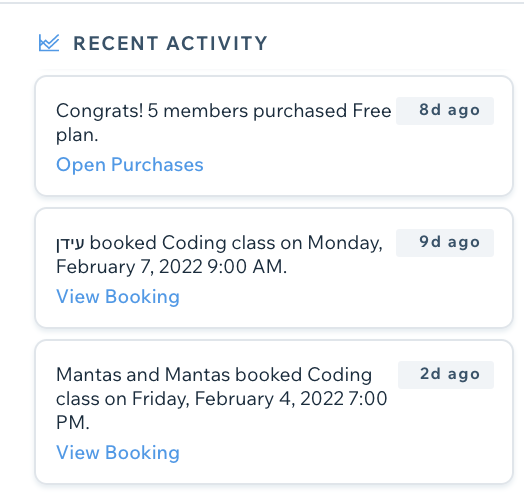
Check who booked or canceled a session, any pending requests or any new membership plans purchased all within the Recent Activity widget.
The widget displays the five most recent interactions with clients on your site. Click to view bookings, requests, cancellations and purchases.
To view your recent Bookings activity:
Go to the Booking Calendar in your site's dashboard.
Click the Booking Activity icon
at the top right.Scroll down to Recent Activity.