


Creating Your Services
Wix Bookings: Managing Services and Categories
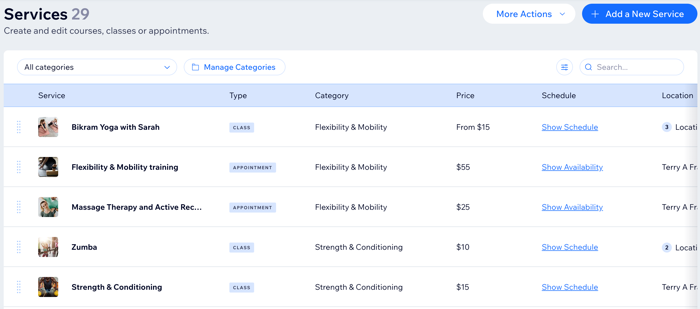
The Services tab in your site's dashboard displays all your offerings in one location. Search the list by service, filter by category, and reorder your services to suit your needs. You can also customize this table to show as many details as you like.
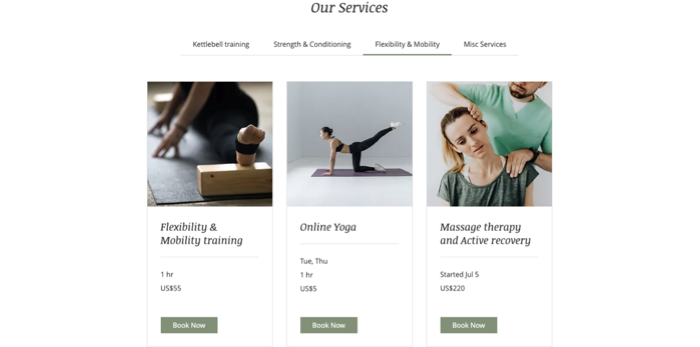
Group similar services into categories to make it easier for clients to find and book them on your site.
In this article, learn more about:
Creating categories
Adding categories is a great way of keeping your site organized and helping your clients find the services they need.
To create a category:
Go to Booking Services in your site's dashboard.
Click Manage Categories.
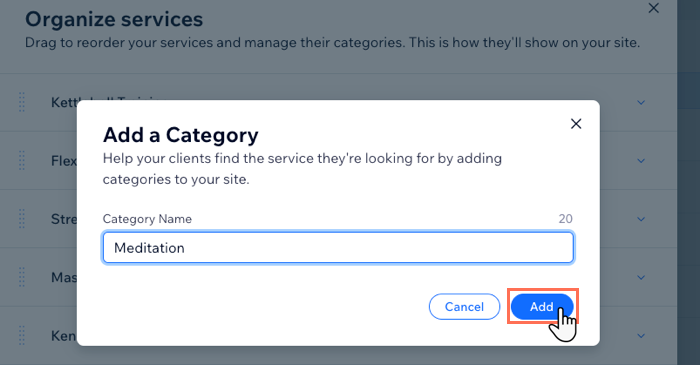
Click + Add New Category.
Enter the Category Name.
Click Add to save.
Assigning a service to a new category
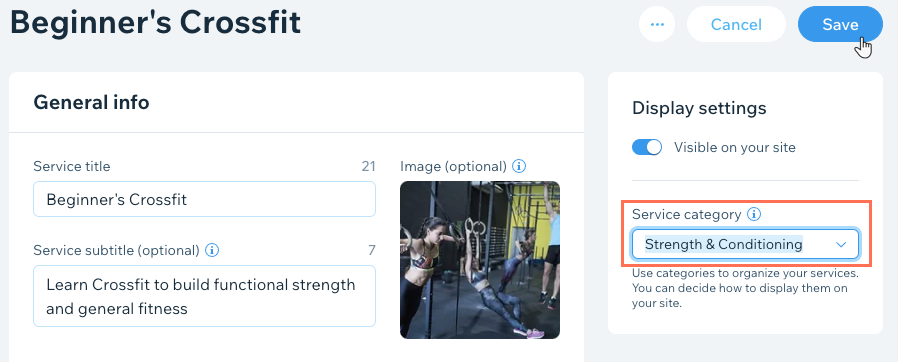
When you create a new service or edit an existing one, make sure to add it to the right category. This helps your clients find the service they're looking for.
Note:
You can assign a service to only one category at a time.
To assign a service to a category:
Go to Booking Services in your site's dashboard.
Select the service you want to assign to a category.
Click the Service category drop-down and choose the relevant category.
Click Save.
Reordering your services and categories
You can rearrange the order your categories appear in on your live site. This is a great way to promote new types of services. You can also make it easier for clients to find your most popular services.
To reorder your services and categories:
Go to Booking Services in your site's dashboard.
Choose what you want to do:
Reorder services:Select a category from the drop-down at the top.
Click and hold the drag handle next to your services to drag and drop them into your preferred order.
Note: You can only reorder services within their categories, not when viewing the "All categories" list.
 Reorder categories:Click Manage Categories at the top of the list.
Click and hold the drag handle next to your categories to drag and drop them into your preferred order.
(Optional) Hover over any category to rename or delete it using the buttons provided. You can also click + Add New Category at the bottom to create new categories.

Tip:
You can also rearrange your categories by clicking Manage categories in the More Actions drop-down at the top of the page.
Renaming categories
You can change the name of a category at any time. Make sure to give your categories titles that best describe the group of services.
To rename a category:
Go to Booking Services in your site's dashboard.
Click Manage Categories.
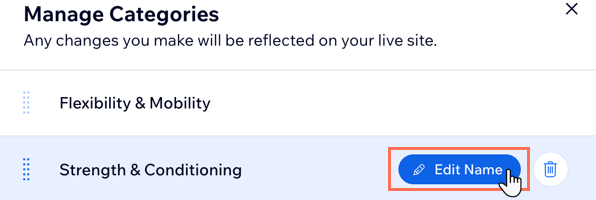
Hover over the category you want to rename.
Click
 Edit Name.
Enter the new category name.
Click Save.
Deleting a category
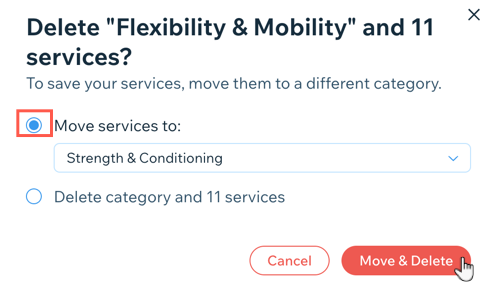
When you delete a category, you can choose to move the services it contains to another category on your site. You can also permanently delete a category and its services if you no longer offer them.
Important:
If you choose to delete a category and the services it contains, you cannot recover the services and will have to recreate them manually.
To delete a category:
Go to Booking Services in your site's dashboard.
Click Manage Categories.
Hover over the relevant category.
Click Delete
 .
.Choose what you want to do:
Move services to:Click to select the relevant new category from the drop-down.
Click Move & Delete.
Delete category and [x] services:Click Delete to confirm.
Note: You cannot undo this action and will have to recreate deleted services from scratch.
Changing the view and filters on your Service List
You customize how you view your services in the Service List to see as many or as few details as you need. Choose to display the service type, price, location, staff member and more.
To change the view and filters on your Service List:
Go to Booking Services in your site's dashboard.
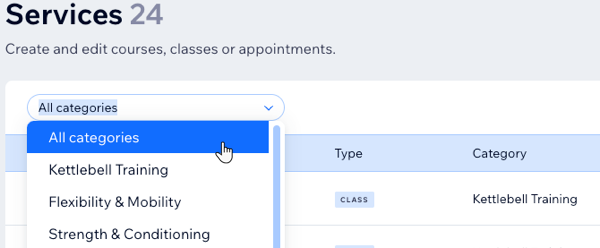
Click the Categories drop-down.
Select the relevant service category you want to see.
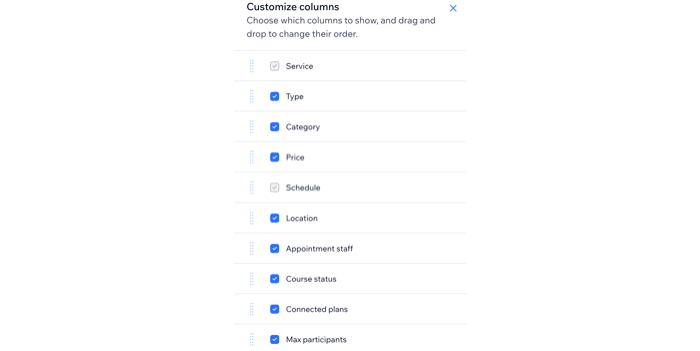
Choose the details you want to see about services in this category:Click the Customize columns icon
 next to the search bar.
Select the checkbox next to each detail you want to see (for example, Type, Price, etc.)
Tip:
Scroll right to view additional columns you add in the service list.