


Emails, SMS, and promotions
Wix Bookings: Letting Clients Book Your Services With ClassPass
Create an additional revenue stream, increase exposure for your business, and reach new clients by integrating your site with ClassPass. ClassPass operates worldwide, and allows clients to access fitness, beauty and wellness services when traveling or living in different locations.
Before you begin:
In this article, learn more about:
Connecting the ClassPass app to your site
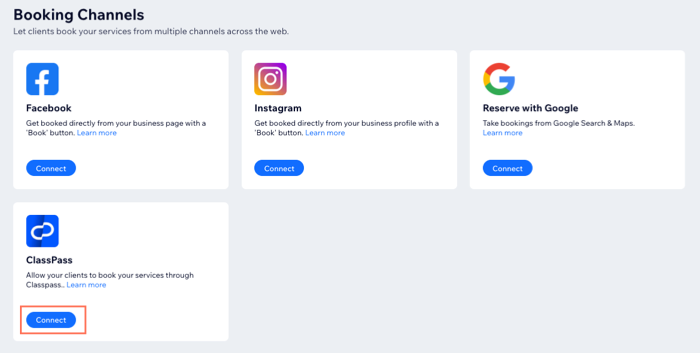
You can connect your ClassPass account to your Wix site from Booking Channels in the dashboard.
To connect the ClassPass app to your site:
Go to Booking Channels in your site's dashboard.
Click Connect under ClassPass.
Follow the on-screen instructions to log in or create your ClassPass account.
How bookings from ClassPass appear on your site
ClassPass bookings appear on your site like regular bookings, but with a note indicating ClassPass as the source. Below are a few examples of how bookings made via ClassPass appear in the Booking Calendar, participants list, Contact cards, the Orders tab and on the Wix app.
Click an option below to see how bookings via ClassPass appear:
In the Booking Calendar
Go to Booking Calendar in your site's dashboard.
Click the relevant session in the calendar.
The message, "Booked via ClassPass", appears under the Payment status.

On clients' Contact Cards
Go to Contacts in your site's dashboard.
Hover over the relevant contact and click View.
Scroll down to Labels, to view the "ClassPass contact" label.

In the Orders tab
Go to Orders in your site's dashboard.
Select the relevant order.
Two ClassPass indications appear on the order: one under Payment Info and another below the More Actions menu at the top.

Disconnecting the ClassPass app from your site
You can disconnect the ClassPass app from your Wix site at any time. You will no longer receive bookings from ClassPass and your business won't be visible on the app.
To disconnect the ClassPass app from your site:
Go to Booking Channels in your site's dashboard.
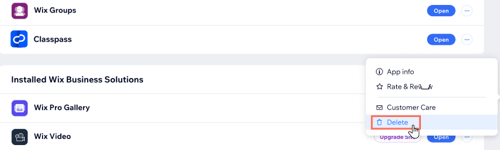
Click Manage under ClassPass.
Click the More Actions icon
 next to ClassPass.
Click Delete.
FAQs
Click a question below to learn more about integrating the ClassPass app with your Wix Bookings site.
Can clients reschedule sessions through the ClassPass app?
Clients using the ClassPass can’t reschedule a specific session through the app, they need to cancel the session on ClassPass and re-book their preferred time.
If a client cancels their session on the ClassPass app, will I get a notification?
Yes, all cancellations made on the ClassPass app trigger notifications in your site's dashboard.
Do clients booking through the ClassPass app automatically appear in my site contacts?
If the client's email address they used to sign up for ClassPass does not already exist on your site, a new contact appears on your site.
The client's first and last name, and, if required, their phone number all appear. ClassPass contacts display a generic ClassPass email address: firstnamelastname@client.classpass.com.