


Managing your calendar & bookings
Wix Bookings: Increasing Bookings with the Service Upsell Guru App
The Service Upsell Guru app helps you sell more services to your clients. On the Booking Form, when clients book a service, they see additional services they can add to their cart. The app offers services that have availability immediately or up to 2 hours after the original service chosen, ensuring a smooth booking experience, while helping to increase your revenue.
Important information about the Service Upsell Guru app:
Before you start using Service Upsell Guru, there are a few requirements you need to take care of first:
The Service Upsell Guru app is currently only available in English.
For assistance with the Service Upsell Guru app, contact their support directly at: support@productiveapps.com
You need to have Wix Bookings installed on your site to use the Service Upsell Guru app.
Your site must have a Premium plan and a connected domain to use the Service Upsell Guru app.
The Service Upsell Guru app currently works with appointments and classes, but not courses.
Make sure you have enabled Cart in Booking Settings.
Step 1 | Adding the Service Upsell Guru app to your site dashboard
Add the Service Upsell Guru app to your site from the Wix App Market.
To add the Service Upsell Guru app:
Search for “Service Upsell Guru” in the Wix App Market.
Click Select.
Select the relevant site if you have more than one.
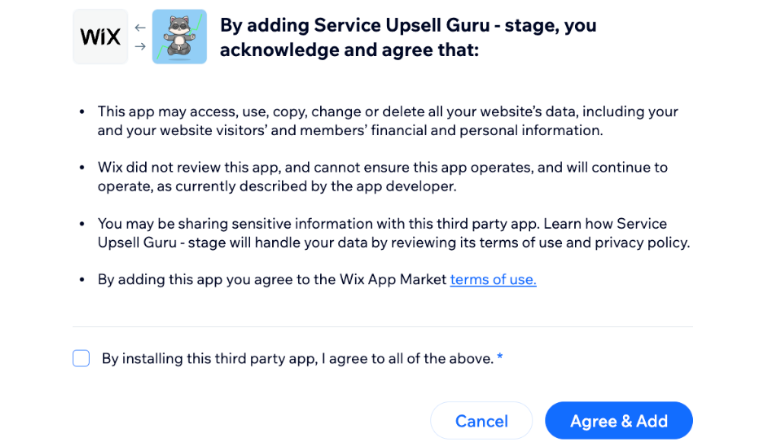
Select the terms and conditions checkbox.
Click Agree & Add to grant the app access to your site.
Step 2 | Creating up your offers with the Service Upsell Guru app
Offer additional services for clients to book within the same visit. Offer various combinations of services that clients can book back-to-back.
Notes:
Services that can only be paid with Pricing Plans and services that require manual approval cannot be included in your offers.
If the trigger service is set to be paid online, the upsell service will also be paid online. The same rule applies for paid in person services.
To create an offer:
Go to Manage Apps in your site's dashboard.
Click Service Upsell Guru
Click + Create Offer.
Enter the Offer name.
Note: This name doesn't appear on your site and is for internal use onlyClick Continue.
Select the checkboxes next to all relevant services you want to trigger the upsell offer.
Click Next.
Select the checkboxes next to all relevant services you want to offer right after the trigger services you selected in step 6.
Click Save.

Step 3 | Activating the Service Upsell Guru app in your editor
Once you have added the Service Upsell Guru app in your dashboard and created your offer, you need to go to your editor to activate it.
To add the Service Upsell Guru app in your editor:
Wix Editor
Studio Editor
Go to your Booking Form page:Click Pages & Menu
 on the left side of the editor.
Click Bookings Pages.
Click the Booking Form page.
Click the Booking Form element on your page.
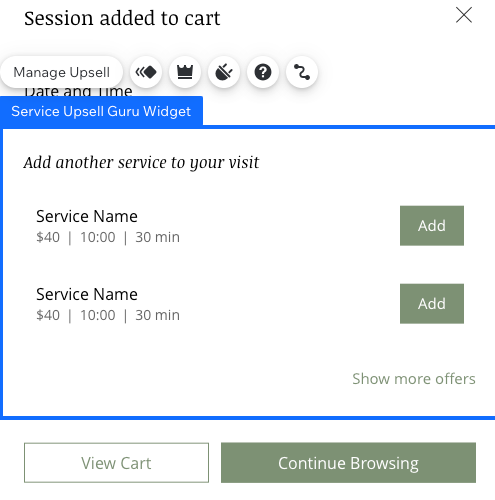
Click the Plugin icon
 to confirm the Service Upsell Guru app is installed.
Click Publish at the top of the page.
FAQs
Click a question below to learn more.
Can I view my revenue from upsells?
Yes, you can view the number of upsells and revenue from the past 30 days, as well as your total upsells and revenue, at the top of the Service Upsell Guru app in your site's dashboard.

What are the requirements to use the Service Upsell Guru app?
To use the Service Upsell Guru app, you need to have Wix Bookings installed on your site, a Premium plan, a connected domain, and the Cart enabled in Booking Settings. Note that the app is currently only available in English and works with appointments and classes, but not courses.