


Creating Your Services
Wix Bookings: Adding a Time Buffer Between Appointments
Set a time buffer between your appointments to space them out. This gives you and your staff enough time to prepare for the next session, especially if it's at a different location.
Tip:
A time buffer reduces the availability of your service. For a complete list of the factors that determine the availability of appointments, click here.
In this article, learn more about:
Setting a time buffer
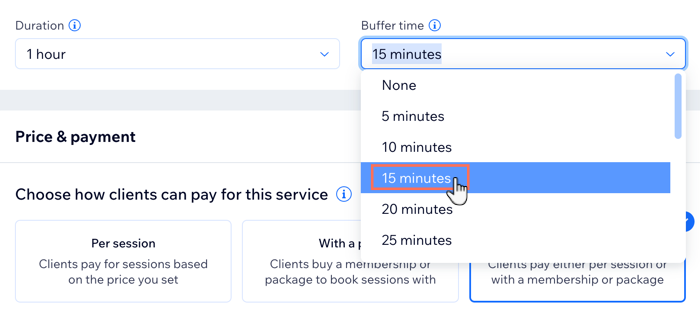
You can set a time buffer for each of the services you offer, according to your needs. For example, if you set a time buffer of 15 minutes, clients can't book sessions 15 minutes before or after a booked session.
To set a time buffer:
Go to Booking Services in your site's dashboard.
Select the relevant appointment.
Scroll down to the Service details section.
Click the Duration drop-down to choose how long your service lasts.
Tip: Choose Custom to enter a specific duration in hours and minutes.Click the Buffer Time drop-down to choose how long of a break you have between appointments.
Tip: Choose Custom to enter your own buffer time duration in hours and minutes.Click Save.
Time buffers in your Booking Calendar
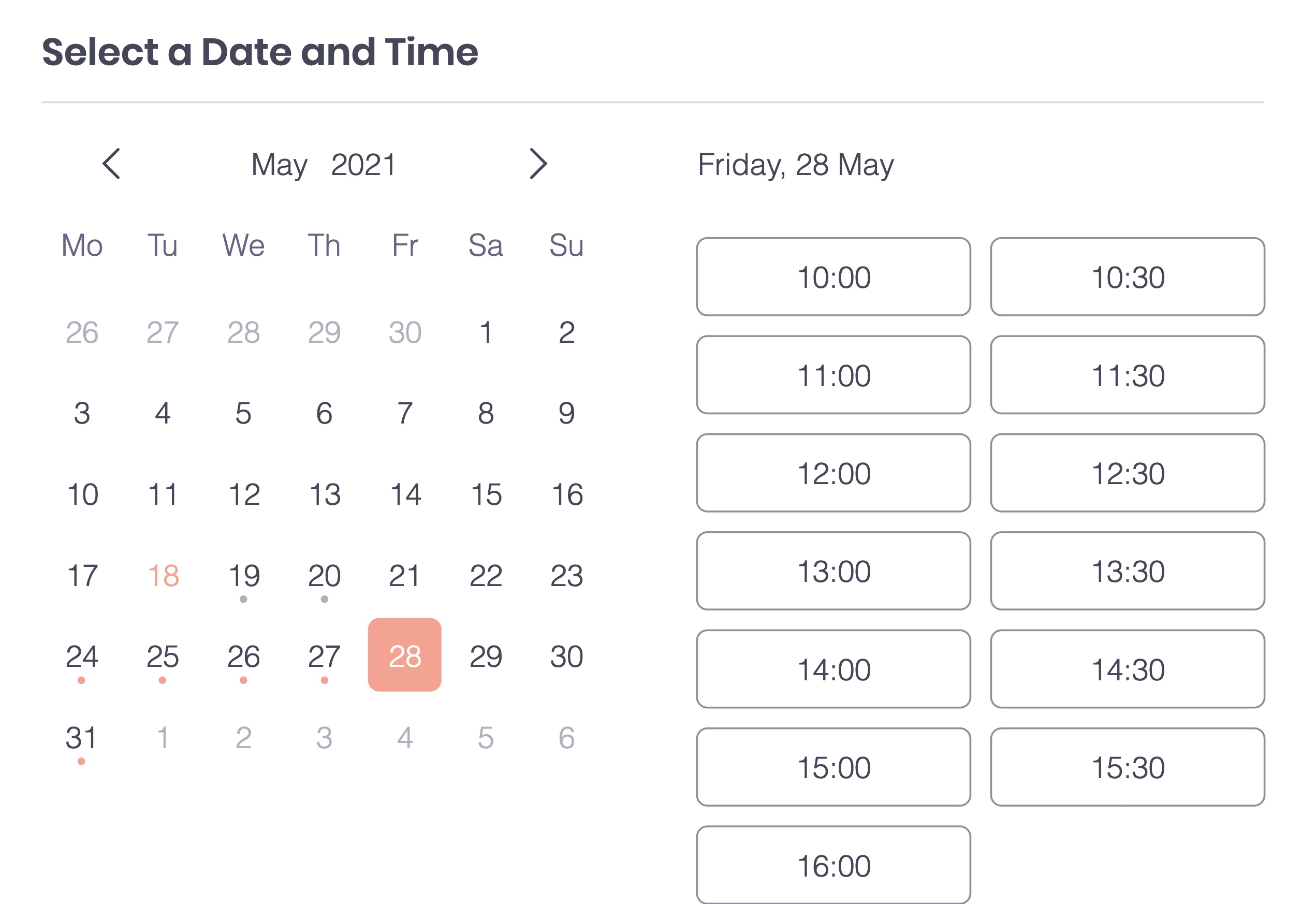
Here's an example of the time buffer feature in use. Holly is a photographer who offers two-hour photo shoots. Her business hours are from 10:00 AM to 6:00 PM and she has set her appointment time slots to 30 minutes. Holly has a 30-minute time buffer.
Her calendar looks like this before any bookings are made.
After a customer books a two-hour photo shoot from 1:00 - 3:00 PM, the calendar looks like this:
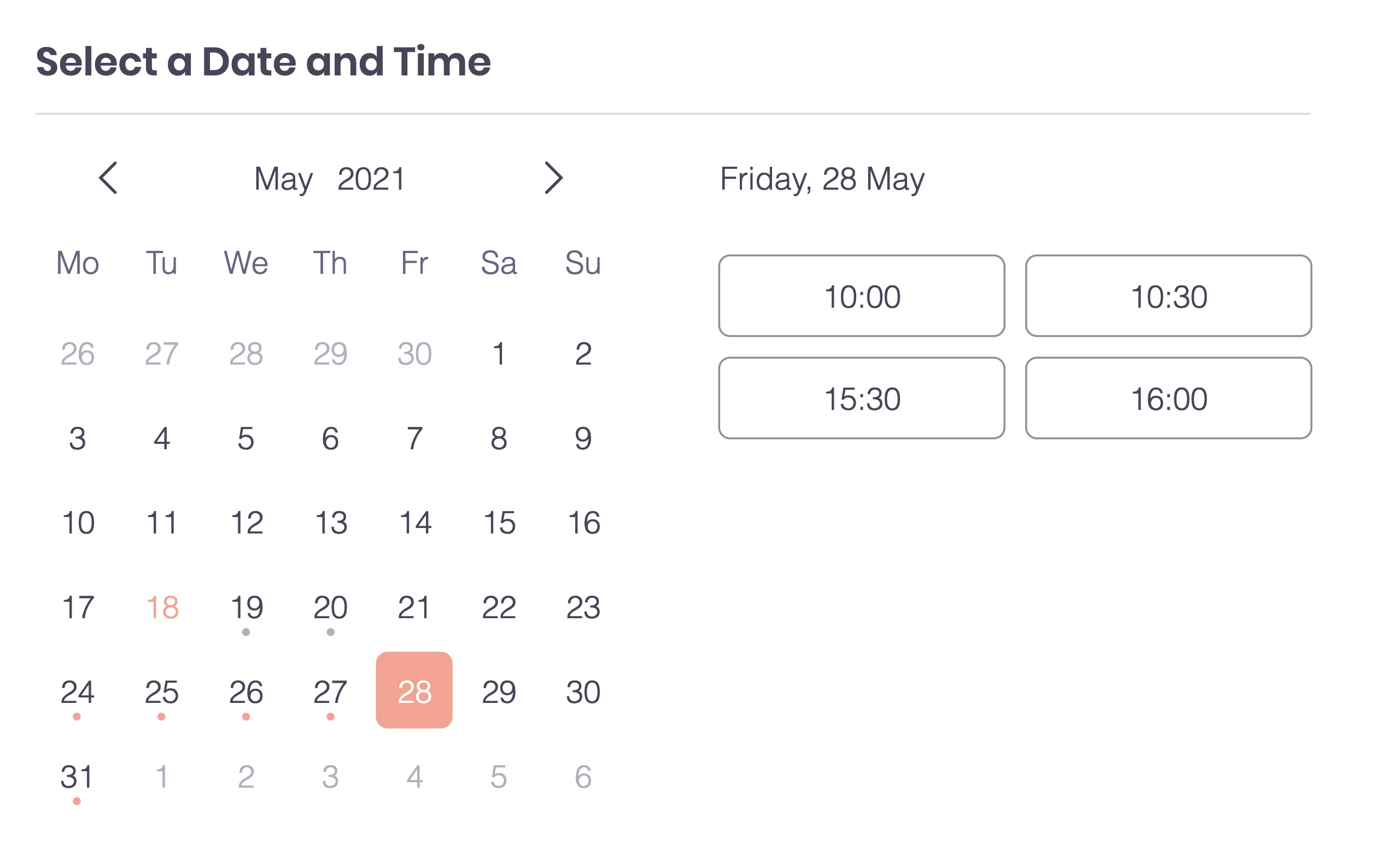
Customers cannot book an appointment at 11:00 because there is a 30-minute time buffer. An appointment starting at 11:00 would end at 13:00 leaving no time between before Holly's 13:00 booking. Similarly, clients cannot book at 15:00, because that would cause back to back bookings.
Note:
Creating buffer time does not add 'busy' slots like those from personal appointments in your Google Calendar. You can manually extend the 'busy' slot in your Google Calendar to allow for any additional time you need as a buffer.