


Additional Wix Apps
Wix Apps: Adding and Setting Up the PDF Viewer App
The PDF Viewer app by Wix allows you to share PDF files directly on your website. This tool offers a seamless way for your site visitors to view, download, or print your PDFs without leaving your website. As a site owner, this can help you provide important information, share your work, or distribute resources easily and efficiently.
For example, if you're a teacher with your own site, you could use the Wix PDF Viewer app to share lesson plans, assignments, or reading materials directly with your students. This ensures your students can always access the materials they need right from your site.
Step 1 | Add the PDF Viewer app to your site
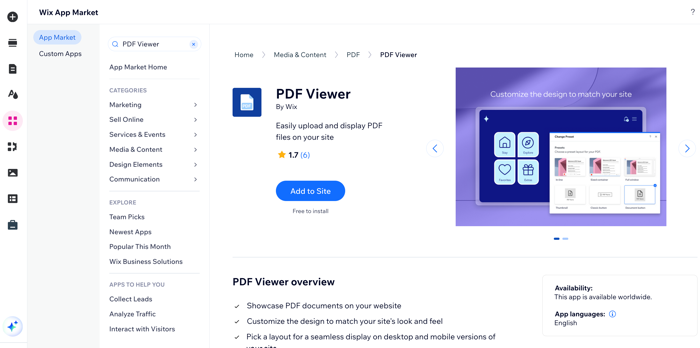
Add the PDF Viewer app to your site for free from the Wix App Market.
Wix Editor
Studio Editor
Click Add Apps
 on the left side of the editor.
Search for the PDF Viewer app in the search bar.
Click Add to Site.
Tip:
You can cut and paste the app to move it to another page on your site.
Step 2 | Upload a PDF to the app
Once you've added the app to your site, you can start uploading your PDFs that you want to display on your site.
To upload a PDF:
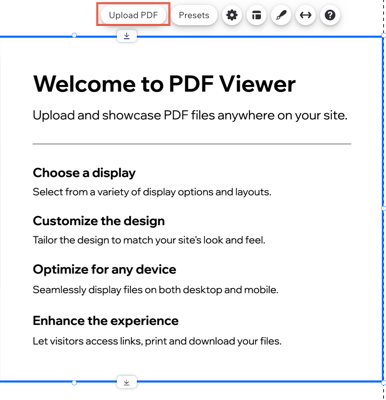
Click the app in your editor.
Click Upload PDF.
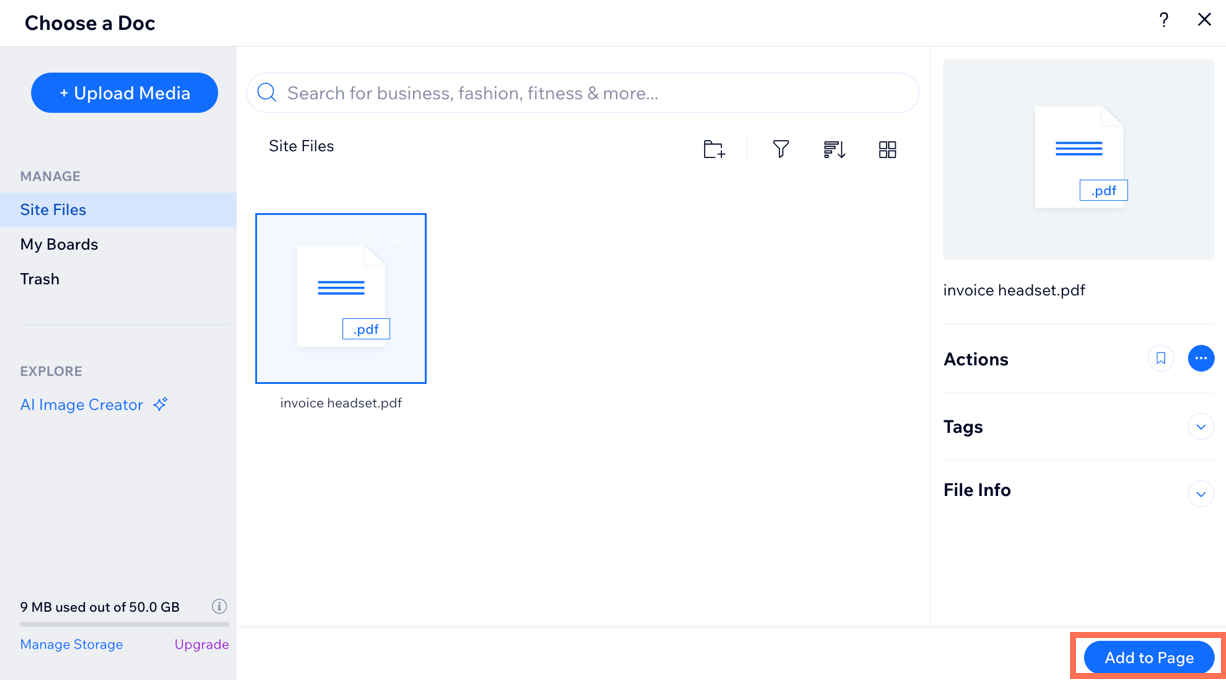
Click Add File.
Select a file from your media manager or click Upload Media to upload a new file. Note: Files must be in PDF format.
Click Add to page.
Step 3 | Customize the design
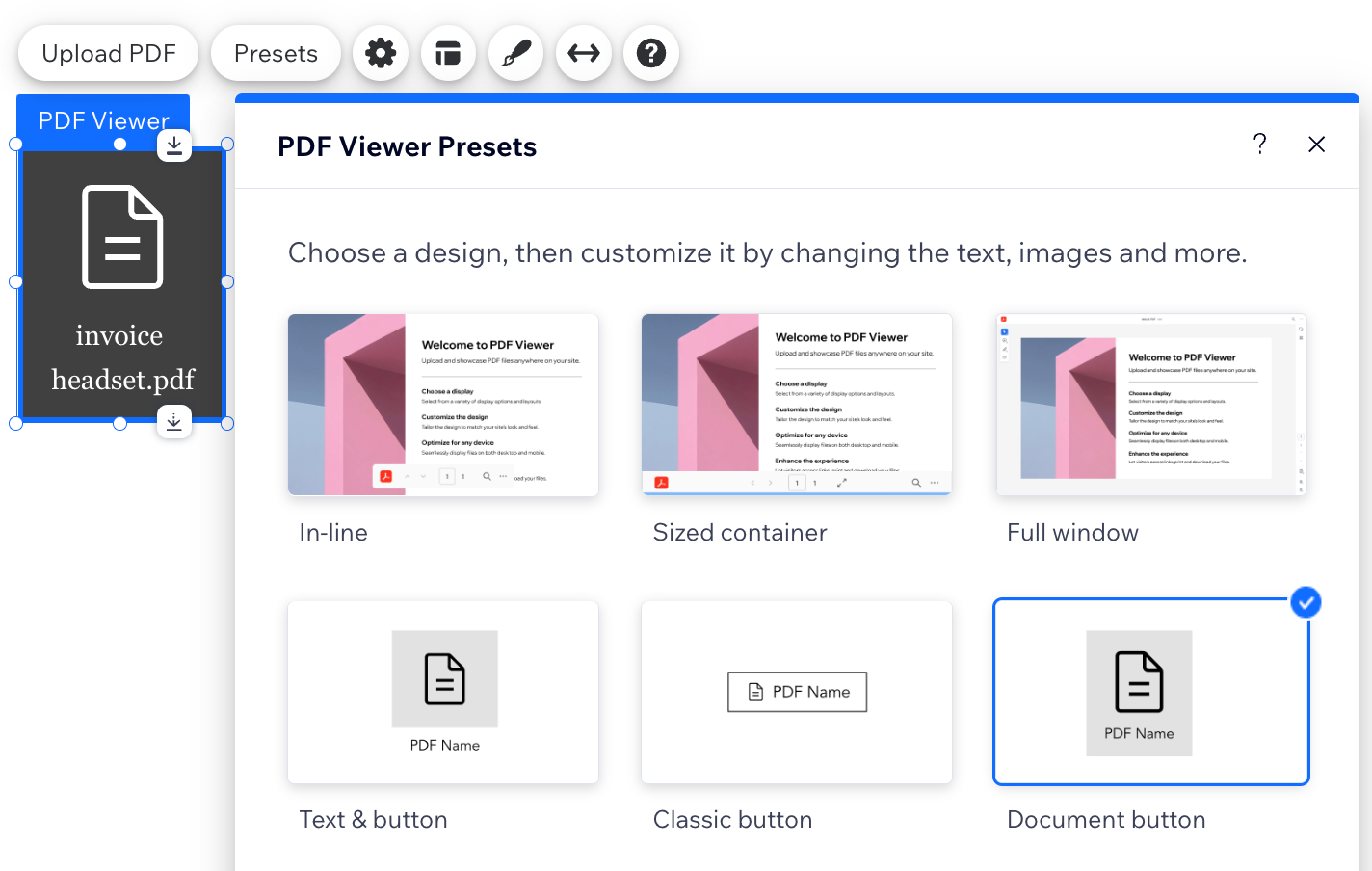
In order to customize the look and feel of the app on your site, you need to select a preset from the options available. Presets are predesigned templates that we have created for you. You can choose from 6 presets, In-line, Sized container, Full window, Text button, Classic button and Document button.
Note:
Not all presets are customizable.
To customize a preset:
Click the app in your editor.
Click Presets.
Select a preset from the options available.
Click the Settings
 icon.
icon.Customize the settings available.
Click the Layout
 icon.
icon.Customize the layout options available.
Click the Design
 icon.
icon.
FAQs
Can I display other file types?
No, the app only allows for PDF files to be added to your site.
Can I display more than one PDF?
Yes, you can copy and paste the widget on the same page or to other pages on your site and upload another file.
How do I change the existing PDF file and replace it with a new file?
You can change or remove the file that is displayed in the app by following the steps below:.
Click the app in your editor.
Click Upload PDF.
Click Change or click Remove.
Where can I see all my uploaded files?
You can view all your uploaded files in your Media Manager.
Can I restrict access to certain PDFs?
You cannot do this directly from the PDF Viewer app, however, you can password protect certain pages on your site, which restricts viewing to only those that know the password.