Wix FAQ App
The Wix FAQ App: An Overview
With the Wix FAQ app, you can create beautiful and helpful FAQs for your visitors. These are a great addition to any site, as they provide quick answers to common questions about your products or services, saving yourself time by reducing your customer support requirements.
The FAQ app also looks great on mobile devices, so your site visitors can get the answers they need, wherever they are.

Get started by installing the Wix FAQ app from the Wix App Market in just a couple of clicks. Click here to install the FAQ app.
Easily create and manage your FAQs
After you've added the app, you can start writing your questions and answers directly from the Editor or from your site's dashboard.
Add different types of media to your FAQs to create a richer experience for your site visitors, including your own images and videos, GIFs, maps, emojis, or posts from your social media accounts such as Twitter, Instagram and TikTok. Learn more about adding media to your FAQs.
Once you've created your FAQs, organize them into categories to make it easier for your visitors to find an answer to a question on a particular subject. For example, you might want to split your FAQs up into separate categories such as Delivery, Returns, and Refunds. What's more, you can choose which categories you want to display on your site. Learn more about FAQ categories.
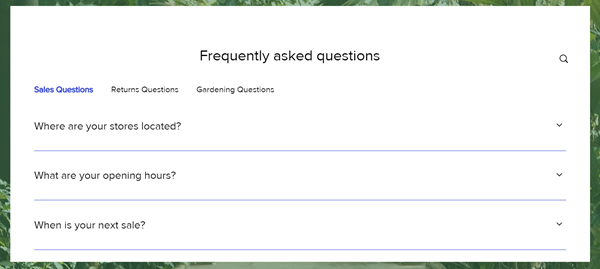
Managing your FAQs is also easy; you can update and make changes to them at any time from your Editor or from your site's dashboard. Learn how to manage your FAQs.
Got a multilingual site?
If you use Wix Multilingual, you can also translate your FAQs so that they are available in each of the language versions of your site.
Design your FAQs to match your brand
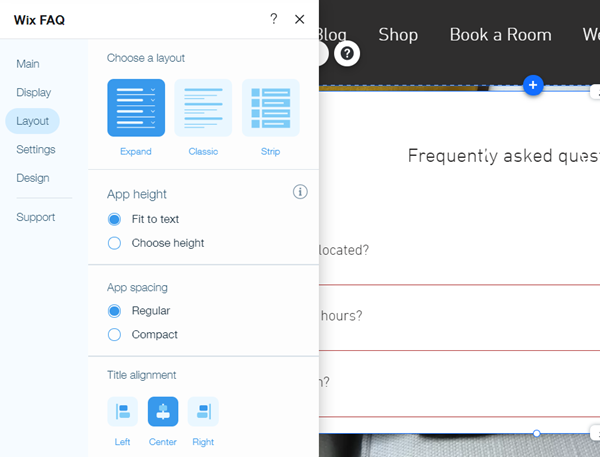
Customize the design of your FAQs to match your brand and site. Choose from a variety of layouts and style options, customize all of the text fonts and colors, change the background of your questions, set the color of your links, and more.
Share your FAQs to drive traffic
Add social media share buttons (including Facebook, Twitter, or LinkedIn) to your FAQs so that you or your visitors can share them with others and drive traffic and business back to your site. You can also copy a direct link to a specific question and share it anywhere you want. Learn more about sharing an FAQ.
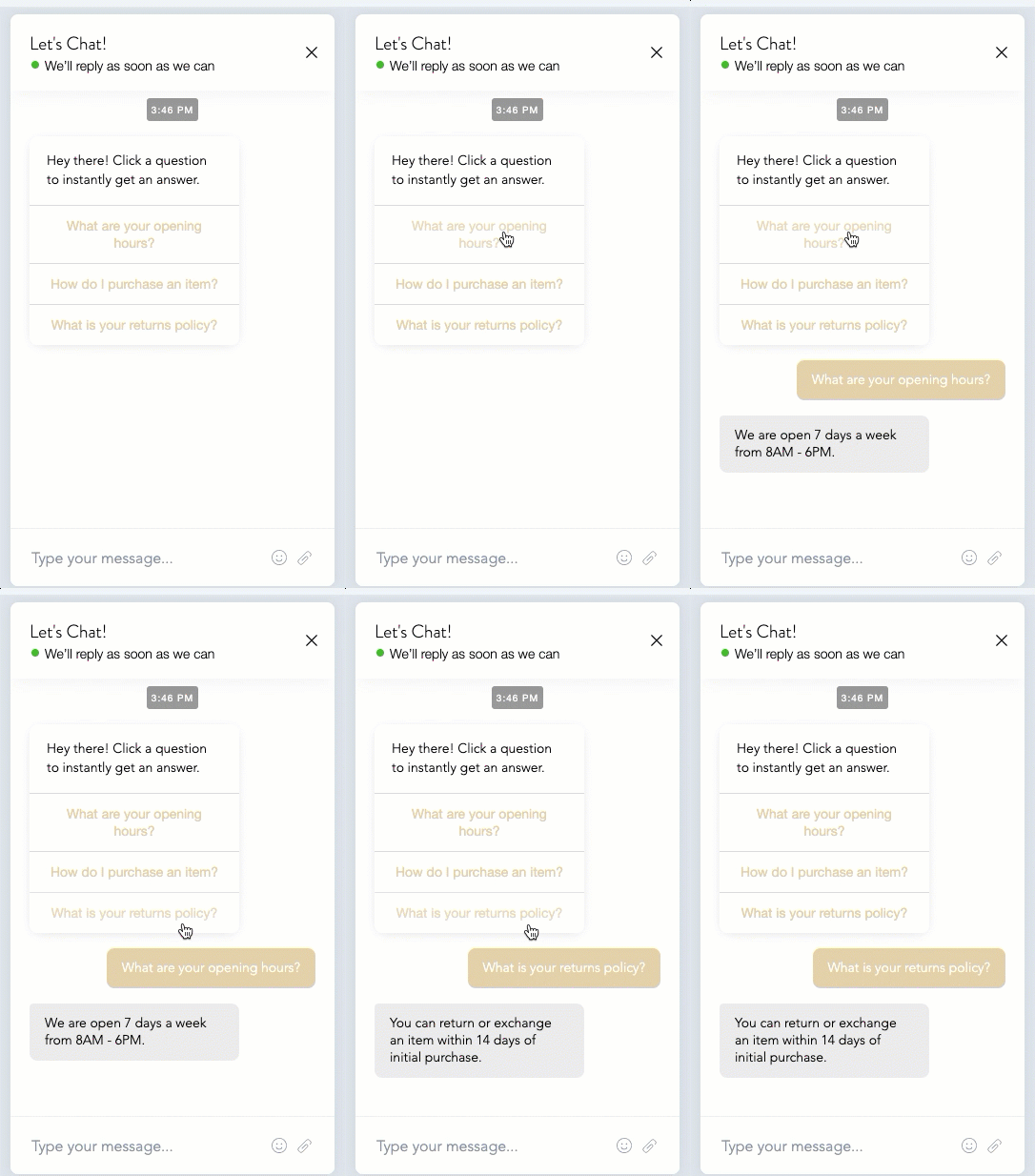
Additionally, you can display your FAQs in your chatbox on your site to help customers instantly find answers to their questions even if you're not available to chat. Learn how to add FAQs to Wix Chat.