


Sell online apps
Redeeming Your Smile: Points & Rewards Promo Code
The Smile: Points & Rewards app lets you build and customize a loyalty program to suit your business.
Your customers can earn points from purchasing your products, sharing them on social media, or leaving a review. When they have enough points, they can redeem them on their next purchase.
As a promotional gift, you get a one-year free Smile: Points & Rewards promo code when you purchase a Premium Plan. Follow the steps below to redeem your promo code.
Step 1 | Add the App to Your Site
First, you'll need to add the Smile: Points & Rewards app to your site.
To add the app:
Go to the Wix App Market.
Type "Smile: Points & Rewards" in the search bar.
Select the app from the results.
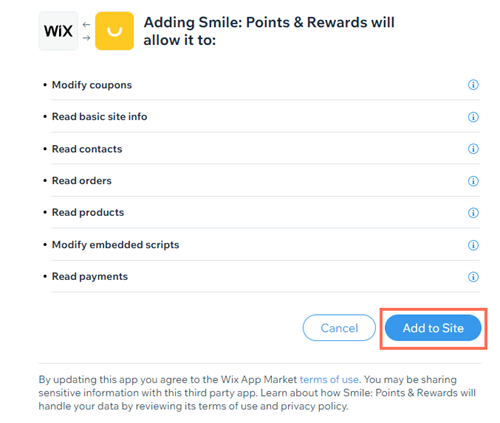
Click Add to Site.
Note: If you have more than one site, choose the site that you want to add it to.Click Add to Site on the permissions page.
Step 2 | Create a Smile: Points & Rewards Account
After you've added the app to your site, you'll need to create a Smile: Points & Rewards account.
To create an account:
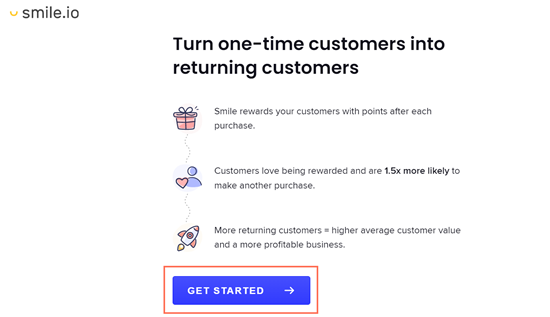
Click Get Started on the smile.io page that opens after you add the app to your site.
Enter an email address and password.
Click Create Account.
Enter a name for your program and choose a language and click Next.
Choose a brand color for your program and a color for your program text and click Next.
Select an industry under What kind of products do you sell? and click Next.
Select an average order value and click Next.
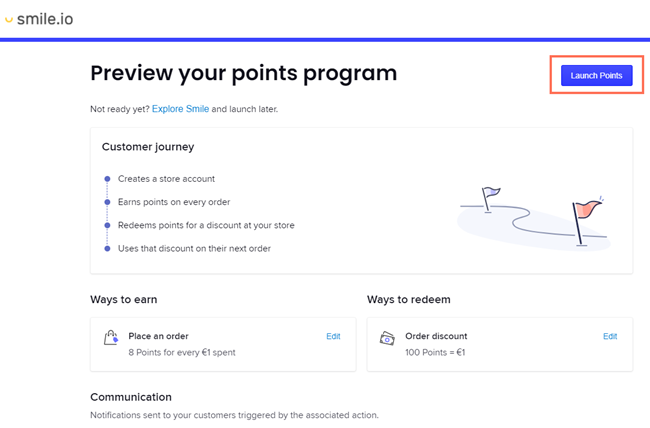
Review the details of your program, then click Launch Points.
Step 3 | Add Your Promo Code
The last step is to upgrade the Smile: Points & Rewards app in your site's dashboard and add your promo code.
To add your code:
Go to Manage Apps in your site's dashboard.
Click Upgrade next to Smile: Points & Rewards.
Select Premium.
Choose a yearly billing period under Select a Subscription Period.
Choose a payment method, or enter your billing information to add a new one.
Click Enter a promo code under Summary.
Enter the promo code "SMILE1YEAR" and click Apply.
Click Submit Purchase.