


Setting up Online Programs
Online Programs: Managing a Quiz
Use multiple-choice, open-ended, and other question types to test what participants learned or gather their feedback. This helps you understand your audience better and improve your content. For example, if you run an online cooking class, you can create a quiz to see if participants remember key recipes or use it as a survey to gather their opinions on the class.
Before you begin:
Make sure you've added a quiz to your program.
In this article, learn more about:
Managing your quiz questions
After you create your quiz or survey, you can go back at any time and make changes to the questions and answers. You can also delete questions and answers that you no longer need.
Dashboard
Wix app
Go to Online Programs in your site's dashboard.
Click the relevant program.
Scroll down to the Content / Schedule section.
Choose what you want to do next:
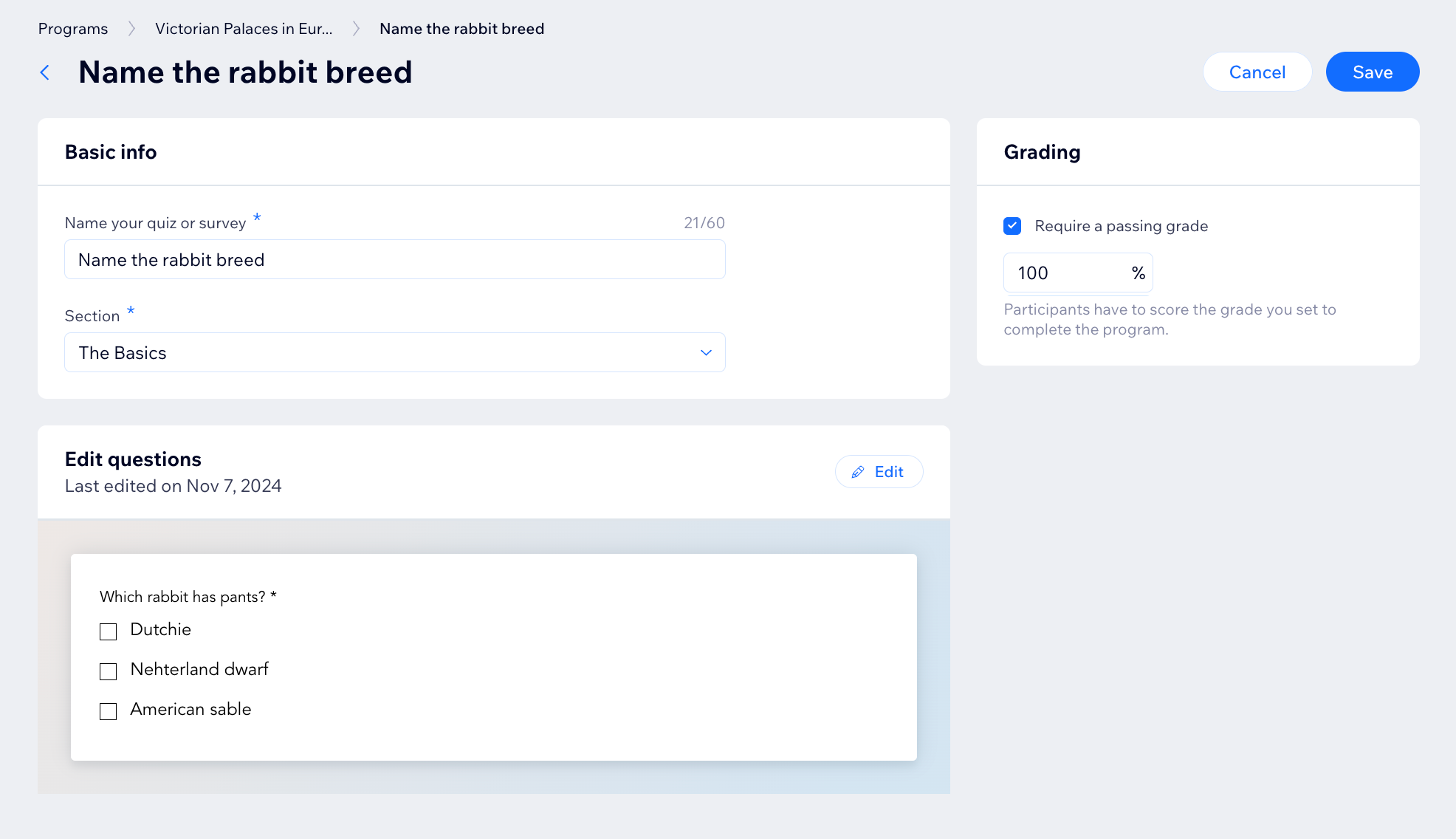
Change the quiz's basic info
Hover over the relevant quiz and click Edit.
Choose what you want to do next:Edit the name of your quiz.
Select a different section or date for your quiz.
Click Save.

Change the quiz's passing grade
Hover over the relevant quiz and click Edit.
Choose what you want to do next:Select or deselect the checkbox next to Require a passing grade.
Edit the required percentage for passing the quiz.
Click Save.

Manage your quiz questions
Hover over the relevant quiz and click Edit.
Click Edit next to the Edit questions section.
Choose what you want to do next:Edit an existing question: Click the relevant question, then click Settings and make changes to the question.
Edit a layout element: Click the relevant layout element, then click Edit text.
Remove a question or layout element: Click the relevant question or layout element, then click the Delete icon .
.
Duplicate a question: Click the relevant question, then click the Duplicate icon .
.
Add a new question or layout element: Click the Add icon in the sidebar and select the relevant question or element.
Reorder questions or layout elements: Click the relevant question or layout element, then click and hold the Drag icon to reorder the content.
Click Save.

Duplicate the quiz
Hover over the relevant quiz and click the More Actions icon
 .
.Select Duplicate.
(Optional) Edit your quiz.

Delete the quiz
Hover over the relevant quiz and click the More Actions icon
.Select Delete.
Click Delete again to confirm.

Viewing participants' quiz answers
View participants' quiz answers for your online programs. This allows you to monitor participants progress and provide feedback.
Dashboard
Wix app
Go to Online Programs in your site's dashboard.
Click the relevant program.
Scroll down to the Participants section.
Click Manage in the Participants section.
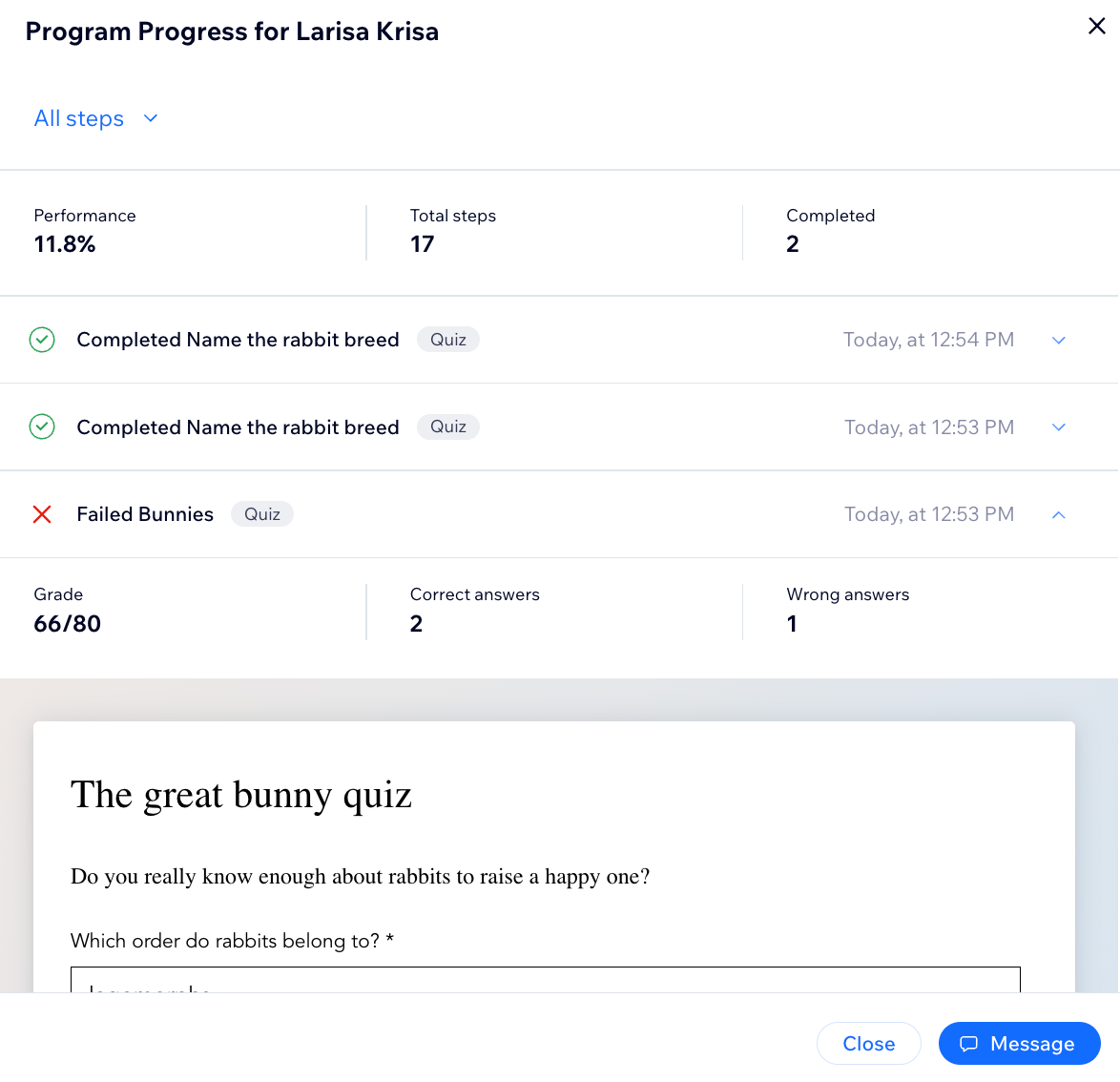
Hover over the relevant participant and click View Steps.
Click the All steps drop-down and select the questions you want to see:Steps with questionnaire and/or quiz: View all steps that have a questionnaire or quiz.
Click the drop-down next to the relevant step to view participant answers.
(Optional) Click Message in the pop-up window to write to your participants directly. You can send them a motivational note for answering a question correctly or encourage them to complete the program.
FAQs
Click a question below to learn more.
Can I receive an automated notification when a participant completes a quiz?
Yes. You can receive an automated notification when a participant completes a quiz using Wix Automations. Choose the trigger: Participant Completes a Step and select the relevant program and quiz. Then select the action: Get an Email. This will send you an email notifying you that a participant has completed the quiz.
Can I export quiz results for all participants?
No. You cannot export a CSV file containing all your participants' quiz results. If this is a feature that you would like to see in the future, vote for it here: Wix Online Programs Request: Exporting Quiz Results for All Participants
Can I add images to a quiz?
No. You cannot add images to quiz questions. If this is a feature that you would like to see in the future, vote for it here: Wix Online Programs Request: Adding Images to a Quiz
Can I use a quiz as a survey?
Yes, you can use a quiz as a survey by not setting correct responses. This way, the questions become the answers participants choose from, allowing you to collect their feedback.
Is it possible to make a quiz optional?
Yes, you can make a quiz optional by not requiring a passing grade. This allows participants to complete the quiz without needing to meet a specific score.
Can I edit or remove questions and answers after creating a quiz?
Yes, you can manage your quiz by editing or removing questions and answers at any time. This flexibility helps you keep your quiz up-to-date and relevant for your participants.