


Sell online apps
Offering Gift Cards with the Gifted App
Important:
This article refers to gift cards provided through the Gifted app. Wix now offers its own gift card solution.
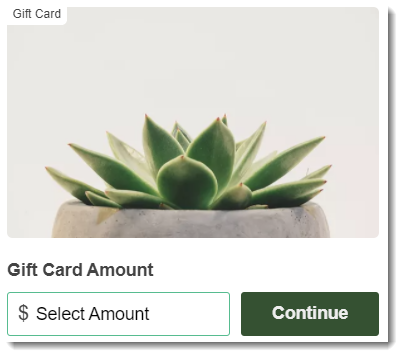
Increase Wix Stores sales and boost your brand by selling digital gift cards. You can set the gift card amount or let your customers decide the value.
Important:
Gift cards are offered via the Gifted third-party app, available only in English. The app is free to add. You pay a commission for each gift card purchased.
Gift card use is subject to local laws. Be sure to follow local regulations.
If you haven't yet made sales, you can update the gift card currency in the Settings tab of the Gifted dashboard.
How customers purchase gift cards
Customers visiting your store can check out the gift cards you offer on your site's gift card page. After selecting a card, entering the recipient's details, and setting when the card should be sent, customers pay directly to Gifted to complete the purchase.
As soon as the card is received, the sender gets an email informing them that the gift card was delivered (unless they bought it for themselves).

How gift cards are redeemed
When the time arrives, the gift card recipient gets a notification by email, text message, or through WhatsApp - depending on what method the sender selected. The sender also has the option of printing out the gift card and delivering it offline.
If the recipient gets notified by email, the message arrives with the subject line "Anne, you've received a gift card from Adam!" (with the relevant names). By clicking the Open Gift Card link, they can access the code and see their balance.
To redeem the card, the recipient heads over to your store and finds items to purchase. During checkout, they enter their unique gift card code.

What if the sale is worth more than the gift card?
Customers are required to pay for the remaining cost, using your regular payment methods.
Viewing gift card sales in your site's dashboard
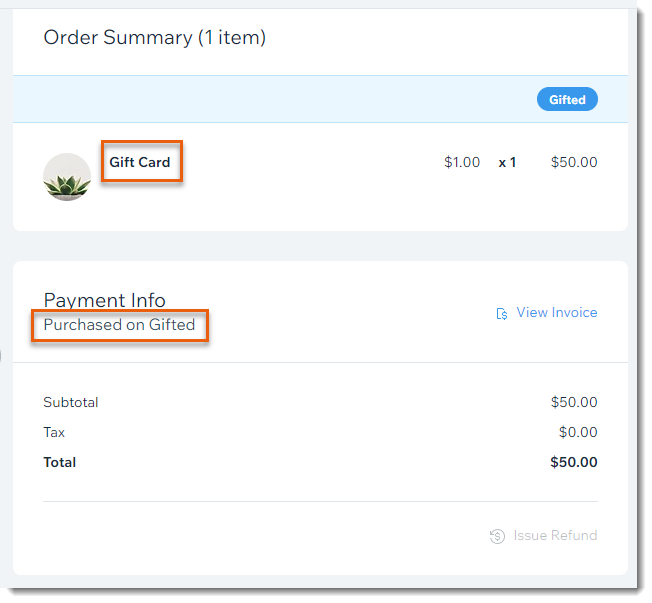
When a customer purchases a gift card, the purchase appears in the Orders tab. The sale is marked as "Paid" and "Fulfilled".
Tip:
You can click the Gifted button to access the Gifted dashboard. There you can find more detailed information about the purchase in the Sales Report tab.
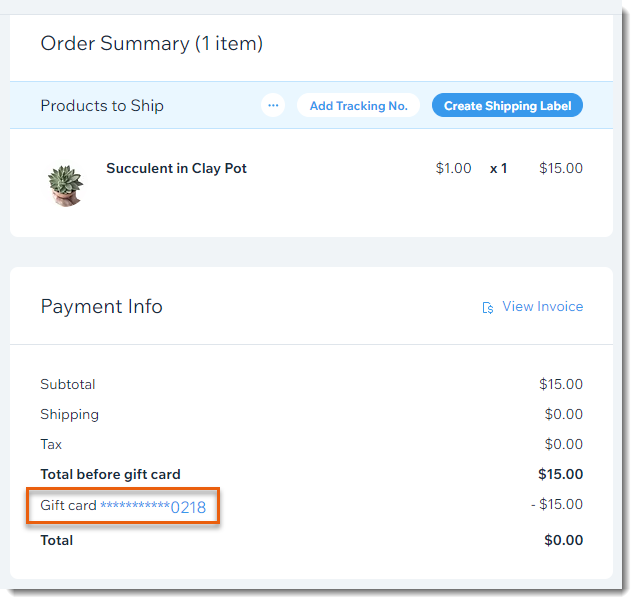
Later, when a shopper pays using the gift card, you'll see that order in the Orders tab. This order needs to be fulfilled like any regular order.
Notes:
For the purposes of tracking revenue, it is the initial gift card purchase that is calculated. Later when the card is redeemed, the sale is not included as part of your revenue, so as not to count the same earnings twice. In other words, if you sell a $100 card in January, this counts as January revenue. If that same card is redeemed in June, it does not count towards your June revenue.
For accounting data, refer to the information found in the Gifted dashboard.
Adding and setting up gift cards
First, add the Gifted app and create an account. Then, you can set up your gift cards and personalize them to your needs.
To add and set up gift cards:
Wix Editor
Studio Editor
Dashboard
Click Add Apps
 on the left side of the editor.
Search for the Gifted app in the search bar.
Click Add to Site.
Click Allow and Add.
Note: This adds a Gift Card page to your site, which is not visible to visitors until you publish.Sign up or log in to your Gifted account.
Click Customize your gift card and choose what to do next:
Enter the gift card details
Design the gift card

8. Go back to your Editor and publish your site.
Important:
If you decide in future to stop selling gift cards, do not delete the Gifted app or disable the Let customers pay with a gift card at checkout toggle. These actions will prevent gift card holders from redeeming their purchases.
FAQs
How can I access the Gifted app?
You can always go back to the app and make changes, directly from your Editor:
Click the Gift Card app in the Editor.
Click Settings.
Click Go to Gifted.
Can I ever pause the option to enter a gift card number at checkout?
Yes. The option to enter a gift card number at checkout is automatically enabled, but you can always disable it.
Go to eCommerce Settings in your site's dashboard.
Scroll down to the Gift Card section.
Click the Enable gift card at checkout toggle to disable it.
Can gift cards be used to purchase product subscriptions?
No, Gifted gift cards cannot be applied to product subscriptions.
Can you refund gift cards or items purchased with a gift card?
After a customer purchases a gift card through the Gifted app, it is not possible to refund their money.
In addition, if a customer purchased store items by redeeming a gift card, it is not possible to refund the gift card value they paid.
Tips:
In cases where sales were only partially paid for with a gift card, you can process the part of the sale paid for with another payment method.
To compensate customers, you can offer a store coupon. For example, if a customer pays $20 with a gift card and would like a refund, you can off a $20 off coupon. Learn More