


Other music apps
Music Apps: Adding and Setting Up Your Spotify Player
When it comes to audio, Spotify is a great resource for your site. The Spotify player lets you add a song, album or playlist to your site from Spotify.
Step 1 | Add a Spotify player
Adding a Spotify player is a great way to showcase your audio to your visitors. You can add a Spotify Player anywhere on your site.
To add Spotify player:
Click Add Elements
 .
.Click Video & Music.
Click Spotify Player.
Click and drag the Spotify player on to your site.
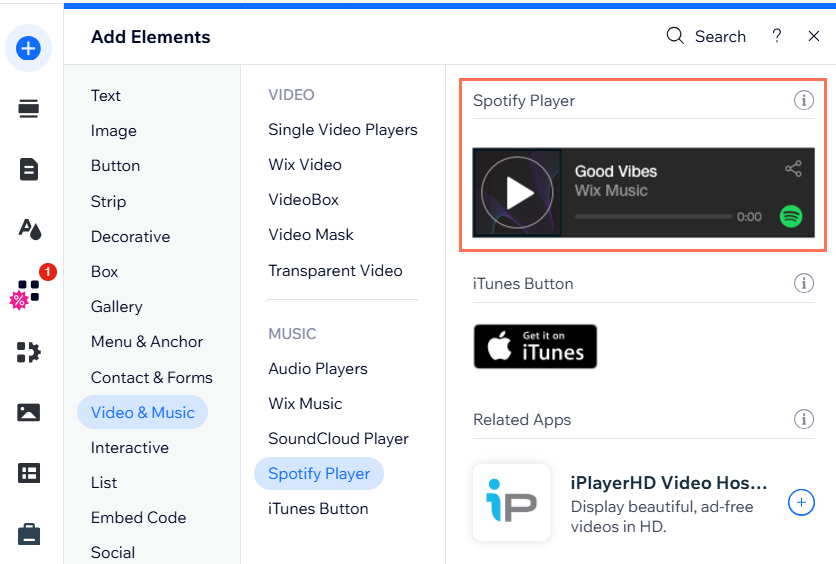
Step 2 | Search for music from Spotify
Add specific artists, songs, albums or playlists that you want to play on your site from Spotify. You can either add music manually, or, if you know the URI code (Uniform Resource Identifier code) for the music, you can add this code directly.
To add music from Spotify:
Click the Spotify player in your editor.
Click Settings.
Choose your music from Spotify:
Search Spotify manually
Click Search Spotify.
Enter the name of the artist, song, album, or playlist in the search bar.
Choose the relevant item and click Select.
Enter the URI code
Click the Settings tab.
Enter the code under Spotify URI.
Click Update.
FAQs
Can visitors listen to the entire Spotify track from my Wix site?
The Spotify player only displays a 30 second preview of a track. Your site visitors can only listen to the full track if they are logged into a Spotify account.
Can site visitors listen to podcasts through the Spotify Player?
Currently, the Spotify player does not support podcasts. Vote for this feature.
How can I get the URI code of a track?
To retrieve a Spotify URI code, right-click any artist within Spotify, and select Copy Spotify URI.
You must download Spotify on your desktop to retrieve the Spotify URI code. The web version does not produce the URI code.