top of page

Adding and managing apps

Managing Your Wix Apps from the 'My Business' Panel

Whether you're building a site with the Wix Editor or with Studio Editor, the My Business panel is the go-to place to manage all your Wix apps such as Wix Stores, Wix Bookings, Wix Blog, and Wix Chat.

Get quick access to installed apps and use the links to access your app's dashboards. You can also add additional app elements to enhance your business.

To get started, click My Business on the left side of your site builder (Wix Editor or Studio Editor).
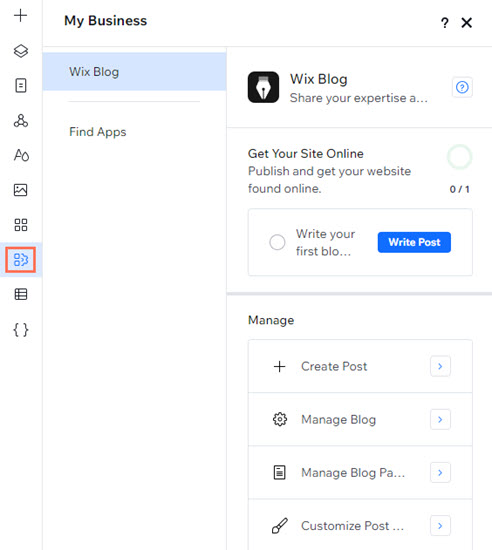
A screenshot of the Studio Editor. The My Business icon is highlighted and has been clicked, opening the panel.

In this article, learn more about:

Setting up apps

Use the set-up options in the panel to get the most out of your existing apps. If you've added Wix Bookings for example, you can add services, connect payment methods, and more.

Simply select an app from the list to get started.
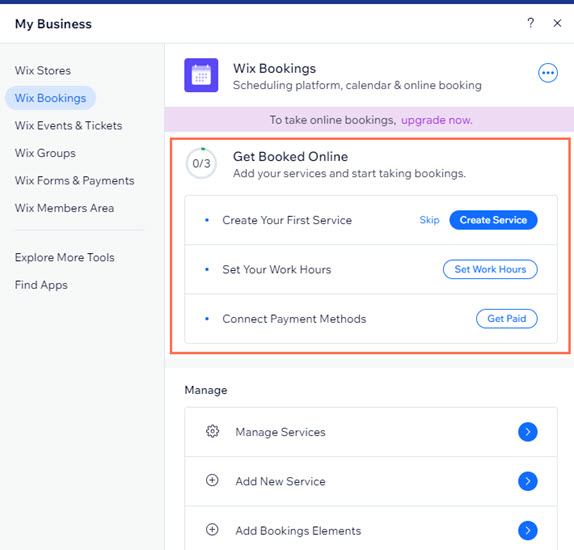
Wix Bookings has been selected and opened in the panel. The set-up options are highlighted.

Note:

This option is not available for all Wix apps.

Using quick access links

Select an app from the panel to discover all of its different quick access links.

For example, for the Wix Stores app, you can use links to manage your products, go to Wix Stores in the dashboard, add store elements to pages, manage your pages, and more.
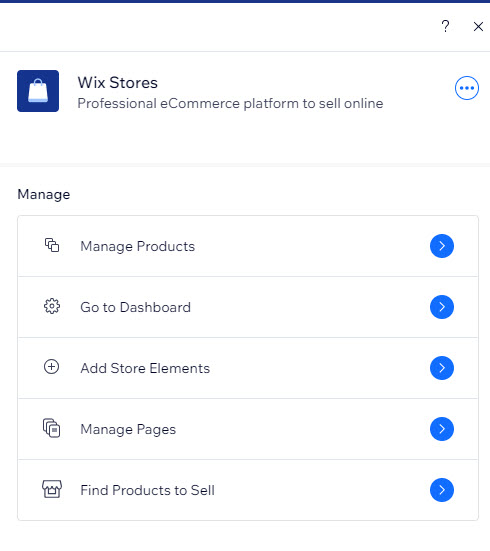
A cropped screenshot displaying the Wix Stores quick access links in the My Business panel.

Adding more Wix apps

You can add more Wix apps to your site directly from the My Business panel. The panel identifies the apps that you have currently installed, and offers additional apps that can help enhance your business.

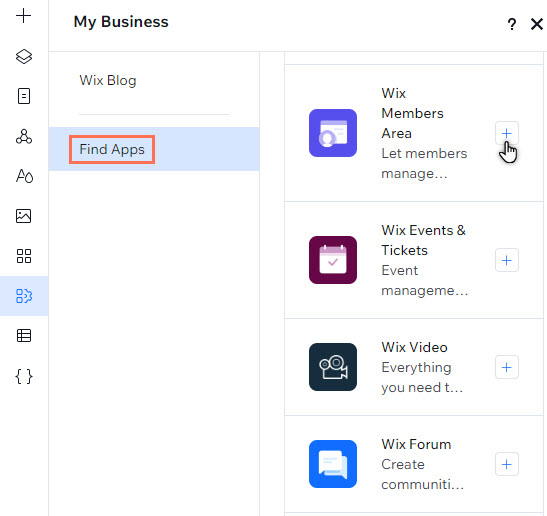
Click the Add App icon next to the app that you want to add to the site under Find Apps.

The Find Apps tab has been selected in the Studio Editor. The Wix Members Area app is being clicked.

Using Wix apps that require site plans

Some Wix apps require plans for you to get the most out of their features. Depending on the site builder you're using, you can purchase a Premium plan (Wix Editor sites) or a Studio plan (Studio Editor sites).

For apps that require a site plan, a message with a link to the upgrade page is displayed.

Deleting your Wix apps

You can also delete any Wix apps that are no longer needed from the panel in your site builder.

Studio Editor

Wix Editor

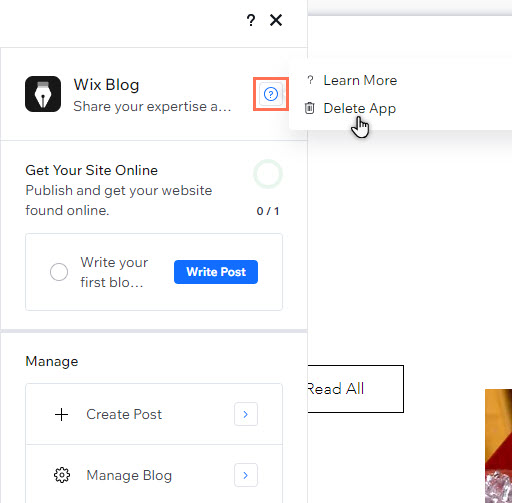
  1. Select the app in the panel.

  2. Click the Help icon .

  3. Click Delete App.

The help icon has been clicked for blogs in the panel in the Studio Editor. Delete App is being clicked.

Need A Professional Website?
Contact Us 
Today!

Wix Stores: Setting Up Affiliate Marketing with the Goaffpro App

Wix Contacts: About Your Contact Panel

Wix Contacts: Using Pinned Actions in Your Contact Panel

Wix Contacts: Creating a Test Contact

Wix Contacts: Changing a Contact's Subscription Status

Wix Contacts: Adding and Managing Custom Contact Fields

Wix Contacts: Creating and Using Contact Labels

Wix Contacts: Creating a Segment

Wix Contacts: About Segments

Wix Contacts: Exporting Your Contacts

Wix Contacts: Troubleshooting Contact Importing Issues

Wix Contacts: Importing Contacts by Uploading a CSV File

Wix Contacts: Importing Contacts from a Gmail Account

Wix Contacts: Managing Your Contact List

Wix Contacts: Manually Adding a Contact

Wix Contacts: An Overview

Wix Forms: Creating a Coupon

Wix Forms: Setting Up Tax on Your Form

Wix Forms: The Difference between the New and Old Wix Forms

Wix Forms: Viewing Form Submissions from Your Dynamic Pages

Wix Forms: Managing Your Forms from the Dashboard

Wix Forms: Choosing an Address Field

Wix Forms: Adding and Setting Up a Donation Form

Wix Forms: Adding Submission Limits to Your Forms

Wix Forms: Adding and Managing Rules

Wix Forms: Upgrading Wix Forms

Wix Forms: Adding and Setting Up a Multi-Step Form

Wix Forms: Adding Payments to a Site Form

Wix Forms: Enabling Double Opt-In for Subscribers

Wix Forms: Adding and Setting Up a Subscribe Form

wix experts
Graphic2Traffic web design
©
bottom of page