Google Event Calendar
Managing Your Google Event Calendar App
The Google Event Calendar allows you to share your calendars on your site. By connecting your Google account, you can share your events and bookings with your site visitors.
Learn more about:
About Access Permissions
Your Google Calendar's Access Permissions determine how events appear in your site's Google Event Calendar app. Choose from the following Access Permissions in your Google Calendar's settings:
Public: The event details display in your site's Google Event Calendar app
Public free/busy: The event details display as "Busy" in your site's Google Event Calendar app
Not public: The event information is not visible in your site's Google Event Calendar app
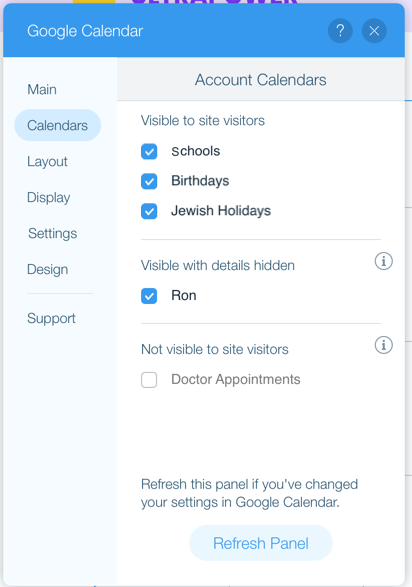
The access permissions are based on the calendars connected to the Google account that you synced your Google Event Calendar app with. This means if you only have Public calendars in your Google account you just see settings for Public (visible). You can see which calendars are connected, and their visibility, on the Calendars tab:
Changing Access Permissions
To display private events or bookings, you need to set the calendar that contains the event or booking to public. Don't worry, you can choose to hide private events or change the text displayed in your calendar display settings.
To change access permissions:
Open your Google Calendar.
Click the Settings icon
 at the top right.
Click Settings.
Scroll down to Settings for my calendar on the left.
Click to select the calendar you want to share.
Change your Access Permissions to any of the following:Public: Click Make available to public and select See all event details from the drop-down.
Public free/busy: Click Make available to public and select See only free/busy (hide details) from the drop-down.
Private: Uncheck Make available to public.
Notes:
You can only change the access permissions of the calendars you own.
If your Google account was provided by an organization, you may need to contact your Google account administrator to change the sharing options. Click here for more information.
Each time you change the access permissions of a particular calendar you need to click the Refresh button in order for it to appear in the appropriate calendar type in your settings.
Choosing Which Calendar(s) to Display
If you have multiple Google Calendars, you can choose which ones you'd like to display.
To choose which calendar(s) to display:
Click the Google Event Calendar app in your Editor.
Click Settings.
Click the Calendars tab.
Click the checkbox next to the relevant calendar to select or deselect a calendar.
Notes:
This setting is only displayed if you have two or more calendars in your Google account.
You cannot connect your Google Event Calendar app to more than one Google account.
You can display events or bookings marked as "private" on your site's Google Event Calendar app. Learn more
Adding More Calendars
You can choose to add more calendars to your Google Event Calendar.
To add more calendars:
Go to your Google Calendar account.
Select the relevant calendar to add.
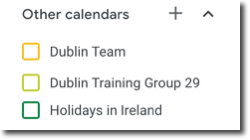
Click the Add icon next to Other Calendars.