


Getting Started with Google Workspace Business Emails from Wix
Google Workspace: Purchasing and Setting up a Business Email
Purchase a personalized Google Workspace business email directly from Wix (e.g. yourname@mybusiness.org). This can make your business look more professional and trustworthy while also strengthening your brand.
Important:
The Google Workspace business email plans are not yet available in all regions.
Step 1 | Purchase a Google Workspace business email
You can choose how many emails you want to have and select a plan the meets your business needs. Wix offers 3 Google Workspace email plans for your to choose from: Business Starter, Business Standard and Business Plus. Learn more about the benefits of each option.
Before you begin:
To purchase a Google Workspace email, you must own a domain (from Wix or elsewhere) and connect it to your Wix account. Learn more about connecting a domain to a Wix site.
To purchase a Google Workspace business email:
Go to Business Email in your Wix account.
Click Get a Business Email.
Note: If you have more than 1 domain, select the relevant domain from the list and click Select.Set the quantity of business emails you want to purchase.
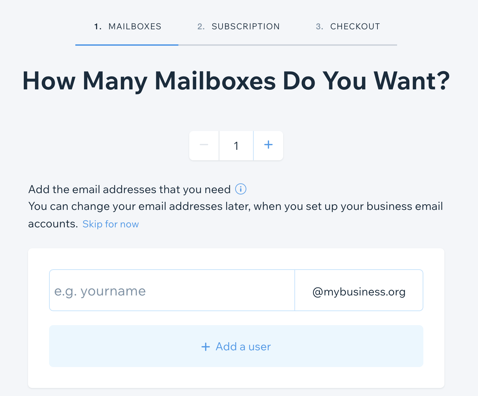
Enter your email prefix(es).
Click Continue.
Select the Google Workspace plan you want.
Choose a business email subscription: Monthly or Yearly.
Click Continue to Checkout.
Select your payment method and click Submit Purchase.
Important:
After purchasing your business emails, wait a minimum of 5 minutes before beginning the setup process.
If you have connected your domain via pointing, you must manually enter the MX records for Google Workspace with your domain provider. Learn more about about Google Workspace MX record values.
Step 2 | Set up your Google Workspace business email
Once you've purchased a Google Workspace business email from Wix, set it up with a password (and any additional emails) so you can start using it.
To set up your Google Workspace business email:
Go to Business Email in your Wix account.
Click Setup Business Email.
Type in your primary email address.
Enter a password.
Verify your password.
(Optional) Enter the details for additional emails in the blank email fields.
Click Next.
Confirm your contact details.
Click Submit.
Important:
Once you have purchased and set up your business email(s), make sure to sign into your business email admin account to accept the Google Product Agreement and Terms of Service. You cannot access any of your other business emails until you have accepted the agreement. You may also need to verify your domain, if prompted.
Once your business account is activated it should be fully functional within 24 hours.
FAQs
Click a question below to learn more about business email.
Can I use Google services in all countries/regions?
Google Workspace is available in most countries and regions. However, Google does not allow access to some of its services in certain countries/regions, such as China, Crimea, Cuba, Iran, Myanmar, North Korea, Sudan and Syria. For more detailed information about Google Workspace availability, you can contact Google Workspace Support.
How much does a business email cost?
Business email prices depend on a few factors, including the Google Workspace plan you choose. Business emails are purchased separately from Premium plans or Studio plans.
Note: You don't need an active upgrade plan to purchase a business email.
Can I purchase more than one business email?
You can purchase several emails for each domain, for example, info@mystunningwebsite.com and support@mystunningwebsite.com. If you have already purchased a Google Workspace email, you can also purchase additional emails for the same domain.
Can I change my business email plan to a different plan?
Yes. If, at a later date, you decide you need additional storage or features, you can upgrade your Workspace plan whenever you need to.
Note: At the moment, Wix only supports upgrades to higher-tier plans.
Is there any limit on the amount of business emails I can buy?
You can buy up to 300 business emails, but you can only purchase 20 per transaction. For example, if you want to have 100 business emails, you need to purchase 20 at a time - so you would need to make five transactions.
What can I do if I am experiencing issues with the authentication process?
After submitting your purchase, your bank may require you to verify your identity. If you're experiencing any issues with the authentication process, contact your bank directly. Learn more about Strong Customer Authentication.
What happens if I try to purchase an email address I already own?
If you try to purchase an email address you already own (existing in your Wix account or outside it), you will see a message explaining that it is not available because it already belongs to you. The purchase will not go through.
For an email address bought through Wix, check your business email page in your site. For an email address bought outside of Wix, contact your external provider.
How long should I wait after purchasing a business email in order to set it up?
After purchasing your business email, wait a minimum of 5 minutes before beginning the setup process.
What happens if I don't accept the Terms of Service?
If you don't accept the Terms of Service in the business email admin account, your email will be suspended. You will then need to contact Wix Customer Care and may need to carry out some further verifications.
How do I reconnect my Google Workspace account?
If you previously purchased a Google Workspace business email from Wix and the subscription has expired, go to Business Email in your Wix account and click Renew Subscription.
If your renewal payment has failed for your business email subscription, you can update your payment method in the Premium Subscriptions section of your Wix account.
If you have purchased a Google Workspace business email outside of Wix, connect it from the Domains page in your Wix account. Learn more about connecting an email purchased outside of Wix.