


Payment Basics
Getting an Overview of Your Payments on Mobile
View an overview of all the payments you've received through your site on mobile, as well as the details of each transaction.
Show me how
Open the Wix Mobile app.
Tap Dashboard on the relevant site.
Scroll down to Payments.
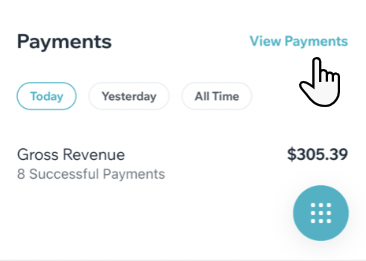
Tap View Payments.
Tip: If you don't see the Payments option, try updating to the latest version of the Wix app.
Payment Activity Overview
See an overview of your activity, tallying your gross income and the number of payments you've received for the current day, previous day, or for all time.
Payments List
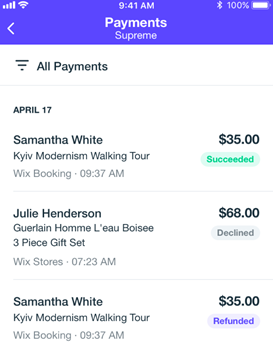
Tap View Payments to see your payment history. In this section, you can see a list of all your payments received through any payment method and provider. The list includes the following details for each payment:
Your customer's name / email address
The date of the payment
The amount of the payment
The product/service that was purchased
The status of the payment (successful, declined, refunded, pending etc.)
The payment method
Viewing More Details
Tap a transaction to see more details about it:
Payment Details: The payment ID and an explanation of the payment status
Payment Method Details: The payment provider and credit card details
Customer Info: The name, email address and phone number your customer provided during the checkout process
Filtering Your Payments List
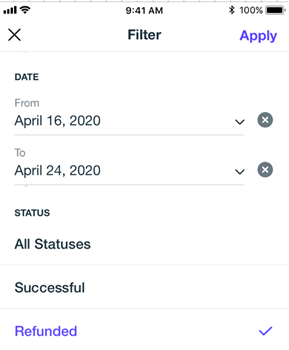
Click the Filter icon  at the top of the page to filter your transactions by payment method and status. Select the relevant timeframe using the From and To fields.
Learn more about payment statuses
Manual (Offline) Payments
If you're receiving payments using the manual (offline) method, they will only appear in the payments list if you mark them as paid.
See how to mark manual payments as paid:
Using Wix Hotels?
Click below to learn how to set up and manage payments: