


Getting Started with Google Workspace Business Emails from Wix
Gemini for Google Workspace: An Overview
Use Gemini, Google's AI-powered assistant, to help you write documents, design slideshows, write and summarize emails, organize projects, and much more. Gemini integrates seamlessly with your Google Workspace apps, including Gmail, Docs, Sheets, Meet, and Chat.
Gemini is available as an additional subscription service to existing business email users. The Gemini add-on license is connected to your Google Workspace business email account.
Try Gemini free for 30 days:
When you purchase a Gemini subscription, we won't charge you for the first 30 days. If you cancel your subscription within this period, the service will be canceled immediately and you won't be charged. The 30-day free trial only applies to the initial purchase of a Gemini for Google Workspace plan.
Choosing a plan that's right for you
There are 2 plans available to purchase to suit businesses of all sizes. Plans are available on a monthly or yearly subscription for anyone with an active Google Workspace business email account.
You can view and purchase plans by going to the Business Email and Add-ons page from your site dashboard.
Important:
Currently it is only possible to purchase one Gemini license.
Gemini is an English-only tool for Google Workspace accounts set to English. You can purchase a license in all locations where Google Workspace is available, but you'll need to set your language to English to use Gemini. Learn how to change your Google Workspace account to English.
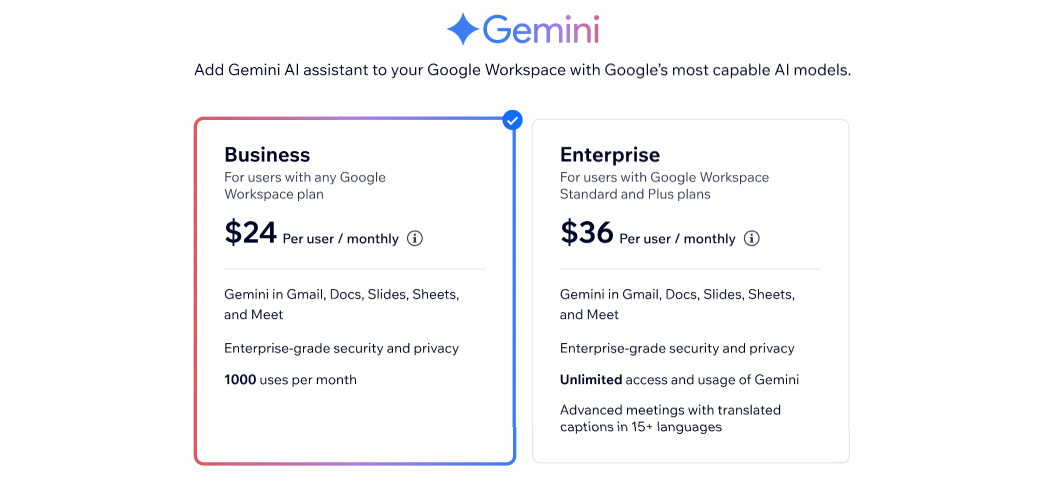
Business and Enterprise plans offer an AI-powered assistant for teams of all sizes. With both plans you'll get access to Gemini in Gmail, Docs, Slides, Sheets, and Meet. Enterprise-grade security and privacy comes as standard.
The Enterprise plan also includes advanced meetings with translated captions in 15+ languages, and full access and usage of Gemini.
Note:
The Enterprise Gemini plan is available as an add-on for 'Standard' or 'Plus' Google Workspace plans only. If you have a 'Starter' plan, you can upgrade your business email plan to purchase Enterprise for Gemini. Learn more about upgrading your Google Workspace plan.
Managing your Gemini license
To start using Gemini after you've purchased a license, you'll need to assign the license to a business email user first. You can assign and unassign licenses from the Business Email and Add-ons page on your site's dashboard.
If you want to purchase a plan, cancel a plan, or update your payment method, go to the Premium Subscriptions section of your Wix account.
Assign a license
Before you can start using Gemini, you'll need to assign a license to your business email user. It can take up to 24 hours for a user's license to be assigned. Learn more about assigning Gemini licenses to a user from the Google Help Center.
Go to Business Email and Add-ons from your site dashboard.
Click the More Actions icon
 next to the user you want to assign the license to.
Click Assign License.
Unassign a license
Go to Business Email and Add-ons from your site dashboard.
Click the More Actions icon
next to the user you want to unassign the license from.Click Unassign Gemini.
Update your payment information
Go to Premium Subscriptions in your Wix account.
Click the More Actions icon
next to your Gemini license.Click Update payment method.
Update your credit card details.
Click Submit.
Cancel a license
When you cancel your subscription, your plan will remain active until the end of your billing cycle. You can continue to use Gemini until this time.
Go to Premium Subscriptions in your Wix account.
Click the More Actions icon
next to your Gemini license.Click Cancel Subscription.