top of page

Additional Wix Apps

Embedding Your Tumblr Blog and Posts

Embed your Tumblr blog content on your Wix site by coping the embed code from Tumblr and pasting it in your Editor. You can choose to embed your entire Tumblr blog or a single blog post.

In this article, learn more about:

Embedding your Tumblr blog

Let your site visitors experience your Tumblr content by embedding your Tumblr blog on your Wix site.

To embed your Tumblr blog:

Wix Editor

Studio Editor

  1. Copy the following code:
    <script type='text/javascript' src='https://blogname.tumblr.com/js'></script>

  2. Replace "blogname" with your username. If you're using a custom domain, replace "blogname.tumblr.com" with your domain.
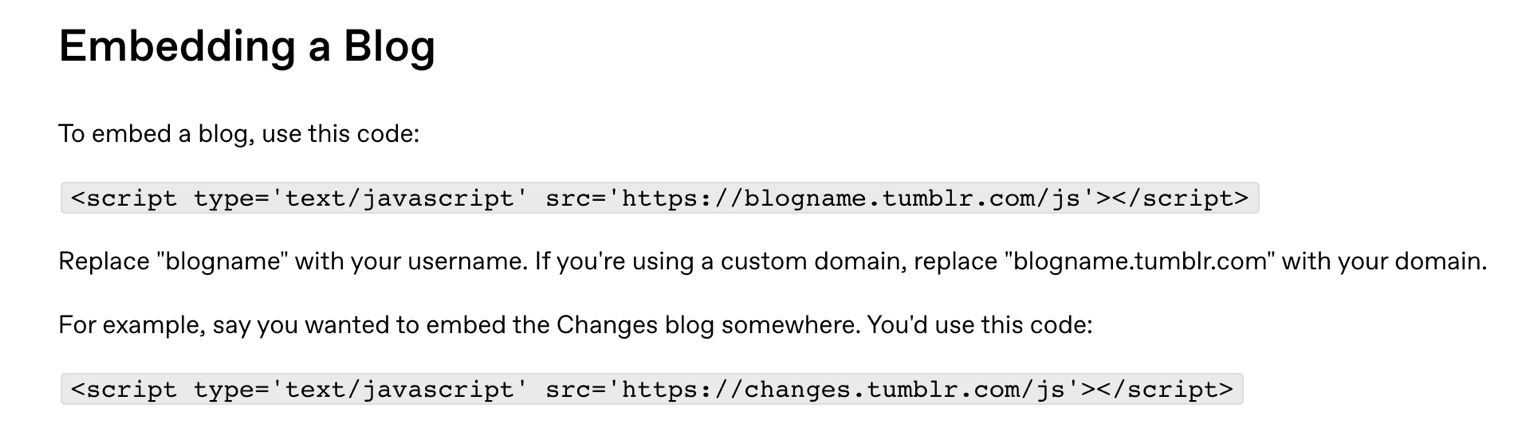
A screenshot showing the code that needs to be copied in order to embed your Tumblr blog.

  1. Go to your Wix Editor.

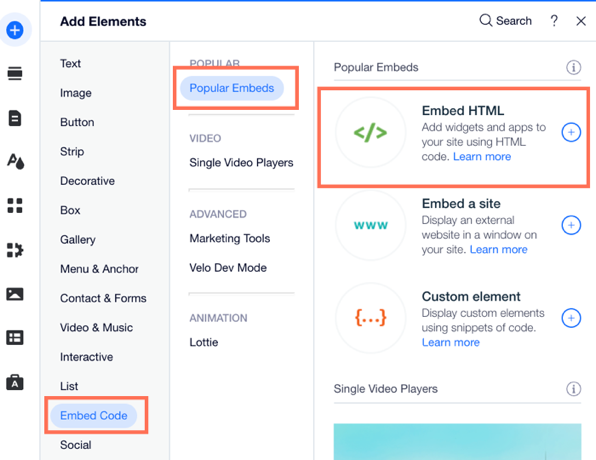
  2. Click Add Elements  on the left side of the Editor.

  3. Click Embed Code.

  4. Click Embed HTML.

A screenshot of the the Add Elements panel showing the option to Embed HTML.

  1. Copy and paste the code you modified from step 2 into the Add your code here (HTTPS only) field.

  2. Click Update.

  3. (Optional) Enter alt text that describes what you're embedding in the What's in the embed? Tell Google field.

  4. When ready, publish your site.

Embedding a single Tumblr post

Embed specific posts from your Tumblr blog on your Wix site. This is a great way to showcase additional content that your site visitors might like to see.

To embed a Tumblr post:

Wix Editor

Studio Editor

  1. Log in to Tumblr.

  2. Go to the social post that you want to embed.

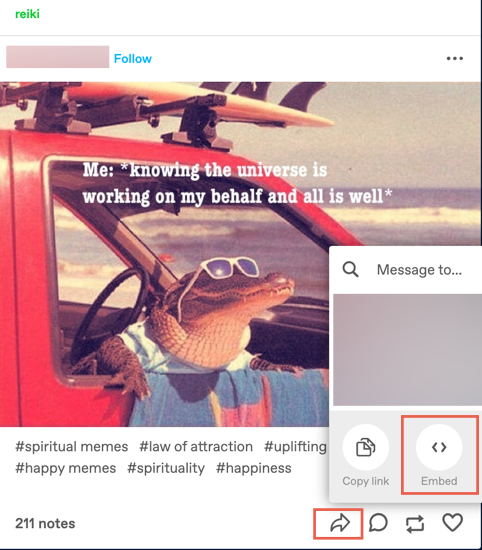
  3. Click the Share icon .

  4. Click Embed.

A screenshot showing the option to share and embed a blog post on Tumblr.

  1. Copy the code.

  2. Go to your Wix Editor.

  3. Click Add Elements  on the left side of the Editor.

  4. Click Embed Code.

  5. Click Embed HTML.

An screenshot showing the Add Elements panel and the option to Embed HTML.

  1. Paste the Tumblr code you previously copied.

  2. Click Update.

  3. (Optional) Enter alt text that describes what you're embedding in the What's in the embed? Tell Google field.

  4. When ready, publish your site.

Need A Professional Website?
Contact Us 
Today!

Wix Stores: Setting Up Affiliate Marketing with the Goaffpro App

Wix Contacts: About Your Contact Panel

Wix Contacts: Using Pinned Actions in Your Contact Panel

Wix Contacts: Creating a Test Contact

Wix Contacts: Changing a Contact's Subscription Status

Wix Contacts: Adding and Managing Custom Contact Fields

Wix Contacts: Creating and Using Contact Labels

Wix Contacts: Creating a Segment

Wix Contacts: About Segments

Wix Contacts: Exporting Your Contacts

Wix Contacts: Troubleshooting Contact Importing Issues

Wix Contacts: Importing Contacts by Uploading a CSV File

Wix Contacts: Importing Contacts from a Gmail Account

Wix Contacts: Managing Your Contact List

Wix Contacts: Manually Adding a Contact

Wix Contacts: An Overview

Wix Forms: Creating a Coupon

Wix Forms: Setting Up Tax on Your Form

Wix Forms: The Difference between the New and Old Wix Forms

Wix Forms: Viewing Form Submissions from Your Dynamic Pages

Wix Forms: Managing Your Forms from the Dashboard

Wix Forms: Choosing an Address Field

Wix Forms: Adding and Setting Up a Donation Form

Wix Forms: Adding Submission Limits to Your Forms

Wix Forms: Adding and Managing Rules

Wix Forms: Upgrading Wix Forms

Wix Forms: Adding and Setting Up a Multi-Step Form

Wix Forms: Adding Payments to a Site Form

Wix Forms: Enabling Double Opt-In for Subscribers

Wix Forms: Adding and Setting Up a Subscribe Form

wix experts
Graphic2Traffic web design
©
bottom of page