Wix Site Search
Adding and Setting Up Wix Site Search
Ensure your visitors always find the most relevant content, products, services, and posts when they search your site. You can set up your search bar to provide suggestions to your visitors during their search. This helps guide them to specific areas in your site and find what they are looking for in a timely manner.
Step 1 | Add Wix Site Search to your site
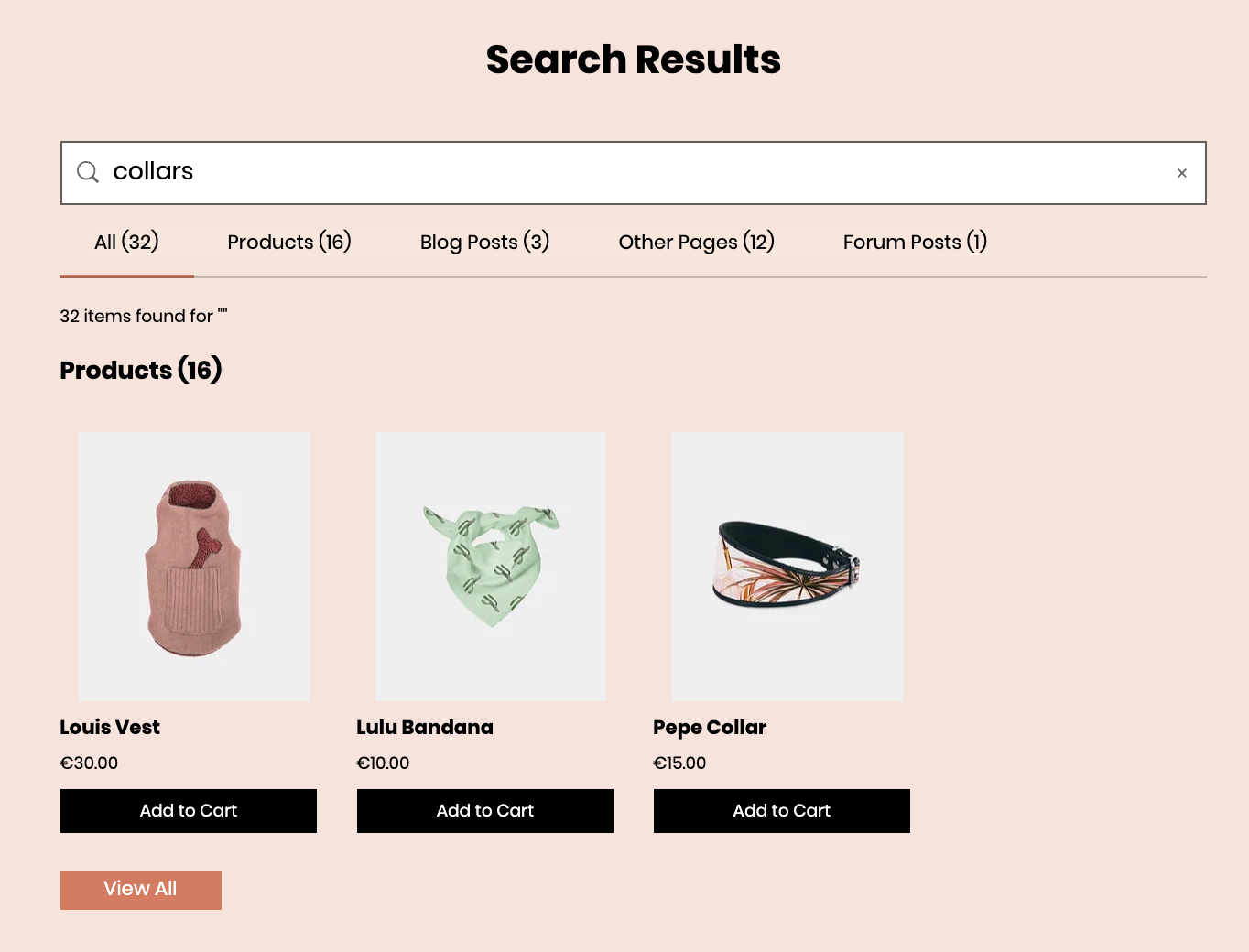
When you add Wix Site Search to your site, a search bar is added to your site's header. Another page called "Search Results" is also added to your site.
Wix Editor
Studio Editor
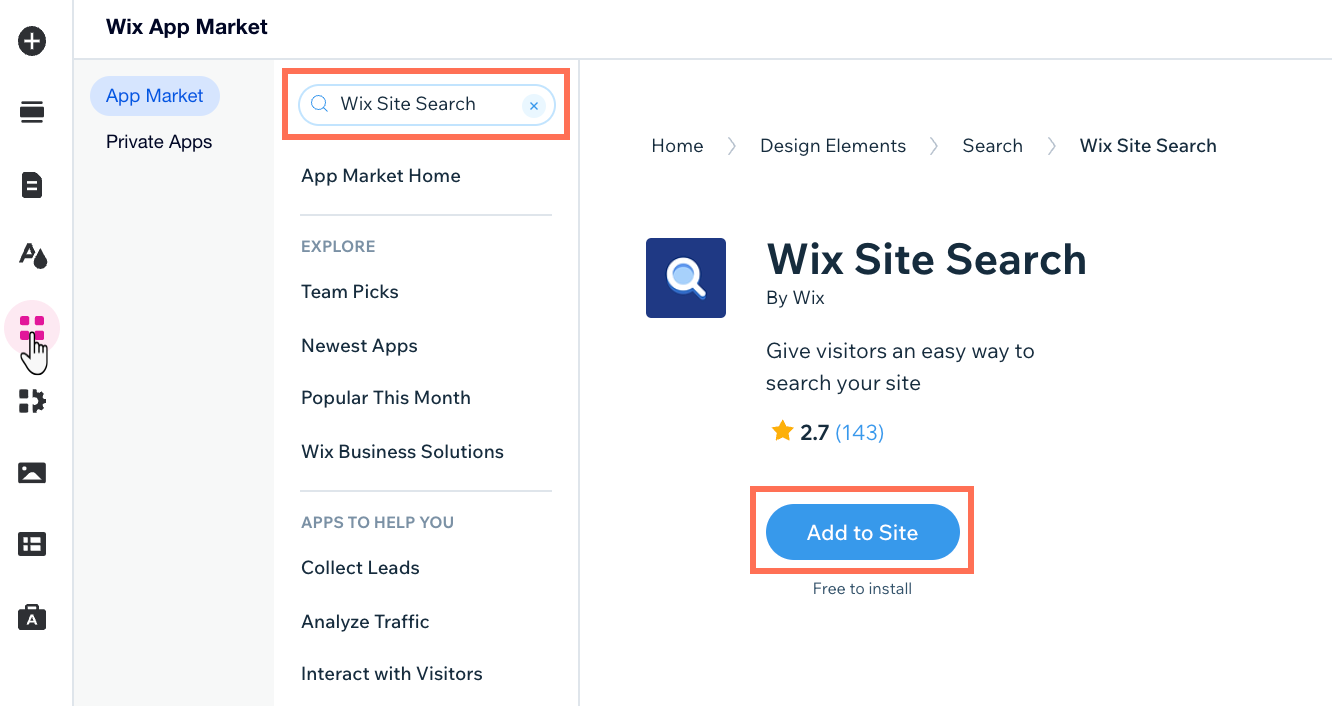
Click Add Apps
 on the left side of your editor.
Search for the Wix Site Search app in the search bar.
Click Add to Site.
Step 2 | Customize your Show on Search settings
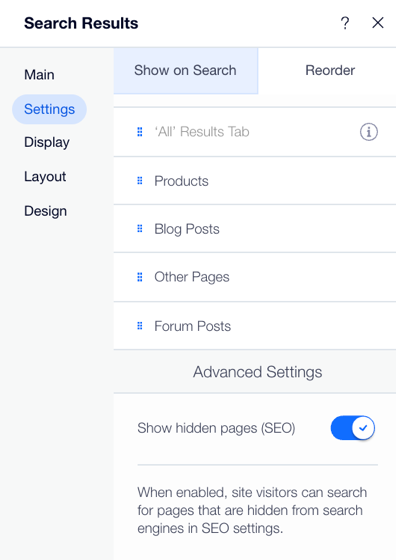
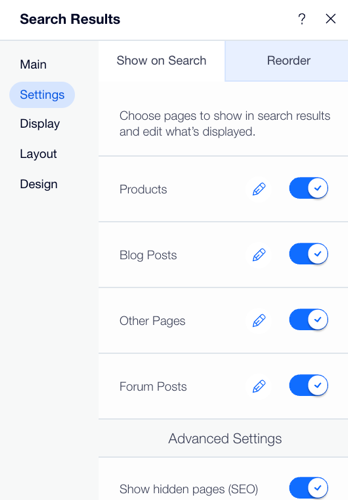
The Show on Search settings determine what your site visitors see when they use the search bar. You can choose which types of search results you want to appear in the list (e.g. blog posts, products, events). You can also change the names of each type of result.
Wix Editor
Studio Editor
Click the Search Results element in your editor.
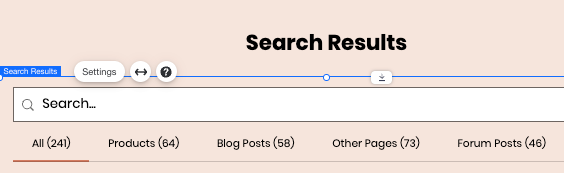
Click Settings.
Click the Settings tab.
On the Show on Search tab, enable the toggles next to the relevant page types. Only content from enabled page types will appear in the search results.
(Optional) Click the Edit icon
 next to the relevant type of page to change how it appears in the search results.
Tip: For Products pages, you can also edit the image layout, add to cart button, product filters and more.(Optional) Enable the Show hidden pages (SEO) toggle to allow visitors to search for pages that are hidden from search engines.
Step 3 | Reorder what appears in your search results
Next, organize your search to have the results appear in a particular order. For example, you can prioritize your store products above your blog posts. This means your site visitors see products at the top of their search results and blog posts below the products.
Note:
This changes the order in which the page types appear in the Search Results page.
Wix Editor
Studio Editor
Click the Search Results element in your editor.
Click Settings.
Click the Settings tab.
Click Reorder.
Use drag and drop to reorganize the page types.
Under Advanced Settings, enable or disable the option to show hidden pages.