


Additional Wix Apps
Adding and Setting Up the Wix Hit Counter App
Show your visitors how many people are visiting your site with the Wix Hit Counter app. Your counter updates your site traffic in real-time, and you can choose to show all site visits, or visits from unique visitors.
You can choose if you want the counter to appear on one page, or on all your site's pages, and you can customize the counter to match your site's appearance.

Step 1 | Add the Wix Hit Counter to your site
Add the free Wix Hit Counter app to your site from the Wix App Market inside the Editor.
To add the counter to your site:
Wix Editor
Studio Editor
Click Add Apps
 on the left side of the editor.
Search for the Wix Hit Counter app in the search bar.
Click Add to Site.

Step 2 | Change your counter settings
Choose the number your counter starts at, and if the counter shows all visits or unique visitors.
To change your counter settings:
Click the counter in your editor.
Click Settings.
Click the Settings tab.
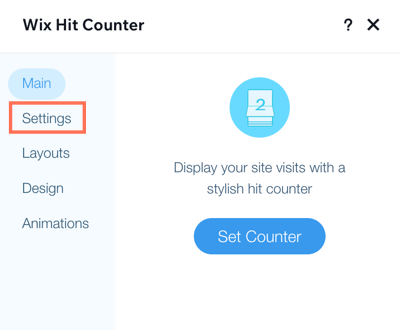
Set up your counter using the options:Counter starts at: Enter a number between 1 and 9999. The counter starts at this number. Important: You can only set the start number once.
Count: Select which hits the counter should count:All hits: Every visit to your site is counted.
Unique visitors: Visitors are counted only once, no matter how many times they visit your site.
Step 3 | Customize your counter
Choose your counter's layout and design, and add an animation to draw your visitors attention.
In Design, you can change the digit font and color, background color, and corner radius.
In Animation, you can select different animations for your counter and digits.
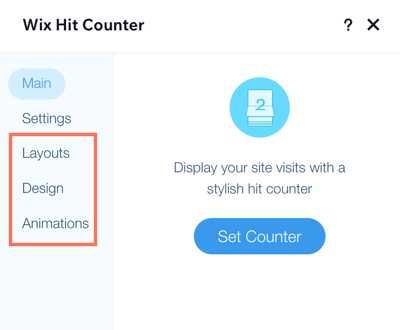
To customize your counter:
Click the counter in your editor.
Click Settings
Click to expand steps to customize your layout, design, and animation:
Change the layout
Click the Layouts tab.
Select a layout style for your counter, with different spacing and border options.
Customize the design
Click the Design tab.
Use the design options to customize the digits' font and color, the background, the separators, and the corners of the counter.
Set up an animation
Click the Animations tab.
Select an animation for your counter and customize it. Choose if you want all the digits to be animated at the same time or separately.
FAQs
Click a question below to learn more.
How do I use the Wix Hit Counter app to track visits on a specific page only?
To track the hits on a specific page, add the counter to that page of your site in your editor.
How do I use the Wix Hit Counter to track visits on all of my site pages?
To track hits on all of your site's pages, you'll need to set the Wix Hit Counter app to show on all pages.
Wix Editor:
Right-click the app in the editor.
Enable the Show on All Pages toggle.

Studio Editor:
In order to show an element on all pages in the Studio Editor, you need to attach it to a Global Section, which you can then set to show on all of your site's pages. Learn how to use Global Sections in the Studio Editor.