


Setting up Wix Hotels
Adding and Managing Room Types in Wix Hotels
Important:
This article refers to the original Wix Hotels. If you are using the new Wix Hotels by HotelRunner, which is not yet available to all users, please read the information here. Learn how to check which version of Wix Hotels you are using.
Wix Hotels allows you to create as many room types as you need. Depending on the type of property, you may have a single room type (and possibly even a single room if you're just renting an apartment) or you may have a few different room types (e.g., Standard, Deluxe, Honeymoon Suite).
You added your first room type when setting up your hotel, but there's a lot more you can do. In this article, we'll show you how to:
Edit an existing room type (including the number of rooms of that type)
Adding Additional Room Types
You can add additional room types at any time. For example, if you have a brand new honeymoon suite, you can go ahead and add it. Every room type you add is listed on the room list on your site.
To add additional room types:
Go to your site's dashboard.
Click the Hotels tab on the left.
Click the Rooms tab on the left (or the Apartments tab if your property type is "Apartment").
Click Create New to add a new room type or click the Duplicate icon
 and edit an existing room type.
Fill in the room details and click Save.
Note:
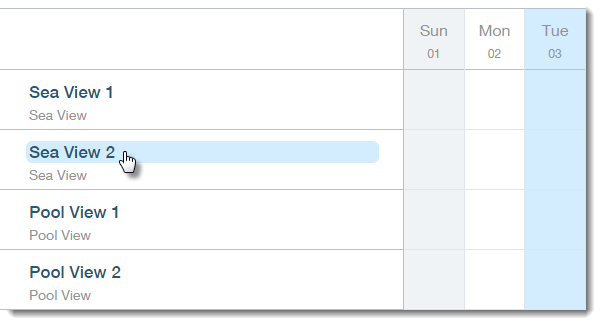
If you add multiple rooms of the same type (units), they are listed on your reservation calendar with the room type name and a number (e.g., Sea View 1, Sea View 2). You can change the individual room names on the reservation calendar itself.
Editing Room Type Details
Make changes to any of your room types, including the number of rooms available. Any changes you make here are reflected in the room list on your site.
To edit room type details:
Go to your site's dashboard.
Click the Hotels tab on the left.
Click the Rooms tab on the left (or the Apartments tab if your property type is "Apartment").
Click the Edit icon
 next to the room type you want to edit.
Edit the relevant information and click Save.
Tip:
You can change the number of rooms of this type under Units in the Room Details section.
Reordering Your Room List
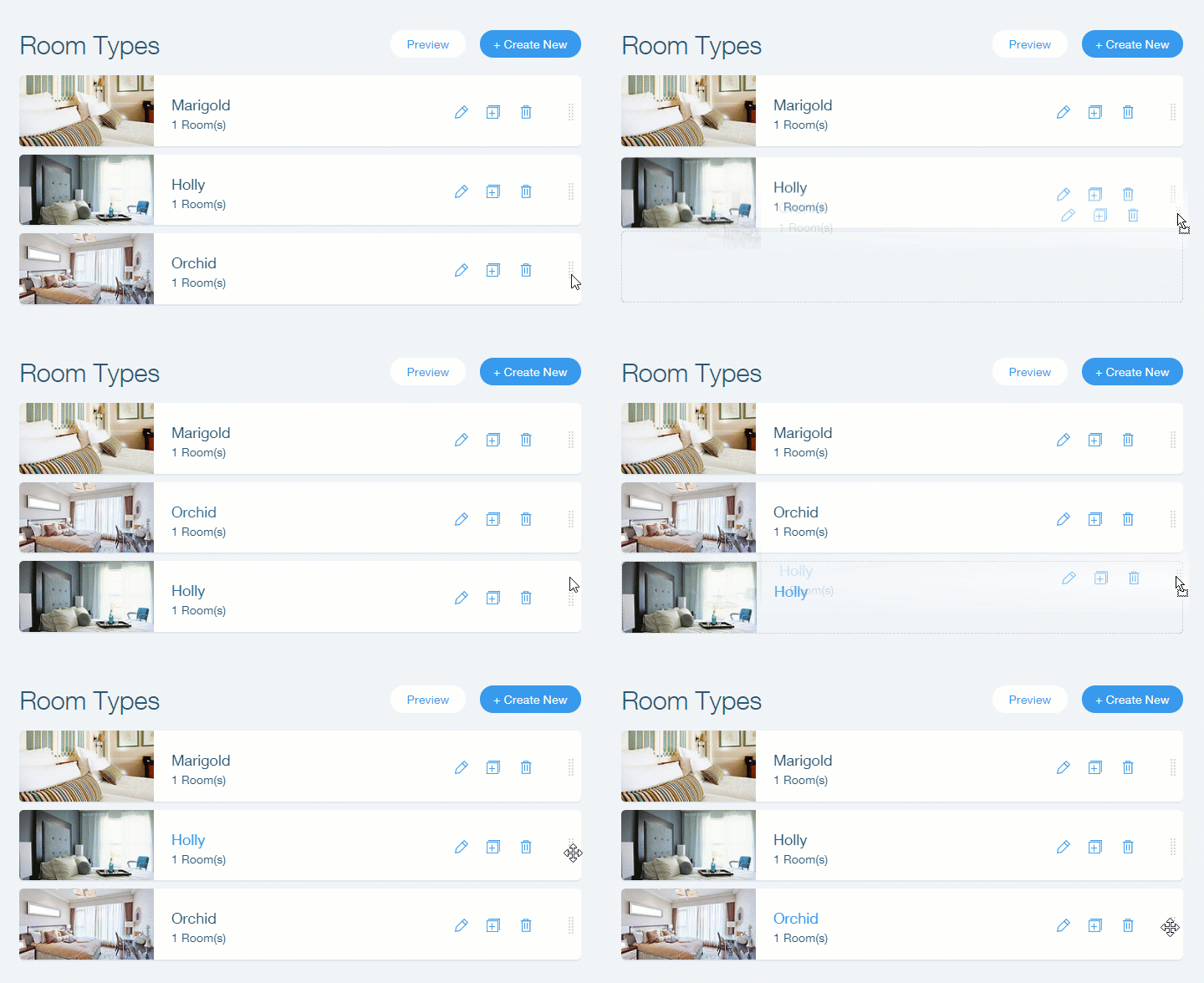
The order of your room types in the dashboard determines the order of the room types displayed on your site. You can change the order at any time.
To reorder your room list:
Go to your site's dashboard.
Click the Hotels tab on the left.
Click the Rooms tab on the left (or the Apartments tab if your property type is "Apartment").
Click and drag the Reorder icon on the right.
Removing a Room Type
Remove a room type if it's no longer available.
Important:
Before you can remove a room type, you must first remove all past and future reservations and blocked time periods.
To remove a room type:
Go to your site's dashboard.
Click the Hotels tab on the left.
Click the Rooms tab on the left (or the Apartments tab if your property type is "Apartment").
Click the Delete icon
 next to the relevant room type.
Click Delete to confirm.