wix studio
Adding an Entrance Animation
Adding an entrance animation to an element is a great way to draw visitors' attention to it. The animation appears when the element first enters into view, so it instantly catches the eye. There are many types to choose from and customize to your client's exact needs.
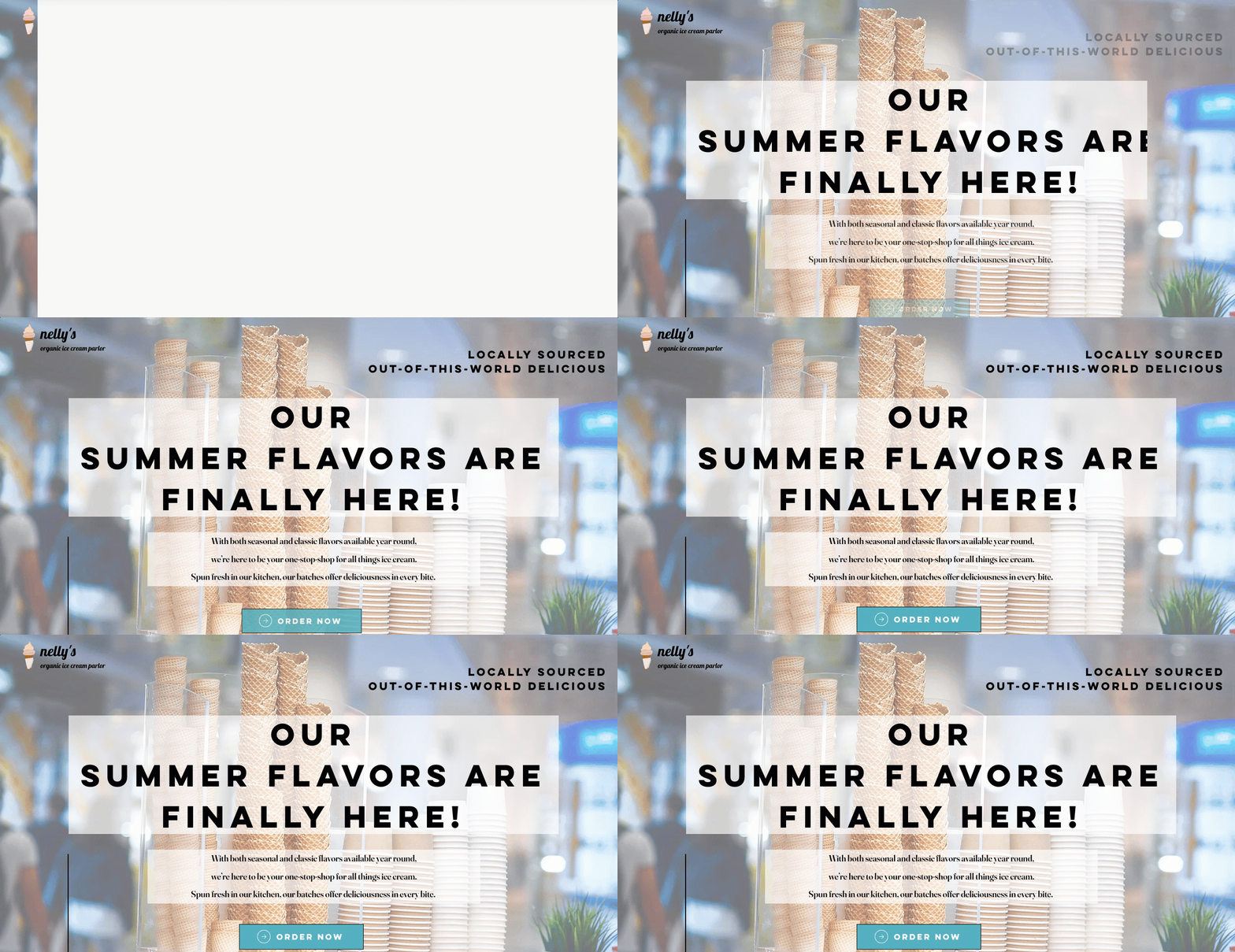
In this article, learn more about:
Adding an entrance animation
You can add an entrance animation to specific elements and sections, or the site page as a whole.
To add an entrance animation:
Select the relevant element.
Click the Open Inspector icon
 at the top right of the editor.

Click the Animations and Effects tab
 .
.Click + Add under Entrance.
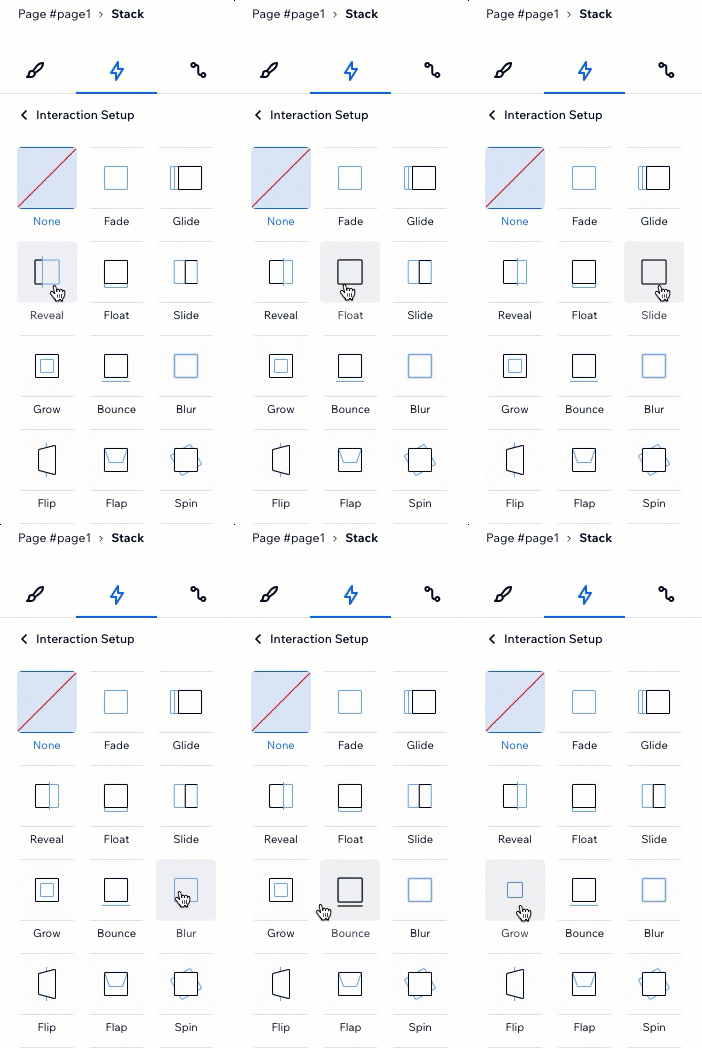
Select an animation from the list.
Tip: Hover over animations to see a preview of how they look.(Optional) Click Adjust Animation at the bottom to customize settings like direction, delay and duration.
Customizing an entrance animation
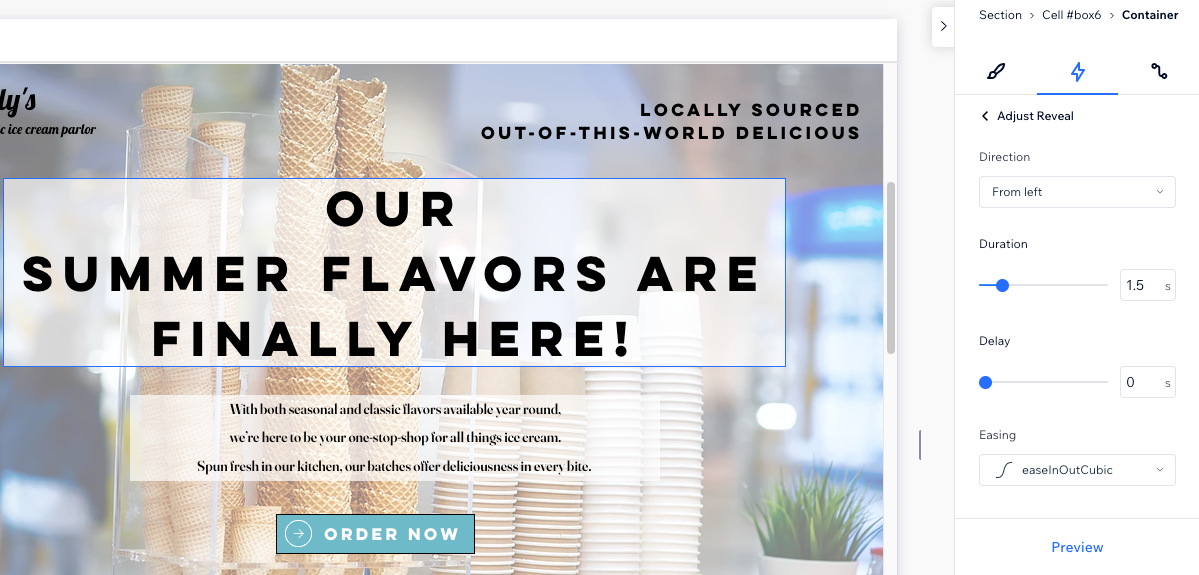
After choosing an animation, set it up to behave the way you want. Choose how long the animation lasts, when it starts, its intensity and more.
To customize an entrance animation:
Select the relevant element, section or page.
Click the Open Inspector icon
at the top right of the editor.
Click the Animations and Effects tab
.Click the animation you want to change.
Click Adjust Animation to change its settings:Direction: Decide which direction the animation should come from.
Tip: Depending on the animation type, you either set the direction in degrees (e.g. 180°) or choose an option from a drop-down (e.g. from left, clockwise).
Duration: Change the length of time of the animation.
Delay: Set the amount of time between the page loading and the animation starting.
Easing: Choose how gradually the animation should ease in and/or out.
Note:
The available customization options depend on the animation you choose.
Removing an entrance animation
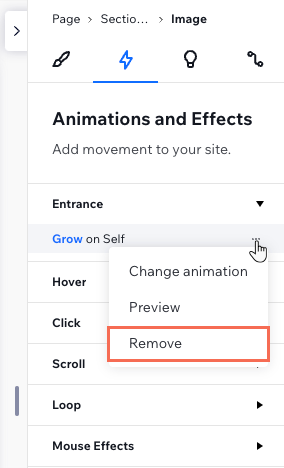
You can remove an entrance animation at any time from the Inspector panel.
To remove an entrance animation:
Select the relevant element.
Click the Open Inspector icon
at the top right of the editor.
Click the Animations and Effects tab
.Hover over the animation and click the More Actions icon
 .
.Click Remove.