top of page

Changing your Wix Video settings

Wix Video: Allowing Comments on Your Videos

Create higher engagement from your site members by allowing them to comment on your videos.
Once they have logged in, your viewers can add comments, post replies and "like" comments on your uploaded videos or live streams.

Important:

Comments can be enabled for videos that you have uploaded, but not for videos that are embedded videos from other platforms like YouTube or Facebook.

To enable or disable comments in Wix Video:

  1. Go to your editor.

  2. Click the Wix Video player.

  3. Click Settings.

  4. Click Player.

  5. In the Comments section, enable or disable the toggles:
    Allow on uploaded videos:Enabled: Viewers can comment on videos uploaded from your Video Library.
    Disabled: Viewers cannot comment on videos uploaded from your Video Library.

    Allow during live stream:Enabled: Viewers can comment on your live stream videos.
    Note: Comments are only displayed during the live stream.
    Disabled: Viewers cannot comment on your live stream videos.
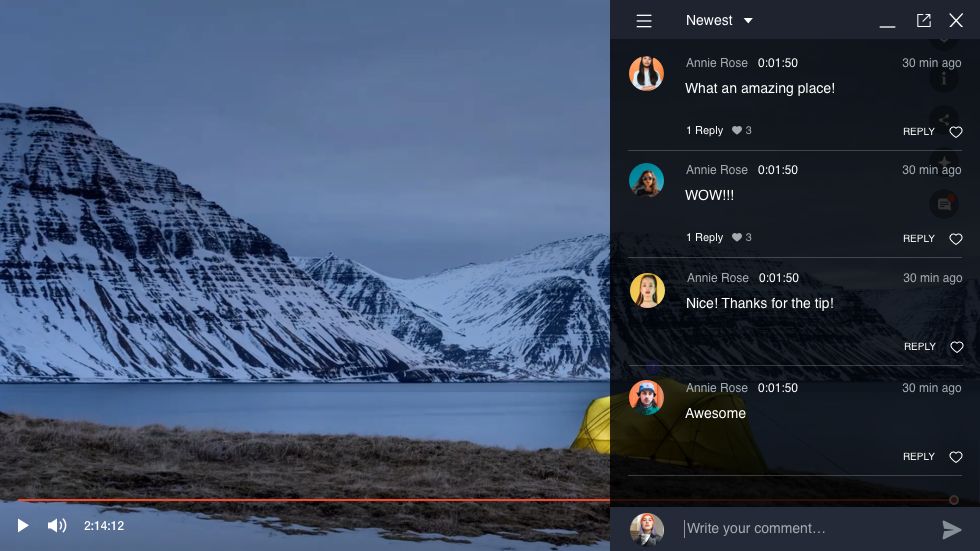
The comments section of a video on a live site.

Notes:

  • For a viewer to add a comment, they need to log in on your site or via the video player, click the Show Comments icon  on the video and add their comment. You can test this out yourself on your live site!

  • If you want to delete a comment that a viewer has left, hover over the comment and click the More Actions icon  followed by Delete. The comment is deleted for everyone.

  • Comments are not supported when watching videos on mobile devices. Vote for this feature.

Need A Professional Website?
Contact Us 
Today!

Wix Automations: Adding and Sending a Coupon

Wix Automations: Sending Automated Emails to Contacts After Form Submissions

Wix Automations: Customizing Automated Emails

Wix Automations: Creating a New Automation

Wix Automations: An Overview

The New Automation Builder: Understanding Email Types

The New Automation Builder: Creating a Multi-Action Automation

The New Automation Builder: Sending Data via Webhook

The New Automation Builder: Adding and Sending a Coupon

The New Automation Builder: Troubleshooting Wix Automations

The New Automation Builder: Understanding Conditions Operators

The New Automation Builder: Setting Up a 'Scheduled Time' Trigger

The New Automation Builder: Sending Data to Google Sheets

The New Automation Builder: Using the Property Picker

The New Automation Builder: Viewing and Managing Automations Installed for You

The New Automation Builder: Customizing Automated Emails

The New Automation Builder: Managing Your Automations

The New Automation Builder: Creating an Automation

The New Automation Builder: Overview

Microsoft Office 365 Mailbox Limits

Resetting the Password for Additional Office 365 Mailboxes

Resetting Your Admin Password for Your Office 365 Mailbox

Accessing Your Microsoft Office 365 Mailbox Through Your Wix Account

Accessing Your Microsoft Office 365 Mailbox Through Your Wix Account

Accessing the Microsoft Office 365 Admin Center

Activating Your Microsoft Office 365 Mailbox Purchased from Wix

Google Workspace: Troubleshooting Login Issues

Google Workspace: FAQs

Google Workspace: Contacting Google Support

Google Workspace Error Message: "You do not have access to Email"

wix experts
Graphic2Traffic web design
©
bottom of page