


New Automation Builder
The New Automation Builder: Adding and Sending a Coupon
This article refers to the new automation builder that is currently being released. If you're not seeing this version, then see our article about the previous version of the automation builder.
With Wix Automations, you can effortlessly send discount coupons to your contacts. This powerful tool aids in boosting your sales, promoting events, and enhancing customer engagement in a variety of ways.
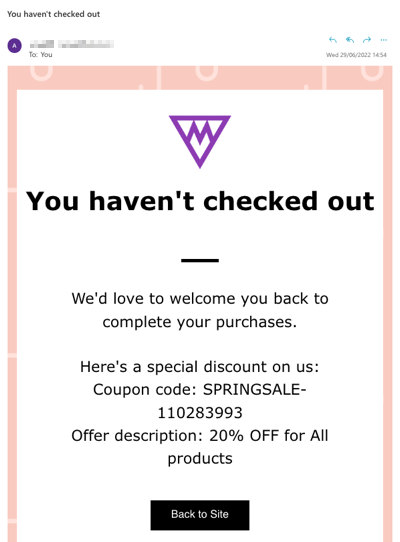
For example, imagine a potential customer visits your online store, adds items to their cart, but leaves without completing their purchase. With Wix Automations, you can set up a system that automatically sends an email offering a 20% discount coupon to such visitors. This not only motivates them to complete their purchase but also builds a positive relationship with your brand.
Step 1 | Set up an automation
To begin, start by creating a new automation from scratch. Select a trigger and decide if you'd like to limit frequency, include a delay, or add special conditions for your automation. Learn more about creating an automation.

Step 2 | Choose the 'add a coupon' action
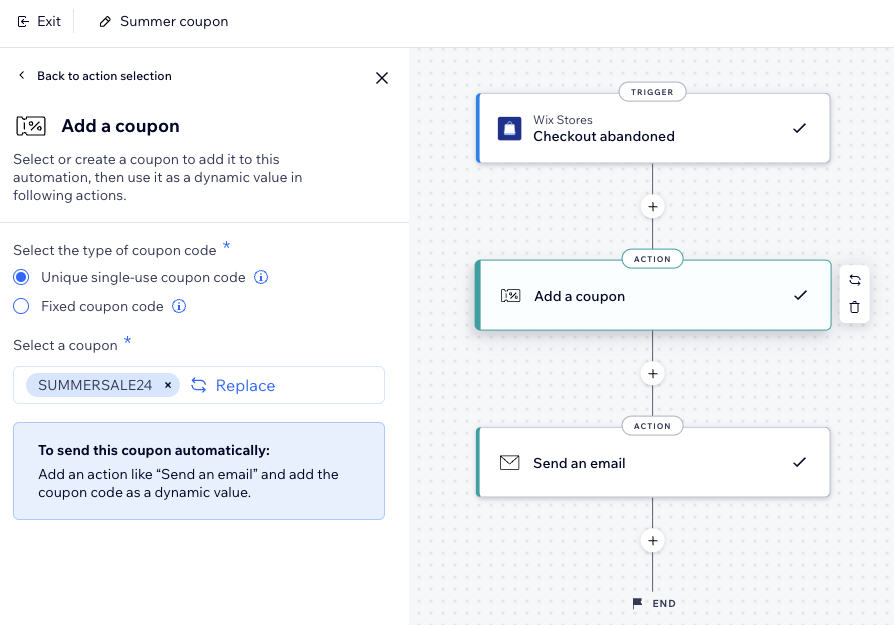
Next, set the action of your automation to 'add a coupon' and select the relevant coupon.
To add a coupon as an action:
Click + to add a step.
Click Action.
Select Add a coupon on the left.
Choose the relevant option under Select the type of coupon code:Unique single-use coupon code: Send a unique coupon code each time this automation is triggered. This coupon code can only be redeemed once.
Fixed coupon code: Send the same coupon code every time the automation is triggered (everyone get the same code).
Click + Select under Select a coupon to choose the coupon you'd like to use or create a new one on the spot.
Important:
This automation will stop working if the coupon end date or use limit is reached.
Make sure your coupon has a clear coupon code and coupon name. This will be seen by your visitors when adding the coupon to an email etc.
Step 3 | Add the coupon to an email as a dynamic value
Lastly, attach the coupon to an email that will automatically be sent to visitors once they trigger your automation. To do this, you'll add another action to the automation and choose 'send an email'. You can then show the coupon on the email by adding it as a dynamic value.
To add the Coupon as a dynamic value:
Click + to add a step.
Click Action.
Select Send an email on the left.
Click Edit in the Create an email section to start editing the automated email.
Select an existing text element or add a new one.
In the chosen text element, place your cursor where you want to add the coupon code.
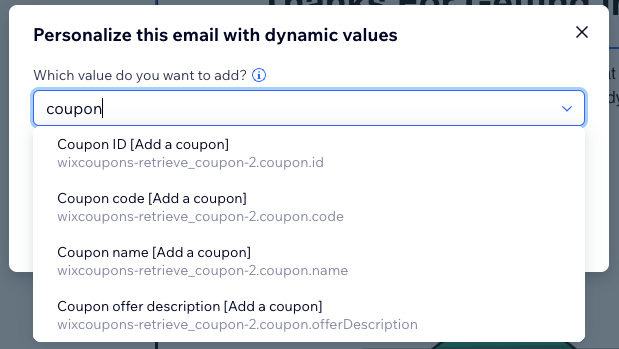
Click + Add Personalized Content on the left.
Type 'coupon' in the search bar to see the available options:Coupon ID
Coupon code
Coupon name
Coupon offer description
(Optional) Write a fallback text in the text box.
You can add multiple dynamic values to this email by following steps 7-9. This allows you to show more info about the coupon (e.g. coupon offer description), not just the coupon code.
Continue customizing your action:Under Sender details, click Edit to edit your sender details.
Under Set email type, select Promotional, Business transactional, or Business critical as the type for your email.
Under Set recipients, select all who will receive this automated email when it's triggered.
Click Activate.