


Adding videos & channels
Wix Video: Adding Information to Your Videos
You can add additional information to your videos to give your visitors more details about them. Your visitors can see the additional information when they click the "i" icon on the video.
You can also add your own trailer instead of using the first few seconds of the video as a preview. Choose from adding the first 20 seconds of the video, your own trailer or an autogenerated trailer created using Wix's AI.
Note:
When you access a video in your Video Library, only a preview of the video will display. Your video will not play in full.
In this article, learn more about:
Adding information to a video
When you add a video to your video library, you have the option to edit and customize certain details related to the video. For example, you can add a title, a category, tags, and set the pricing, etc.
To add information to a video:
Go to Video Library in your site's dashboard.
Click the Edit icon
 next to the relevant video.
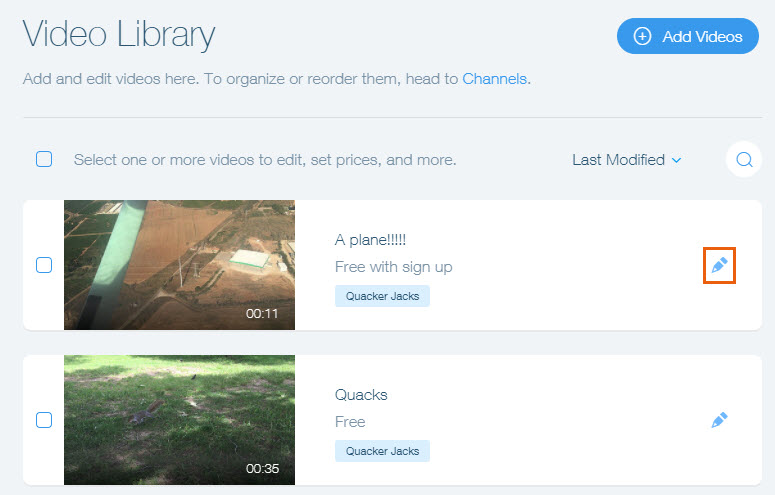
Add your information:Title: Enter a title for the video.
Publisher: Add information about the person or company responsible for distributing the video.
Categories: Add your videos to categories to group them together. The categories help your visitors identify what your channel is about. For example, Breakfast, Snacks, Dessert.
Tags: Add tags to your videos to describe specific characteristics of your video. Your visitors can search the tags to find a video they're looking for quickly. For example, Chocolate, Cookies, Eggs.
Description: Enter a description of the video.
Add Action Cards to Your Videos: Action Cards are clickable links that appear on your video to get likes from visitors or promote products.
Video Pricing: Choose whether this video is free or viewers are required to pay to view it. Learn more about pricing options.
Trailer: Choose whether you would like to have a trailer for your video.
More About This Video: Give your audience more info. Credit cast & crew, add a cover poster and more.
Let Viewers Embed This Video: Allow viewers to generate a simple piece of HTML code and play your video on any site.
Click Save on the top right.
Adding a trailer to a video
In addition to adding specific information about your video, you can also add a custom trailer to the start of your video.
To add a trailer to a video:
Go to Video Library in your site's dashboard.
Click the Edit icon
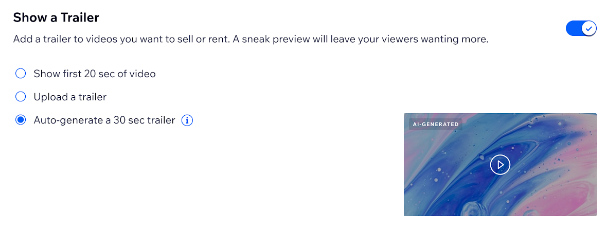
next to the relevant video.Scroll down and click the Show a trailer toggle to enable it.
Choose what you want to show in your trailer:The first 20 seconds of the video you've uploaded.
A different trailer from another video clip.Drag and drop the video clip or click the box to upload the video.
Auto-generate a 30-second trailer, generated by our AI and custom to your video.
Tip:
You can change or remove your trailer by clicking "Change" or "Remove" below the uploaded trailer.
FAQs
Click a question below to learn more about adding information to your videos.
Can I edit my uploaded YouTube videos in Wix?
Videos from YouTube cannot be edited through Wix, they must be edited in the platform where the video was originally edited and then re-uploaded to Wix.
What is the maximum size of a video I can upload?
Videos have a maximum support size of 100MB.
What file types are supported for my video cover images?
JPG, GIF, PNG are the supported file types for cover images.
What size should my video cover images be?
We recommend an image ratio of 16:9 and 1920 x 1080 pixels for JPG and PNG. For GIFs we recommend 960 x 480 pixels. A 15MB maximum applies to both images and GIFs.
How long does it take for changes made in YouTube to reflect in my videos in Wix?
It can take up to 48 hours for changes made in YouTube to reflect in your videos within Wix.
Why can I not update crew and cast information on some of my videos?
Some information such as crew and cast, can only be added to uploaded videos, and not to videos added from sources such as YouTube, Vimeo and Facebook.
Why can't I add trailers to some of my videos?
You cannot add trailers to YouTube, Vimeo, and Facebook videos.
My videos aren't uploading. How can I troubleshoot?
If you experience any issues with your video upload, we recommend that you check the supported files/formats/resolutions, and also check that your browser settings are not preventing the upload. Learn more about troubleshooting your video uploads.