


Wix Chat FAQ
Wix Chat: About Notifications
Notifications instantly alert you and your collaborators to every new Wix Chat message submitted through your site's chatbox. Reply in real time or follow up later. Set up these notifications so they work best for your business, and choose to receive them via email, mobile or desktop.
All incoming Wix Chat messages are routed to Wix Inbox, so you manage your Chat notification settings in your Wix Inbox Settings.
Important:
You cannot change notification settings for chat messages only. Changing notification settings in the Inbox Settings affects all inbox notifications (e.g. new email received, new form received).
Ready to get started?
Explore your Inbox notification settings.
Never miss a new message
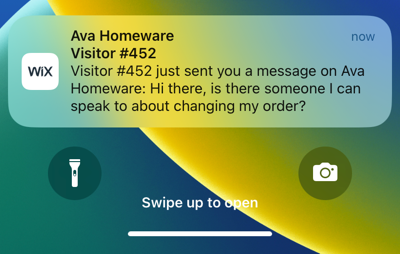
How would you like to be notified of incoming chat messages? You have the option to turn on email, desktop and mobile notifications. Stay in the loop and reply instantly, whether you're at your desk or on the move.
Learn more about managing your notification settings.
Keep your inbox clutter-free
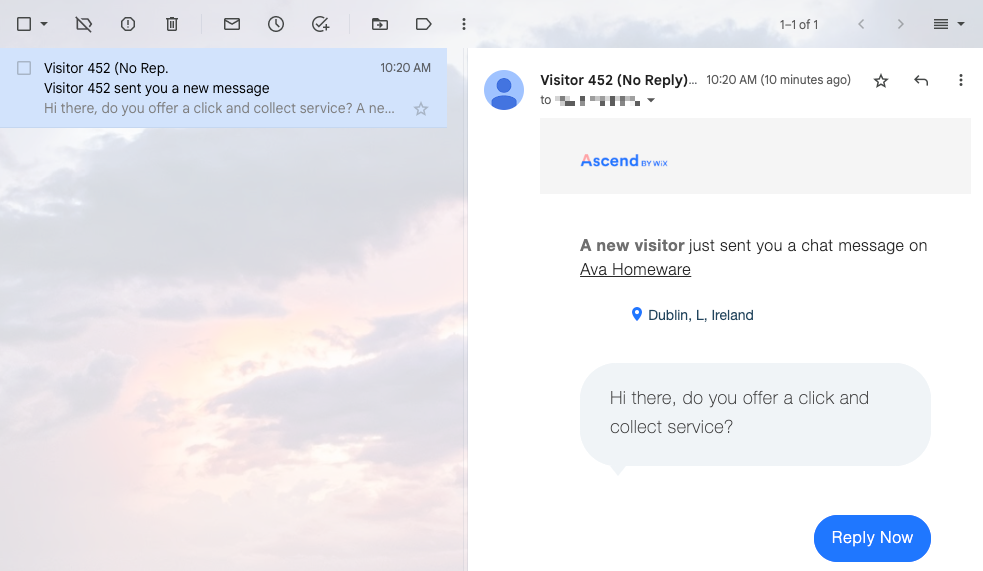
Keep your email notifications separate from other Wix account emails by having them sent to an address other than the one you've set as your account email.
Learn more about changing the email address your notifications go to.
Share the responsibility of managing your messages
If you'd like certain team members to be notified of incoming messages (as well as you or instead of you), enable collaborator email notifications. You can set permissions for each collaborator so they have access to specific parts of your dashboard and site.
Learn more about enabling email notifications for collaborators.

FAQs
Here are some common questions about managing your notification settings:
How can I change the email address my Chat notifications go to?
Email notifications are automatically sent to the email address you used when signing up for your Wix account. If you want email notifications to go to a different email address, such as your business email address, you can add it as a site collaborator.
Note: Any new email address you'd like to add as a site collaborator must have a separate Wix account.
To add your business email as a site collaborator:
Go to Inbox in your site's dashboard.
Click the Settings drop-down at the top right.
Click Notifications.
(Optional) Click the Email notifications toggle to disable email notifications if you no longer want to receive email notifications to your main account email.
Click the Profile & team tab.
Click + Invite People next to Your team.
Enter a business email or an alternative email where you want to receive chat and inbox notifications.
Click Send Invite.
Go to the new email's inbox and click Accept Now in the email.
Log in to the Wix account that's associated with the new email address and click Accept.
The new email address is automatically assigned a Back Office Manager role and appears in the Your team list. Click the toggle under Email notifications to turn on email notifications for this email.
Why am I not receiving Chat notifications on desktop?
Your browser may be blocking desktop notifications. You may need to update your browser settings to "allow" notifications from Wix.