


Setting up your store
Wix Stores: Translating Your Store
Make your site attractive to potential buyers around the world by offering your store in multiple languages. Wix Multilingual allows you to start by auto-translating your site (while making any necessary corrections), or by doing the translation on your own.
Before you begin:
Start by adding and setting up Wix Multilingual. You can add the Multilingual app from your editor, your site's dashboard, or from the Wix App Market.
Step 1 | Manage translations in your site's dashboard
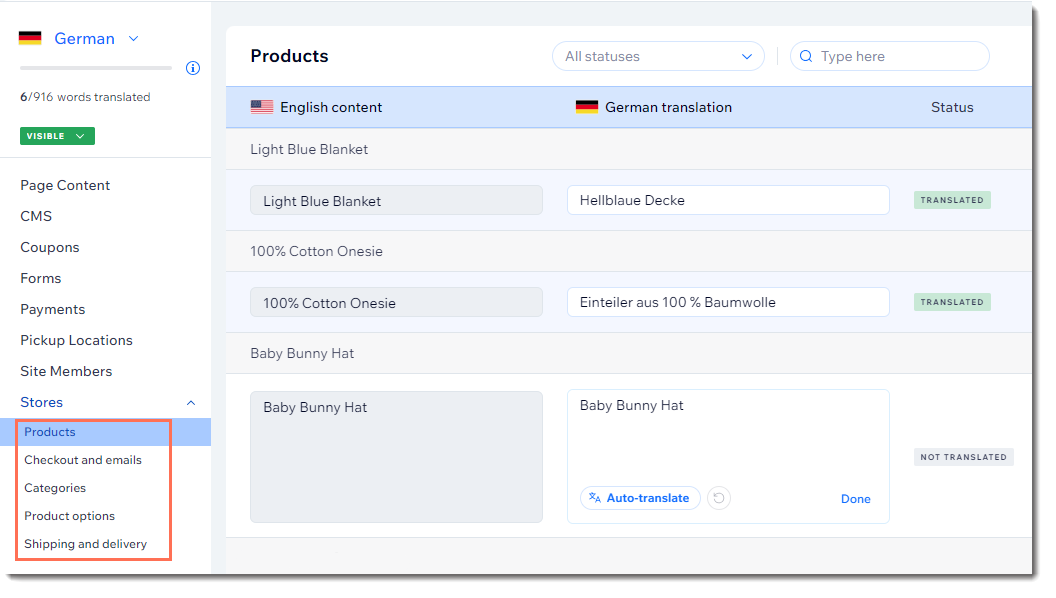
In the dashboard, you can translate the text associated with your products, your category names and descriptions, checkout and email texts, SEO text, as well as shipping and delivery information.
Tip:
If you auto-translate your site, you should review the automated translations.
To manage your translations:
Go to Translation Manager in your site's dashboard.
Click Stores on the left.
Choose the relevant option:If you auto-translated your site: Review each of the automated translations and edit if necessary.
If you didn't use auto-translation: Translate each of the content types on the left and manually translate the content phrases one by one.
Step 2 | Translate store pages in your editor
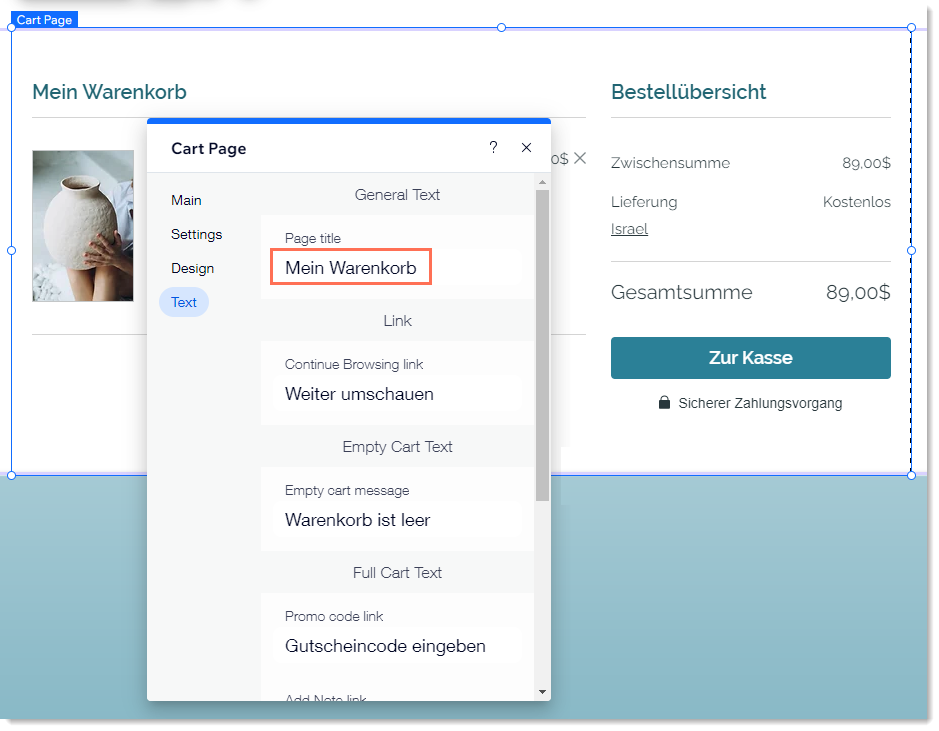
Next, head over to your editor and translate the Product Page, Cart Page, and Thank You page. If you use the Category Page, you can translate that as well. Some text may already be automatically translated, but you can edit it if necessary.
Note:
When you add Wix Stores, the store pages come with text. This text, if left unchanged, is automatically translated. However, if you changed this default English text, you need to manually translate it.
Wix Editor
Studio Editor
Go to the main language version in your editor:Click the Switch Language drop-down menu at the top left of the editor.
Select the language you want to manage.
Go to a store page (e.g. the Product Page) and click to select it.
Click Settings.
Click the Text tab.
Update the relevant text as needed.
Step 3 | Translate store elements in your editor
You can translate any of your store elements, such as Product Galleries and the Cart Icon. Note that some elements are optional additions that you may not have added to your store.
Wix Editor
Studio Editor
Go to the main language version in your editor:Click the Switch Language drop-down menu at the top left of the editor.
Select the language you want to manage.
Select the element you want to translate:Cart Icon & Mini Cart
Product Galleries
Product Widget
Add to Cart button
Translate any text options that were not automatically translated.
Step 4 | Publish and test your store
Once you've finished translating your store, make sure to make the language visible to visitors. Then publish your site as usual.
We recommend previewing the checkout process in each language, before you launch your multilingual store. This lets you view what customers will see when they make a purchase.
What's next?
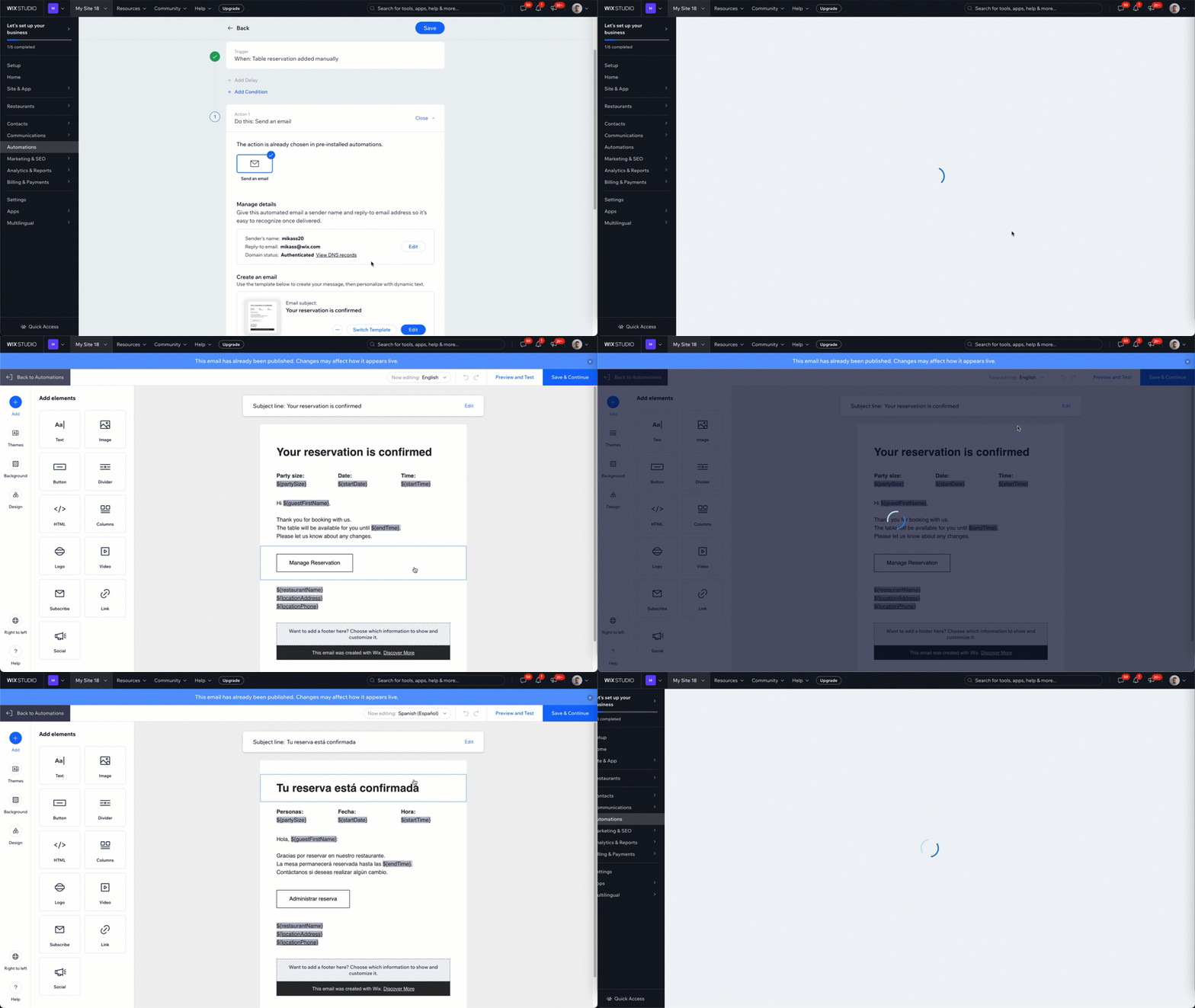
Continue translating the other pages in your site. We also recommend translating your automated emails into your site's languages. This allows you to speak to your audience in their language, offering a more local experience.
FAQs
Click a question below to learn more about translating Wix Stores with Wix Multilingual:
Is all text in Wix Stores translatable?
Certain text in the Wix storefront (e.g. such as the Checkout Page text) is generated automatically and cannot be translated directly.
However, in multilingual pages in the following languages, the text translates automatically: Arabic, Bulgarian, Chinese (Traditional), Czech, Danish, Dutch, English, Finnish, French, German, Greek, Hebrew, Hindi, Hungarian, Indonesian, Italian, Japanese, Korean, Lithuanian, Malay, Norwegian, Polish, Portuguese, Romanian, Russian, Spanish, Swedish, Tagalog, Thai, Turkish and Ukrainian.
In languages not in the above list, the Wix storefront text appears in English.
If you would like to be able to translate automatically generated Wix Stores text in the future, vote for that feature.
Can I translate product subscriptions?
Currently, it is not possible to translate product subscriptions in Wix Stores. If this is something you'd like to see in the future, vote for this feature.
Can I translate SEO settings for my store products?
You can translate the SEO settings separately for each product in each language. SEO text appears with the other text types connected to a product.

Can I translate the "My Orders" page?
Sites with Wix Stores and a Members Area have a "My Orders" page where customers can track orders. The text that appears in your Member's Area is automatically translated. You can, however, replace the default text with text of your choice in each of your languages.
Can I translate Automatic Discounts?
You can translate Automatic Discounts from the Translate your apps' content section of the Multilingual Dashboard.
Can I change the font color of translated product descriptions?
Currently, the color you set for your product description, in the Product Settings tab of the dashboard, can not be carried over to the Multilingual dashboard. The translated description remains all one color in the Multilingual Dashboard - black. However, you can change the color of your product description from black to another color in the Wix Editor.