


Managing your calendar & bookings
Wix Bookings: Refunding Clients
Whenever you or a client cancels a paid service, you can issue refunds as needed. We recommend handling the refund as soon as possible. This helps you maintain good customer relationships and avoid chargebacks, which are charge reversals issued by payment providers on behalf of clients that dispute them. For example, if a client can't make an appointment they already paid for, you can quickly issue a refund directly from the orders tab or the participant list in your site's dashboard. This ensures your clients feel valued and can trust your business.
Tips:
To reduce chargebacks, make sure to update clients as soon as you process their refunds.
Keep records about all the refunds you issue, including details about the services, clients, dates, and amounts.
In this article, learn how to refund clients:
Refunding clients using the Orders tab
You can process refunds for most paid orders right in the Orders tab in the Wix dashboard.
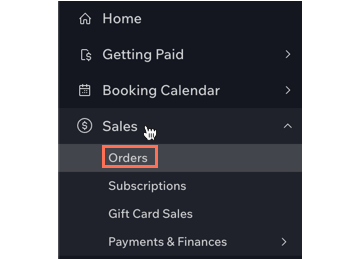
To get started, select the relevant order, click More Actions at the top right, and select Refund. Learn more about how to refund an order.
Tip:
If you need to cancel the session as well, you can do so separately. Learn more about canceling sessions.
Refunding clients using the participant list
You can issue refunds for courses and classes from the participant list in your Booking Calendar.
To refund a client using the participant list:
Go to Booking Calendar in your site's dashboard.
Click the relevant class or course in your calendar.
Click Manage to view the participant List.
Click the More Actions icon
 on the right side of the relevant client and click Remove.
(Optional) Select the Notify client via SMS checkbox to send your client an SMS notification.
(Optional) Select the Notify client via email checkbox and add a note to let the client know about the cancellation and refund.
(Optional) Select the Mark as refunded/Issue refund checkbox to refund the client.
Click Remove.
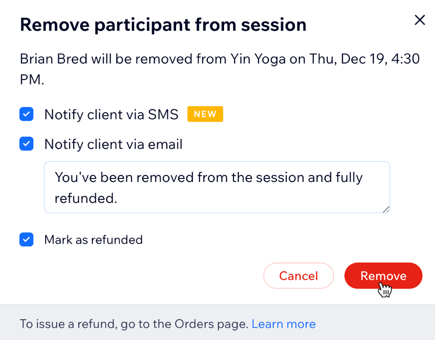
(If necessary) Click Mark as refunded/Confirm refund to confirm.
Cancellation fees:
To refund classes and courses with cancellation fees, remove the participant, then follow the steps in the "Refunding clients using the Orders tab" section to issue the refund.