


Designing your store
Wix Stores: Setting How Store Images Are Displayed
Displaying great product images is one of the most important keys to e-Commerce success.
How images look in your store depends on the images you upload (the resolution, aspect ratio, etc.) and how you set image to be displayed in your store.
This article will walk you through the image resizing and ratio options available in your editor.
In this article, learn more about:
Understanding image resizing
Where images are displayed, you'll see two resizing options: Crop and Fit.
Crop
Images are cropped so that they are all the same size. If you upload images in different sizes and with different aspect ratios, part of the image may be cut off.

Fit
If you select the fit option, the entire image is displayed and keeps it's original aspect ratio. Images in your gallery will not have the same aspect ratio unless the original images had them.
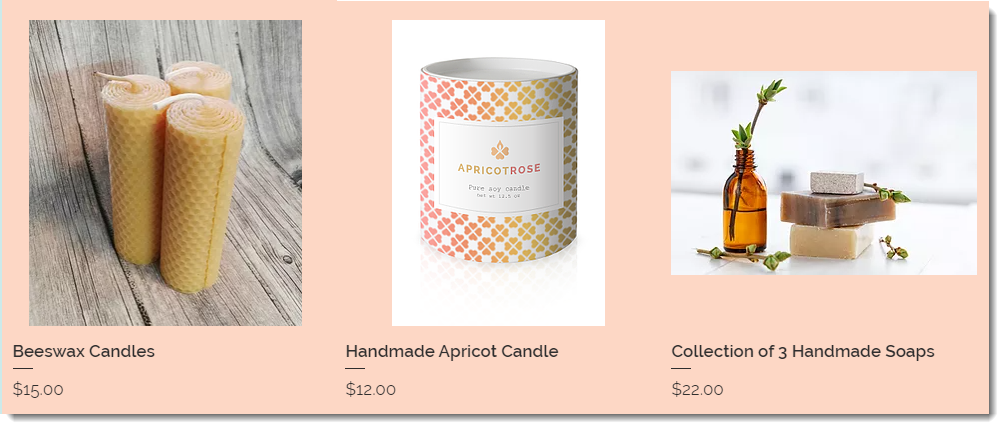
Tip:
To create a Product Gallery with a clean look featuring same-size images, and to avoid any images being cut off, we recommend uploading images with the same aspect ratio when creating your products.
Understanding image ratio
Image ratio, also known as aspect ratio, is how wide an image is in relation to how tall it is. When selecting a setting, take into consideration the layout you choose for the Product Page, Category Page, or Product Gallery.
For example, the classic layout in the Product Page supports all image ratios. Other layouts look best with wider images.
Tip:
For viewing on a mobile device, the recommended image ratio is 1:1 (a square picture).
Selecting image settings in a Product Gallery
Go to the relevant Product Gallery in the editor.
Click the Product Gallery.
Click the Settings icon
 .
.Click the Layout tab.
Select an image ratio.
Choose an option under How's image resized?:Crop: Images are cropped to the same size.
Fit: Displays the entire image.
Selecting image settings in the Product Page
Make sure your images look great in the Product Page by selecting settings that work with your image's aspect ratios.
Wix Editor
Studio Editor
Go to your Product page:Click Pages & Menu
 on the left side of the editor.
Click Store Pages.
Click Product Page.
Click the Product Page element on your page.
Click Settings.
Click the Layout tab.
Choose an option from the Image ratio drop-down.
Choose an option under How's image resized?:Crop: Images are cropped to the same size.
Fit: Displays the entire image.