


Setting up Retail POS sales
Wix Retail POS: Allowing Customers to Redeem Loyalty Points
Important:
This article is about Wix Retail POS tablet for brick & mortar businesses.
For info on using POS on a mobile device, click here.
If you created a loyalty program, customers can redeem the loyalty points they earned at your POS. To do so, points are converted to coupons and applied to a sale.
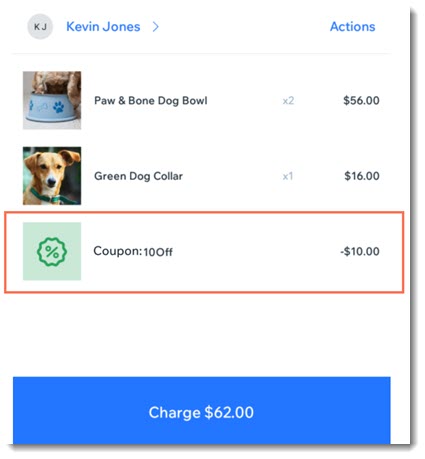
Allowing customers to redeem points
Important:
If you purchased your Retail POS system after October 25, 2023 and before April 2024, you may need an upgrade to allow customers to earn and redeem points at your POS. Learn more
Customers who have earned enough points can redeem them while making a purchase.
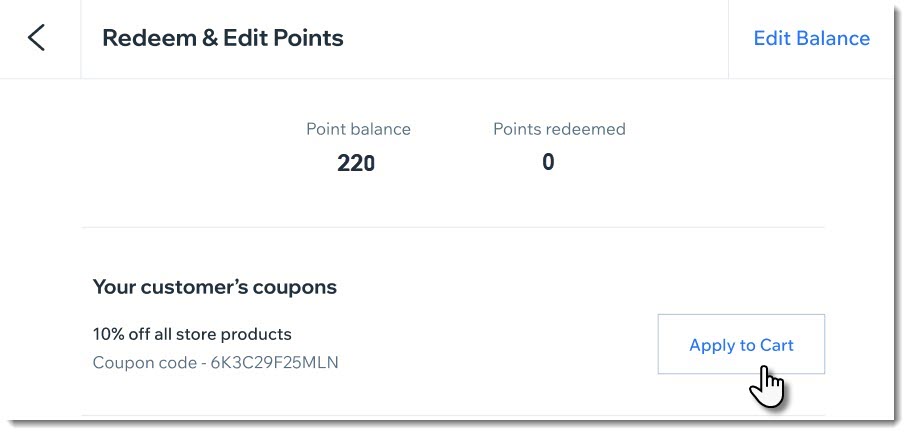
To allow a customer to redeem points:
Open the POS tablet.
During checkout, assign a customer to the sale.
Tap the customer's name.
Tap Redeem & Edit.
Select an option:Customer already has a coupon: Tap Apply to Cart under Your customer's coupons.
Customer has points but no ready coupon:Tap Get Coupon under Available Rewards to create a coupon.
Tap Redeem & Get Coupon.
Tap Apply to Cart under Your customer's coupons.
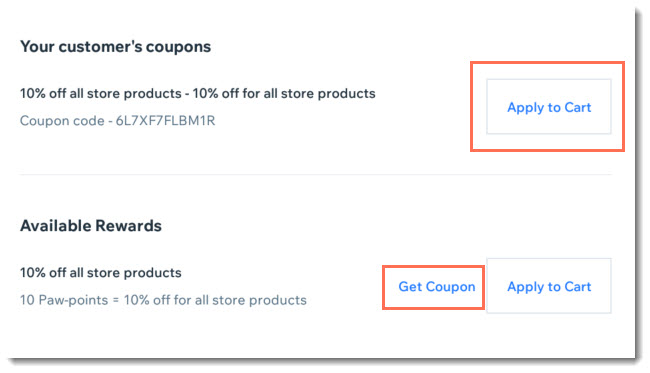
Complete the sale.
Viewing a customer's balance
Customers sometimes want to check their balance and see if they have coupons ready to be redeemed. You can do so during a sale by tapping the customer's name. If you're not processing a sale, you can access the customer from your Customers tab and then check the balance.
To check a customer's balance:
Open the POS tablet.
Select an option:
Check the balance during a sale:During checkout, assign a customer to the sale.
Tap the customer's name.
View the customer's balance and points redeemed.
Check the balance when you're not making a sale:Open the POS tablet.
Tap Customers on the bottom bar.
Select the relevant customer.
View the customer's balance.
FAQs
Click a question below to learn more about managing your loyalty program at your POS.
How can I update my loyalty program?
To make changes to how your loyalty program works, go to the Loyalty tab on desktop. There, you can choose how members earn points, set up your rewards, and more.
Learn more about managing your loyalty program.
Can a customer redeem points for coupons without applying them to the current sale?
Yes. Customers can redeem coupons even if they aren't making a purchase. They can use those coupon for future purchases.

Can I manually change a customers' point balance?
Yes. You may want to correct a mistake or add points as a bonus to your customer. While viewing a customer's balance, you can click Edit Balance and enter a new point balance.
