


Managing store inventory
Wix Stores: Receiving Inventory Ordered with a Purchase Order
After you receive the merchandise you ordered, you can check that it all arrived and mark it as 'Received'. When you do, your inventory updates automatically to reflect the new stock that arrived.
Marking items in an order as "Received"
Go to Purchase Orders in your site's dashboard.
Click the More Actions icon
 next to the relevant order.
Select Receive inventory.
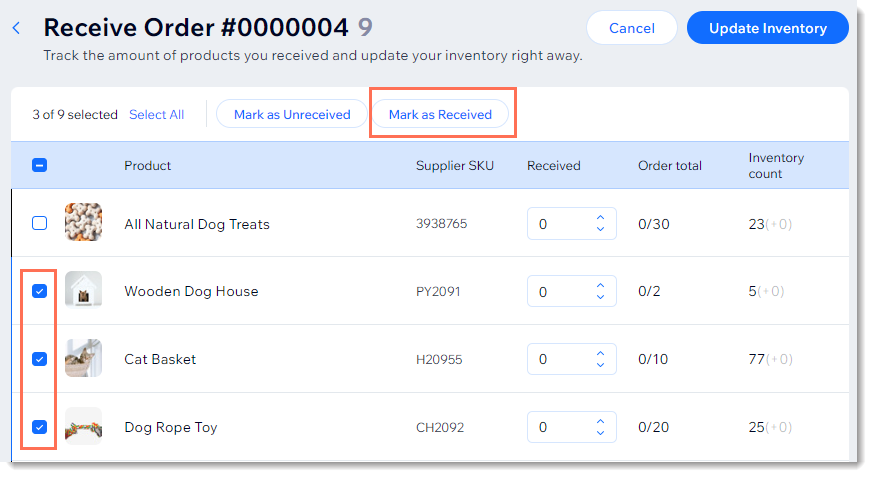
Select the checkbox next to the product(s) you want to update and click Mark as Received.
Note: The entire amount ordered is marked as received.
Tip:
You can also manually enter the number of items received.
When you're done making changes, click Update Inventory.
If you ordered custom products, make sure to edit the new products (i.e. add an image, edit the price, etc.)
Tip: When you click Update Inventory, these products are added but hidden from your site. Make sure to unhide them when you're ready.
FAQs
Click a question below to learn more.
What happens when I receive a custom product?
When you click Update Inventory on a custom product you received, the new product is added to your site. Note that the product won't yet have all the details you normally add to a product, such as an image or description.
Important:
The price displayed is the price you paid to your supplier, so make sure to edit it.
These products are added but hidden from your site. You can unhide the products after you make changes.

What should I do if I receive only some of what I ordered?
You may not receive all the products you ordered, or you might receive a smaller quantity of a particular item.
When you don't receive a product, leave the amount as zero in the Received column. If you receive only part of what you ordered, enter the quantity that was delivered.

What is shown in the Inventory count column?
When you order new inventory but haven't yet marked it as received, it shows the existing inventory plus zero. In the image below, it shows that this store currently has 4 units in stock.

After the 25 products were marked in the Received column, the inventory count changes to 29 (+25). This indicates that 4 were already in stock and 25 units were just added.
