Setting up shipping & fulfillment
Wix Stores: Offering Real Time Shipping Rates via Third-Party Apps
Using third-party apps, you can offer real-time shipping rates on your site. The calculation is made at checkout for each customer, based on what they purchase and where they're located. They help you estimate more accurately how much you actually need to pay to ship each order.
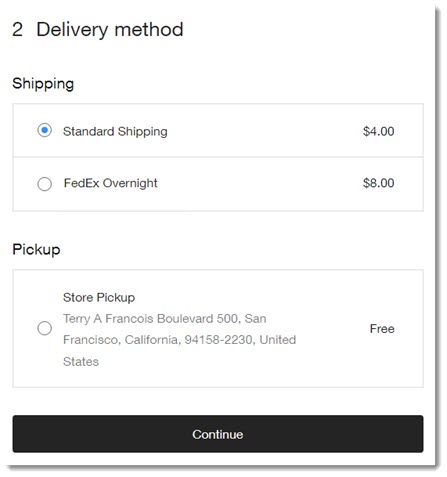
In addition to any shipping options you create through a third-party app (e.g. FedEx Overnight in the example below), you can offer shipping options created in Wix (e.g. standard shipping and store pickup).
Third-party apps that allow you to display real-time shipping rates include:
Important:
Wix is not liable for any damages or costs incurred from the use of any third-party services.
If your shipping app is temporarily unable to supply a rate, customers will see a backup rate (if the app supports backup rates and you entered one) or any other delivery options you set up. If none of these are available, customers cannot check out.
Step 1 | Add an app that offers real-time rates
To get started, add one of the third-party shipping apps that allow you to display real-time rates.
Note
Many third-party shipping apps in the app market allow you to print shipping labels, but do not offer real-time rates.
Wix Editor
Studio Editor
Dashboard
Click Add Apps
 on the left side of the editor.
Search for the shipping app you want to integrate.
Click Add to Site.
Step 2 | Set up shipping rules in the shipping app
Now go to the dashboard of the app you added and set up shipping rules. You can access the dashboard of any apps you added right from your Wix dashboard.
To set up shipping rules:
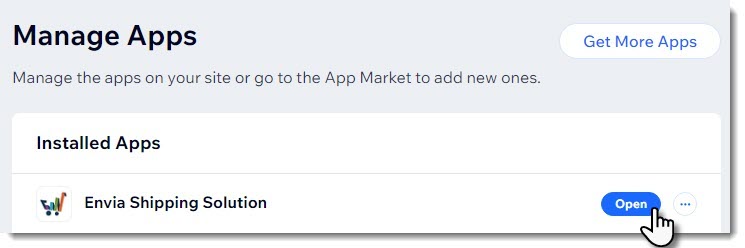
Go to Manage Apps in your site's dashboard.
Click Open next to the relevant app.
Get more info:
Refer to the help information from the app you're using to learn how to set up shipping rules.
Step 3 | Enable the rule in relevant shipping regions
For customers to see and select the new shipping option at checkout, you need to enable the app in your Wix dashboard.
You must enable the app in each region where you want customers to see it. For example, if you created 3 shipping regions, for the US, Canada, and Mexico, and want the app to work in the first 2, you must enable the toggle for the US and then enable the toggle for Canada.
To enable shipping apps:
Go to Shipping & fulfillment settings in your site's dashboard.
Select a shipping region.
Scroll down past any shipping, delivery, or pickup options you created.
Enable the toggle next to the shipping app.
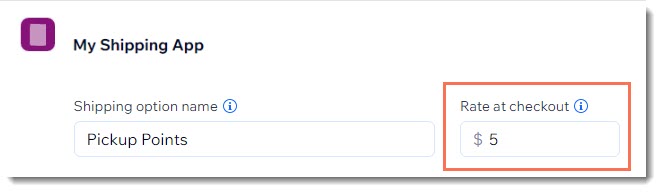
Note: When a shipping app is enabled, customers see any shipping options you created that are relevant for their region.If your app has a Rate at checkout field, enter a rate.
Note: This is a backup rate for rare cases where it's not possible to supply a real-time rate.
Repeat steps 2-5 for any additional regions.

Step 4 | Fulfill orders
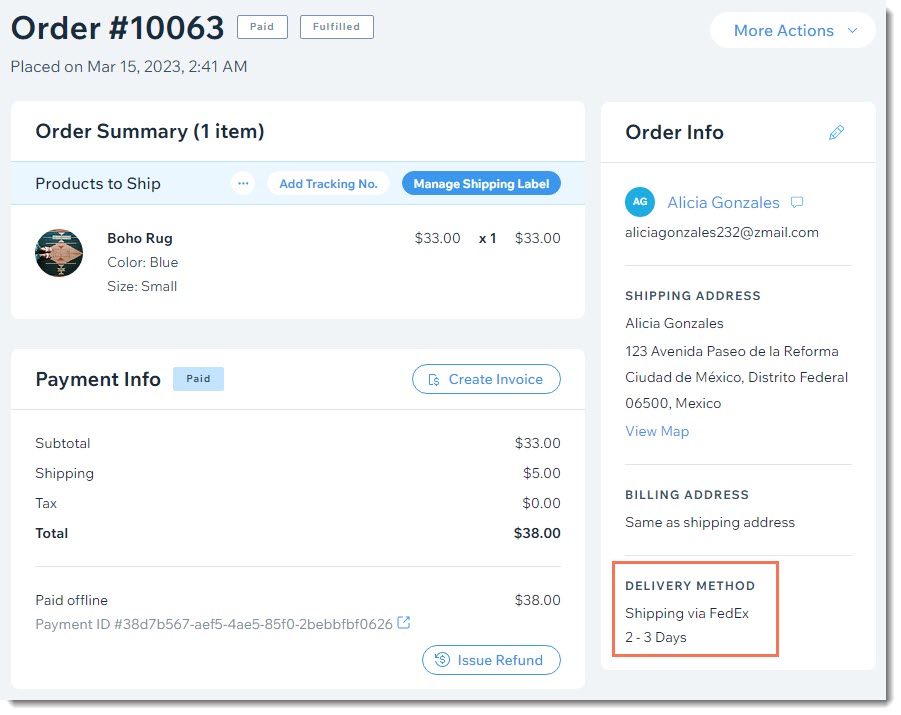
When you receive a new order, you see which shipping option your customer chose. You can use this method to fulfill your order, but you don't have to. You're free to fulfill the order using any shipping method you choose.