top of page

Managing products and categories

Wix Stores: Displaying the Product Price per Unit

Display a price breakdown to make it easy for customers to compare prices.

Tip:

Displaying a price per unit is required in some regions, such as Germany.
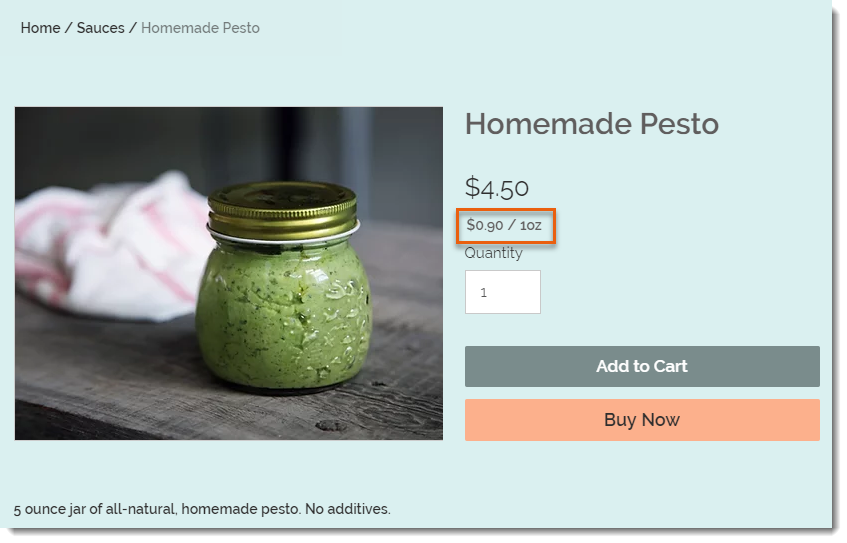
Screenshot of a product in a Wix store that has a price per unit display

To set up the price per unit display as in the image above, you need to select your type of unit (in this example, it's ounces), then enter the total weight of the product (it's a 5-ounce jar). Finally, you need to enter the unit you are using for your calculations (i.e. 1 ounce is the base unit in this example).
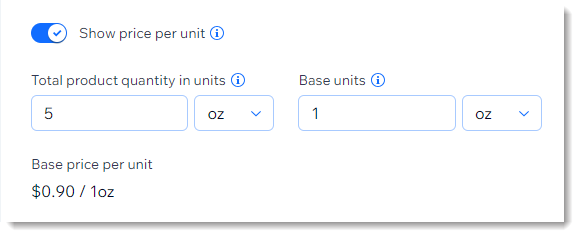
Screenshot of part of the product creation page showing the price per unit setup

After entering these parameters, the price per ounce (for example) is calculated automatically and appears on your live site under the product price.

After setup:

The price per unit calculation updates automatically whenever you:

  • Change the product price

  • Add a sale price

  • Add product variants with higher or lower prices

To add a price per unit display:

  1. Go to Products in your site's dashboard.

  2. Create a new physical product or edit an existing one.

  3. In the Pricing section, enable the Show price per unit toggle.

  4. Under Total product quantity in units, select the relevant type of unit (e.g. ounces) from the drop-down.
    Tip: You can switch between metric and imperial units in your regional settings.

  5. Under Total product quantity in units, enter the total product quantity in units (e.g. if you are selling a 5-ounce jar, enter "5").

  6. Enter the unit you want to measure by (e.g. enter 1 ounce to display a price per ounce).

  7. Click Save.

Need A Professional Website?
Contact Us 
Today!

Wix Retail POS: Allowing Customers to Leave Tips

Wix Retail POS: Setting Up Text Receipts

Wix Retail POS: Allowing Customers to Redeem Loyalty Points

Wix Retail POS: Enabling Automatic Discounts

Wix Retail POS: Receiving Notifications

Wix Retail POS: Selling Physical Gift Cards

Wix Retail POS: Selling Virtual Gift Cards

Wix Retail POS: Managing Discounts

Wix Retail POS: Organizing Your Favorites Screen

Wix Retail POS: Disabling Payment Methods

Wix Retail POS: Managing Tax Collection

Wix Retail POS: About the Retail POS Plan

Wix Retail POS: Using Wix Payments as Your Payment Provider

Wix Retail POS: Troubleshooting Your Wix POS

Wix Retail POS: Using the Moneris Go Terminal Card Reader

Wix Retail POS: Connecting a Network Card Reader

Wix Retail POS: Contacting Wix Customer Care for POS Support

Wix POS Terms of Service

Wix Retail POS: Device Security Guidelines

Wix Retail POS: Troubleshooting Your Barcode Scanner

Wix Retail POS: Troubleshooting Your HP Terminal Receipt Printer

Wix Retail POS: Troubleshooting Your Cash Drawer

Wix Retail POS: Updating and Troubleshooting Your Card Reader

Wix Retail POS: Troubleshooting Your Tablet

Wix Retail POS: Updating the Tablet

Wix Retail POS: Checking the Status of Your Hardware

Wix Retail POS: Setting Up the Receipt Printer

Wix Retail POS: About Your HP Barcode Scanner

Wix Retail POS: Using the BBPOS Chipper 2X Card Reader

Wix Retail POS: Managing Your Cash Drawer

wix experts
Graphic2Traffic web design
©
bottom of page