


Managing products and categories
Wix Stores: Displaying Product Categories on Mobile
If you display the category page on your site, customers can use it to navigate through your live categories.

However, it's important to remember that the category list is not visible on mobile devices. If you want customers on mobile to have access to your subcategories, add them to the site menu.
You decide whether you want to add them only on the mobile version of your site or both on desktop and mobile.
Adding categories only to your mobile site menu
If you prefer not to add your product categories to the desktop version of your site menu, you can still add them to mobile. This way, customers visiting your site using a mobile device can easily find the types of products they're looking for.
Wix Editor
Studio Editor
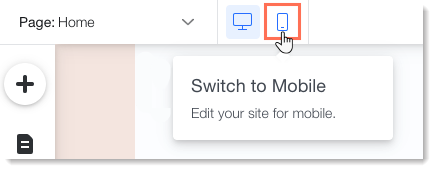
Click the Switch to Mobile icon at the top of your editor.
Click the site menu.
Click the Settings icon
.
Click Set as Advanced.
Click Set as Advanced to confirm.
Click the menu in your editor.
If not already open, click Manage Menu.
Click + Add Menu Item at the bottom.
Select Link.
Select Page on the left.
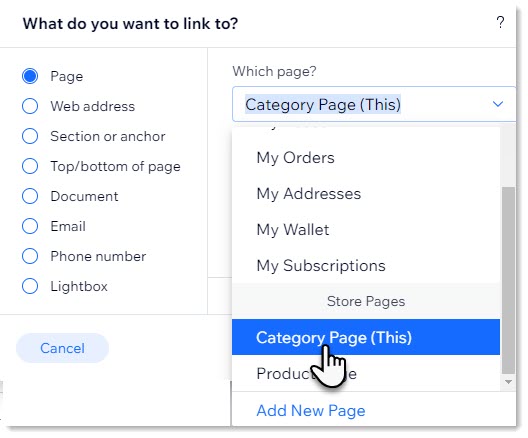
Select Category Page from the Which Page? drop-down.
Select the category you want to display from the Which item? drop-down.
Click Done.
(Optional) Rename the category.
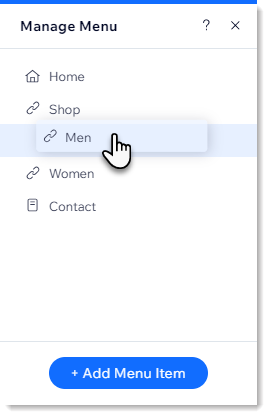
(Optional) Drag categories to make them into subcategories.
Adding categories to desktop & mobile site menus
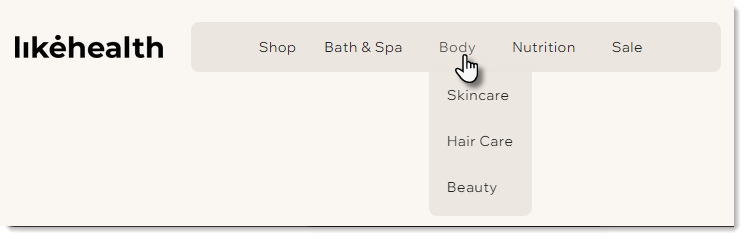
By default, the category page is added to the site menu with the name "Shop". This link directs customers to the "All Products" category. You can add direct links to each of your other categories (e.g. Body, Nutrition).

If your site has a lot of products and categories, you can add subcategories to the site menu.
Wix Editor
Studio Editor
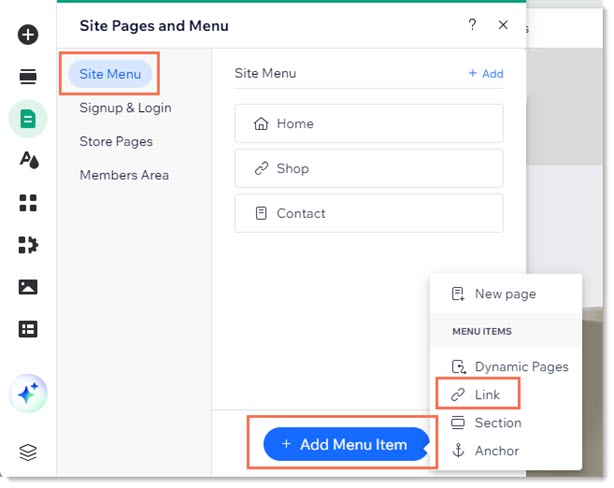
Click Pages and Menu
 on the left side of the editor.
Click Site Menu.
Click +Add Menu Item at the bottom.
Select Link.
Select Page on the left.
Select Category Page from the Which Page? drop-down.
Select the category you want to display from the Which item? drop-down.
Click Done.
(Optional) Rename the category and click Done.
(Optional) Make the category you added into a subcategory:Click Pages and Menu
on the left side of the Editor.
Click Site Menu.
Drag the relevant menu items under and to the right of the relevant category.