top of page

Setting up your store

Wix Stores: Deleting Wix Stores

When you delete Wix Stores, all the store elements (the cart icon, product widgets, store tabs in your Wix dashboard, etc.) are removed.

Important:

Deleting Wix Stores does not cancel your Premium plan or Studio plan.

Wix Editor

Studio Editor

  1. Go  to your editor.

  2. Click Pages & Menu  on the left side of the editor.

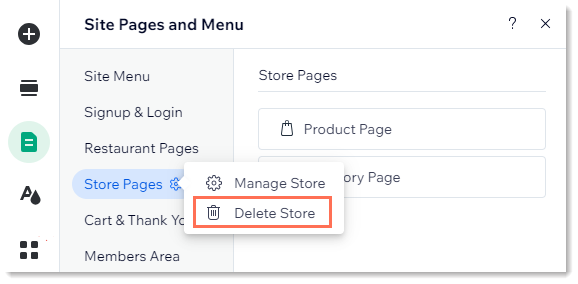
  3. Click the Actions iconnext to Store Pages.

  4. Select Delete Store.

  5. Click Delete to confirm.

Screenshot of Pages & Menus in the Wix editor, with the settings icon next to Store Pages clicked on & Delete store outlined

Need A Professional Website?
Contact Us 
Today!

Wix Chat: Automatically Sending Chat Messages or Responding to Chat Messages

Wix Chat: About Notifications

Wix Chat: Deleting Wix Chat

Wix Chat: Adding the WhatsApp Channel to Your Chatbox

Wix Chat: Viewing and Chatting with Live Site Visitors

Wix Chat: Customizing the Chat Icon on Your Mobile Site

Wix Chat: Translating Wix Chat

Wix Chat: Allowing Members to Chat with Each Other Using Members Chat

Wix Chat: Customizing Your Chat Settings

Wix Chat: Designing Your Chatbox

Wix Chat: Adding Wix Chat to Your Site

Wix Chat: An Overview

Your AI Site-Chat Conversations Quota

Designing and Customizing Wix AI Site-Chat

Training Your AI Site-Chat

Testing Your Wix AI Site-Chat

Adding and Setting Up Wix AI Site-Chat

About Wix AI Site-Chat

Wix Inbox: Sending a Broadcast Message to Your Contacts in the Wix App

Wix Inbox: Working with Site Collaborators

Wix Inbox: Connecting WhatsApp Business to Inbox

Wix Inbox: Connecting Your Facebook Page

Wix Inbox: Connecting Instagram to Inbox

Wix Inbox: About Wix Inbox Channels

Wix Inbox: Connecting Your Gmail Account

Wix Inbox: Managing Your Notification Settings

Wix Inbox: Managing Your Inbox

Wix Inbox: Setting Up Your Inbox Profile and Outgoing Emails

Wix Inbox: Sending Messages and Attaching Items

Wix Inbox: An Overview

wix experts
Graphic2Traffic web design
©
bottom of page