top of page

Setting up payment and checkout

Wix Stores: Customer Checkout with Apple Pay or Google Pay

After you setup Apple Pay or Google Pay, you can offer customers the convenience of paying with their phones.

Additional payment buttons in the Product page

You can display an Apple Pay or Google Pay button to relevant customers in the Product page, along with the 'Add to Cart' button. This comes in place of the 'Buy Now' button. If you connected PayPal as well, 3 payment buttons are displayed.
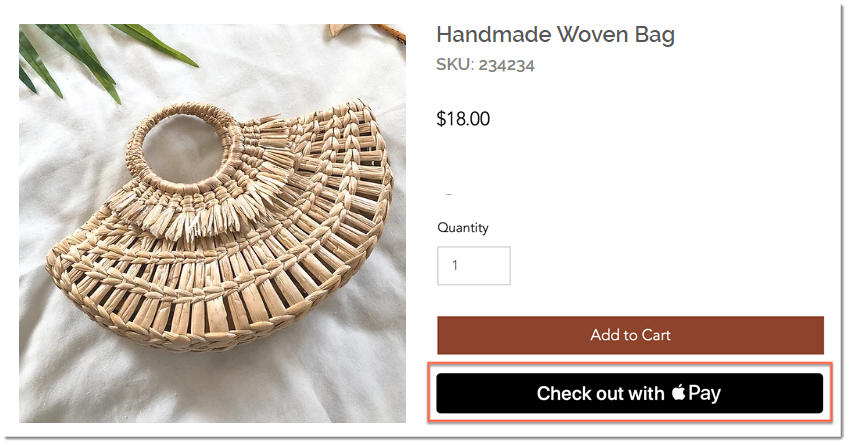
Screenshot of the Product Page in a Wix store with the Apple Pay checkout button outlined

To display additional payment buttons in the Product page:

  1. Select the Product page in the editor.

  2. Click Settings.

  3. Click the Settings tab.

  4. Under Buy Now, enable the Show button toggle.
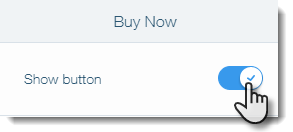
Screenshot of setting in the Product Page in Wix where you enable the Buy Now button

  1. Enable the Change automatically by payment method toggle.
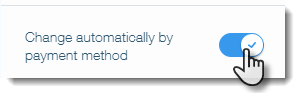
Screenshot of setting in the Product Page in Wix where you enable additional payment options

Additional payment buttons in the Cart & Checkout pages

In the cart page, the Apple Pay or Google Pay button will appear along with PayPal (if connected) and a checkout button (if the manual payments, Square, Stripe or other payment provider is connected).
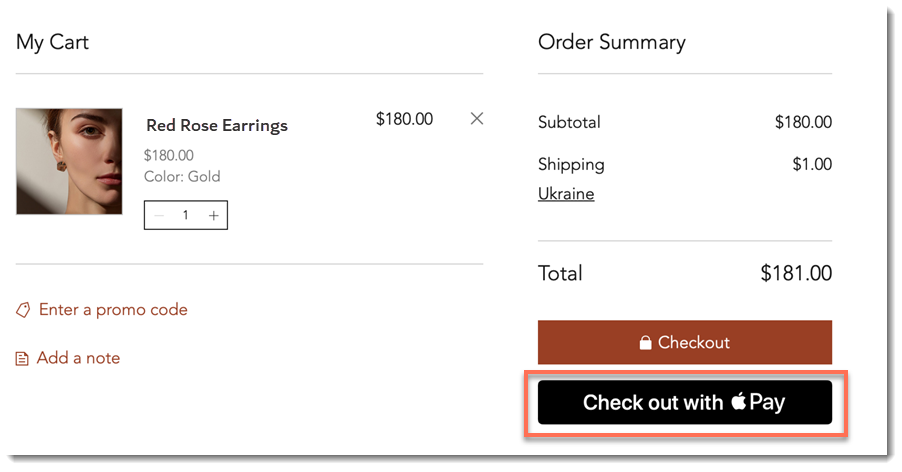
Screenshot of the Cart Page in a Wix site with the Apple Pay checkout button outlined

Additional payment buttons are also displayed at the top of the Checkout page. This means customers won't be required to enter their details on your site.
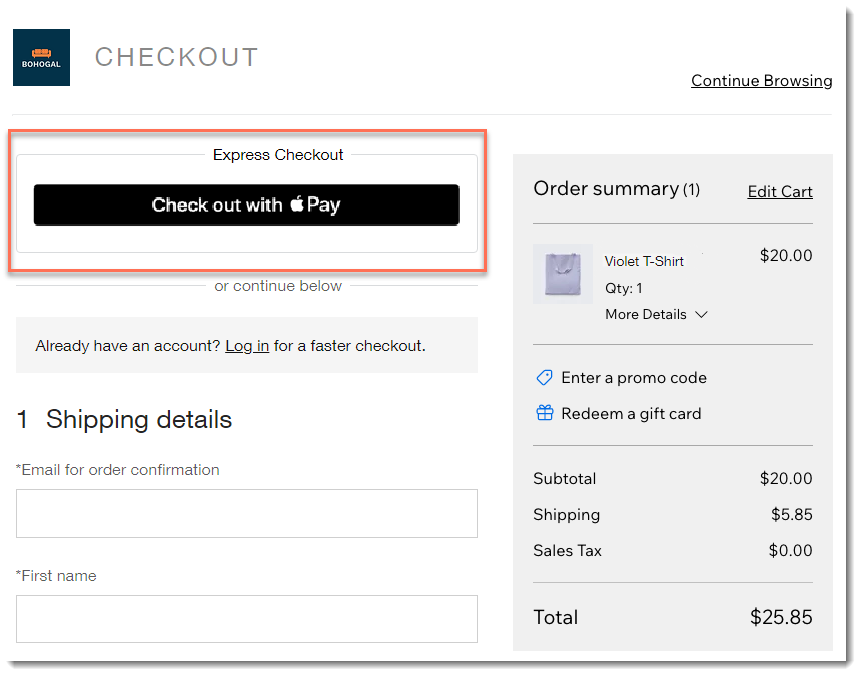
Screenshot of the checkout page in a Wix store with Apple Pay enabled

FAQs

Click a question below to learn more.

Which customers are exposed to the Apple Pay button?

The Apple Pay button is displayed to customers using Safari on iOS 11 or macOS Sierra or higher. Apple Pay is not currently available in the following mobile apps: Spaces by Wix, Fit by Wix, or your own mobile app.

Tip: Connect an additional payment method for customers who don't have Apple Pay.

Can I customize the button color?

The button color can be customized in the Product Page and Cart, but not in the Checkout Page.

How does authorization and capture affect the button display?

It's not currently possible to authorize and capture payments made through Apple Pay or Google Pay. Therefore, if you enable authorization and capture, your Apple Pay and Google Pay buttons are removed from your site.

Need A Professional Website?
Contact Us 
Today!

Wix Retail POS: Allowing Customers to Leave Tips

Wix Retail POS: Setting Up Text Receipts

Wix Retail POS: Allowing Customers to Redeem Loyalty Points

Wix Retail POS: Enabling Automatic Discounts

Wix Retail POS: Receiving Notifications

Wix Retail POS: Selling Physical Gift Cards

Wix Retail POS: Selling Virtual Gift Cards

Wix Retail POS: Managing Discounts

Wix Retail POS: Organizing Your Favorites Screen

Wix Retail POS: Disabling Payment Methods

Wix Retail POS: Managing Tax Collection

Wix Retail POS: About the Retail POS Plan

Wix Retail POS: Using Wix Payments as Your Payment Provider

Wix Retail POS: Troubleshooting Your Wix POS

Wix Retail POS: Using the Moneris Go Terminal Card Reader

Wix Retail POS: Connecting a Network Card Reader

Wix Retail POS: Contacting Wix Customer Care for POS Support

Wix POS Terms of Service

Wix Retail POS: Device Security Guidelines

Wix Retail POS: Troubleshooting Your Barcode Scanner

Wix Retail POS: Troubleshooting Your HP Terminal Receipt Printer

Wix Retail POS: Troubleshooting Your Cash Drawer

Wix Retail POS: Updating and Troubleshooting Your Card Reader

Wix Retail POS: Troubleshooting Your Tablet

Wix Retail POS: Updating the Tablet

Wix Retail POS: Checking the Status of Your Hardware

Wix Retail POS: Setting Up the Receipt Printer

Wix Retail POS: About Your HP Barcode Scanner

Wix Retail POS: Using the BBPOS Chipper 2X Card Reader

Wix Retail POS: Managing Your Cash Drawer

wix experts
Graphic2Traffic web design
©
bottom of page