


Designing your store
Wix Stores: Adding Store Elements
Wix Stores offers a variety of elements that help you showcase your products exactly the way you want to. Start by going to the Add Panel and then choose what you want to add to your site.
In this article, learn more about:
Accessing the Add Panel
Drag store elements from the Add panel and position then anywhere on your site.
Wix Editor
Studio Editor
Click Add Elements
 on the left side of the editor.
Click Store.
Select the element you want to add.
Grid Product Gallery
The Grid Product Gallery displays products in a grid layout. Add a gallery to any site page and then decide what to display: All of your products or one specific category.
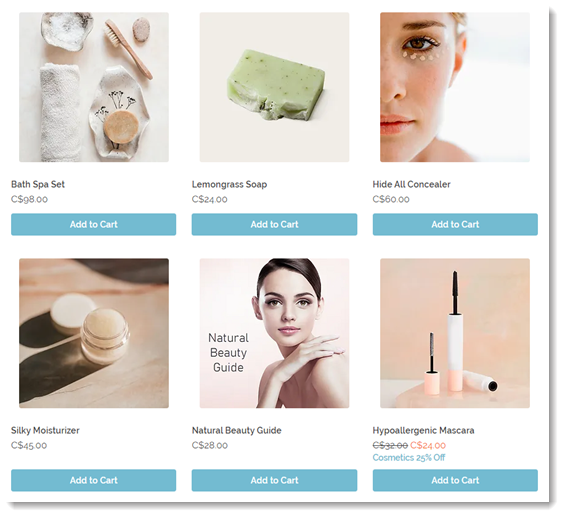
Next steps:
Click the gallery and Choose Category, then select which category you want to display.
Slider Product Gallery
A slider gallery is the perfect way to show off your products. Customers can click the navigation arrows to view more.
Tip:
You can display up to 32 products in a Slider Gallery.

Next steps:
Click the gallery and Choose Category, then select which category you want to display.
Related Products Gallery/Best Seller Gallery
Show your customers other products that might interest them. After adding this element, go to the Products tab select what you want to display: A Related Products gallery or one displaying Best Sellers.
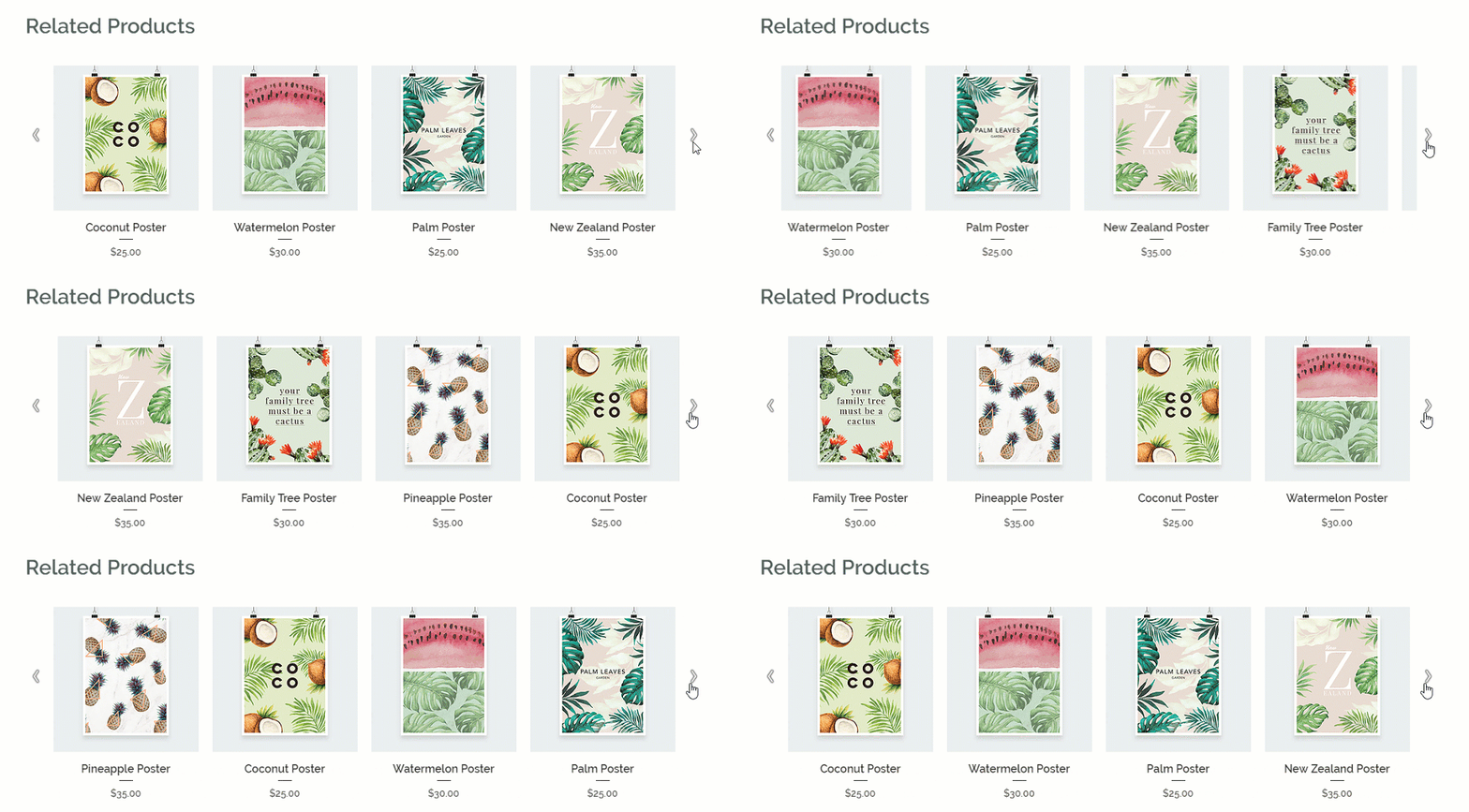
Learn how to add and set up a Related Products / Best Sellers gallery.
Product Widget
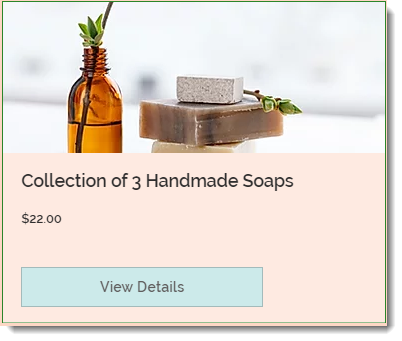
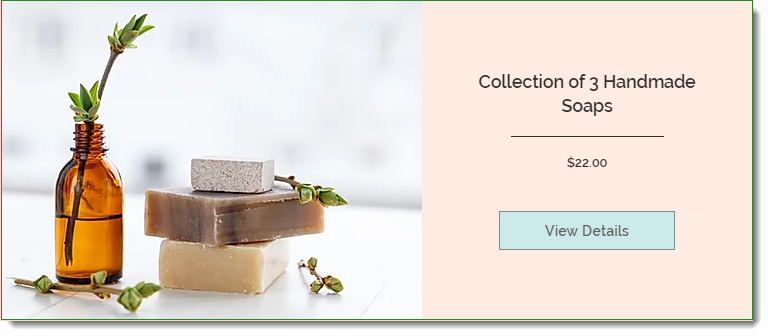
The product widget allows you to display a single product anywhere on your site. This is a great option if you want to display a product somewhere other than your regular shop pages.
You can choose from one of the two Product Widget styles:
Next steps:
Click the widget and Settings, then select the product you want to display.

Cart Icon
Wix Stores comes with a Cart Icon which appears in your site's header. If you deleted the cart icon, you can easily re-add it or add an additional icon.
By default, if you add the Cart Icon to the header or footer, it is displayed on all site pages. To change this setting you can right click the cart icon and click the Show on All Pages toggle to disable it.

Add to Cart Button
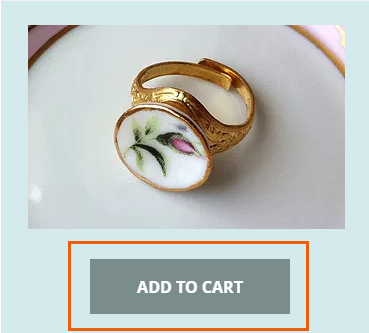
You can place a standalone Add to Cart Button anywhere on your site. The button is linked to the product you choose.
Currency Converter
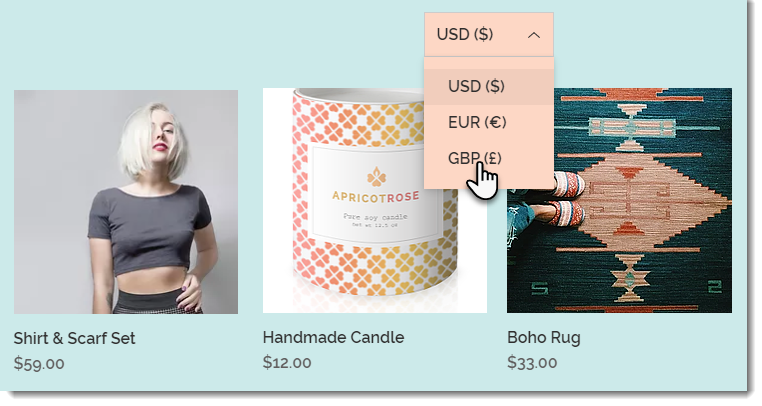
Make it easy for customers to view prices in a familiar currency by adding a Currency Converter to your store.
Notes:
Currency rates are provided by XE. By clicking "Add Currencies" you agree to XE's Terms of Use.
The Currency Converter is available for sites upgraded to a plan that supports converting to multiple currencies.
The Currency Converter changes the display currency on your site. It doesn't change the currency of sale transactions.