


Managing products and categories
Wix Stores: Adding Images, GIFs, and Videos to Products
Add images, GIFs, or videos to your products so customers can see exactly what they're purchasing.
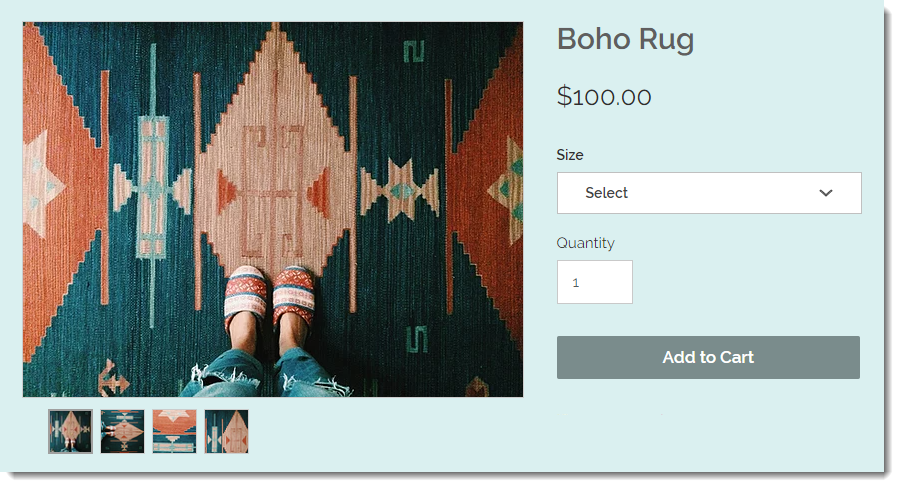
In this article, learn how to:
Creating effective product images
Great product images can be the difference between making a sale or losing out on one. Since customers can't touch or try your product in person, your images, GIFs, and videos are the key to showing customers what you have to offer.
Quality: Even your best products may not look enticing if the picture quality is poor. Make sure to create - or have a professional take - high quality images. Using a tripod and correct lighting can make a big difference.
What to showcase: Customers love to see multiple images of a product on all sides. It's also helpful to show closeups, for example to show the stitching and material on an article of clothing. Make sure to also show your product in context. For example, not just a close up of earrings by themselves, but show how they look when worn.
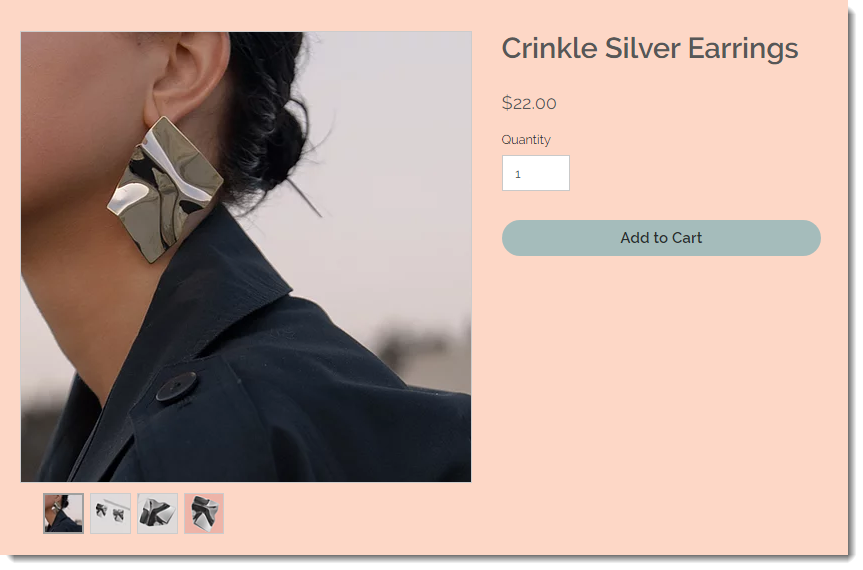
For many more helpful tips on how to create great product images, click here.
Adding images or GIFs
When creating your images, make sure you pay attention to image ratios (image width vs height). In addition, use crisp and clean images with high pixel resolution.
Note:
To make sure the images display correctly, follow these recommendations:
Minimum pixel resolution: 3000 x 3000 pixels.
Image ratios: 16:9, 3:2, 4:3, 1:1, 3:4, 2:3, 9:16
For viewing on a mobile device, the recommended image ratio is 1:1 (a square picture).
The Classic Product Page layout supports all image ratios. Other layouts look best with wider images.
To add images or GIFs to a product:
Go to Products in your site's dashboard.
Click to select a product.
Click Add Images.
Select images or GIFs from your Media Manager or click Upload Media to add images or GIFs from your computer.
Click Add to Page.

Editing and cropping images
After you upload an image, you can use the Wix Photo Studio to edit and crop it, right in the Products tab. You can:
Crop images
Adjust the brightness, contrast, or saturation
Change the background color
Add text
And more...
To access the photo studio in Wix Stores:
Go to Products in your site's dashboard.
Click to select a product.
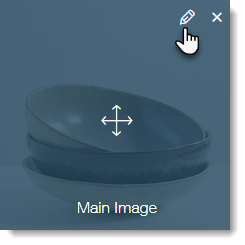
Hover over the image you want to edit.
Click the Edit icon
 .
.
Tip
To learn more about what you can do with Wix Photo Studio tools, click here.
Adding alt text to images
Improve your business's SEO by adding alt text to product images.
To add alt text:
Go to Products in your site's dashboard.
Click to select a product.
In the Images & Videos section, click the More Actions icon
 .
.Click Edit Alt Text for Images.
Enter the Alt Text.
(Optional) Click the Copy to all images icon
 to apply the same text to all images.
Click Done.

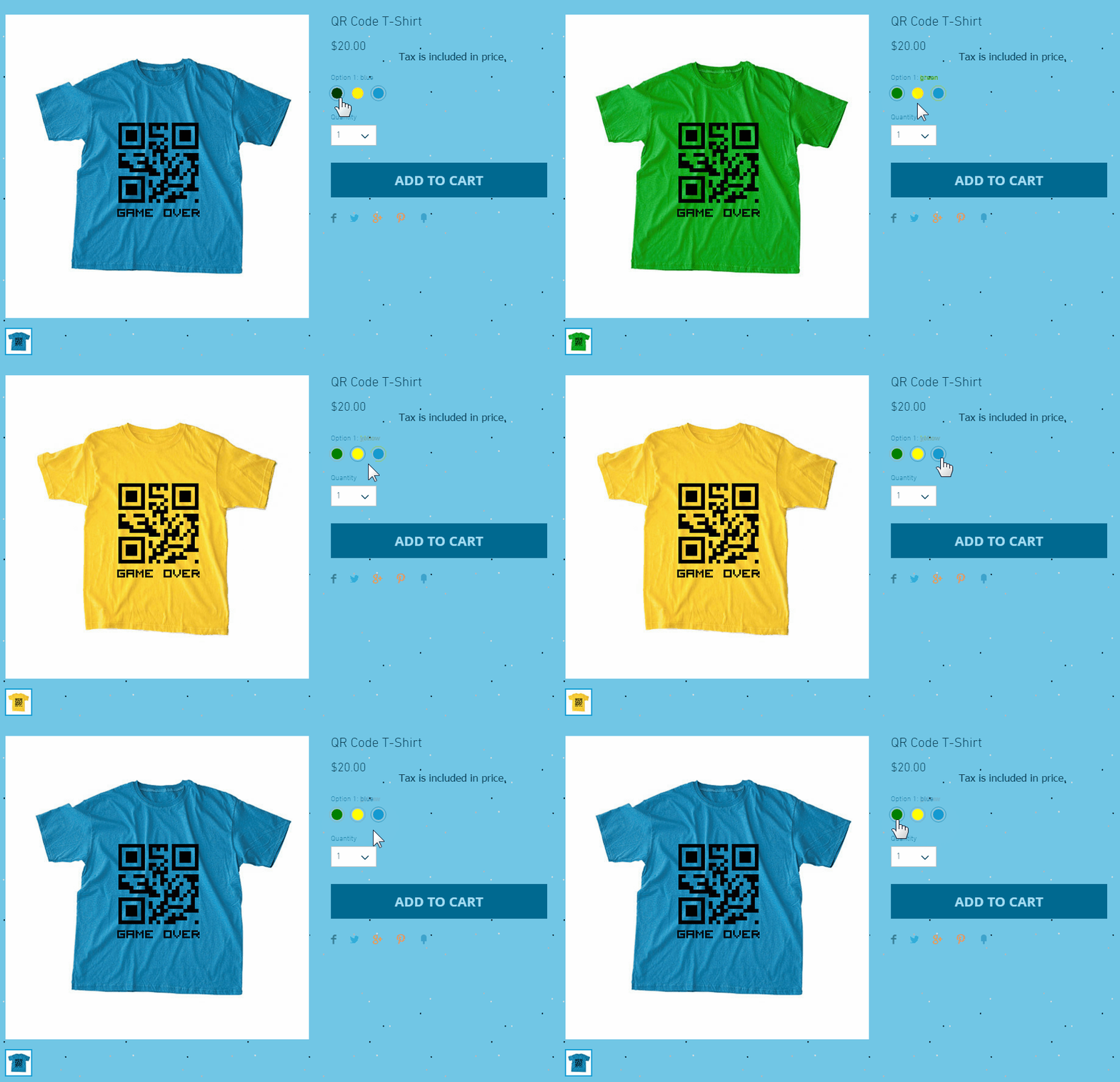
Displaying different images for product options
Help customers visualize each of your product options by displaying separate images of each one.
Note:
You can link images to each option, but not to each variant. To vote for this feature, click here.
To link images, GIFs, and video to product options:
Go to Products in your site's dashboard.
Select a product with product options.
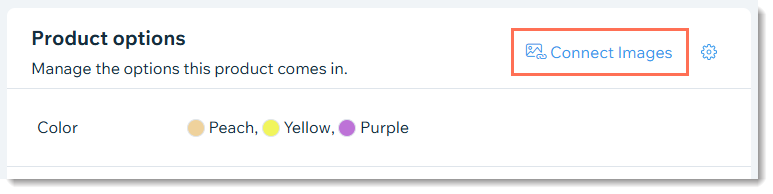
Scroll down to the Product Options section and click Connect Images.
Adding product videos
Product videos are the next best thing to experiencing a product in person. They can give customers the confidence they need to make a purchase.
Notes:
Acceptable video formats: AVI, MP4, MOV, MPEG
Videos can be up to 50 MB in size.
To learn how to sell video content with Wix Video, click here.
To add videos to your store products:
Go to Products in your site's dashboard.
Select an existing product or click New Product to add a new one.
Click Add Videos.
Select videos from your Media Manager or click Upload Media to add videos.
Click Add to page.