


Designing your store
Wix Stores: Adding and Setting Up Product Galleries
Add a Product Gallery to showcase the products you offer on any site page. You can decide what you want to display there - all your products or one specific category.
In this article, learn more about:
Adding a Grid Gallery & selecting a category to display
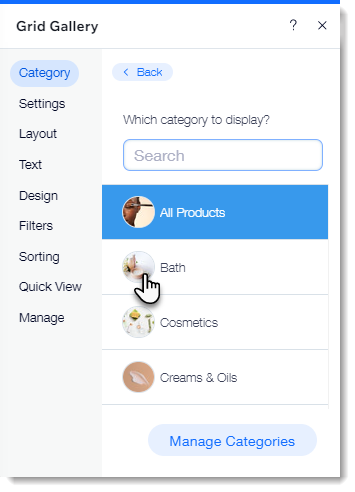
A Grid Product Gallery is a great way to display a large number of products. When you add a gallery, it displays the "All Products" category by default. You have the option of selecting a different category to display.

To add a Grid Gallery and select a category to display:
Wix Editor
Studio Editor
Go to the page to which you want to add a gallery.
Click Add Elements
 on the left side of the editor.
Click Store.
Drag the Grid Gallery to the relevant location on your site page.
Select the category you want to display:Click the gallery in the editor.
Click Choose Category.
Select an option:Display all your products: Click All Products.
Display one category: Click to select a category.
Next steps:
Learn how to customize your Grid Gallery for desktop and for mobile.
Adding a Slider Gallery & selecting a category to display
A Slider Gallery is the perfect way to show off your products. Customers can click the navigation arrows to view more products.

Notes:
You can display up to 52 products in a Slider Gallery.
You can customize the slider gallery to turn it into a Related Products or Best Sellers gallery.
To add a Slider Gallery and select a category to display:
Wix Editor
Studio Editor
Go to the page to which you want to add a gallery.
Click Add Elements
on the left side of the editor.Click Store.
Drag the Slider Gallery to the relevant location on your site page.
Select the category you want to display:Click the gallery in the editor.
Click Choose Category.
Select an option:Display all your products: Click All Products.
Display one category: Click to select a category.