top of page

Designing your store

Wix Stores: Adding and Setting Up a Wishlist

Let your customers keep track of their favorite products by adding them to a wishlist.
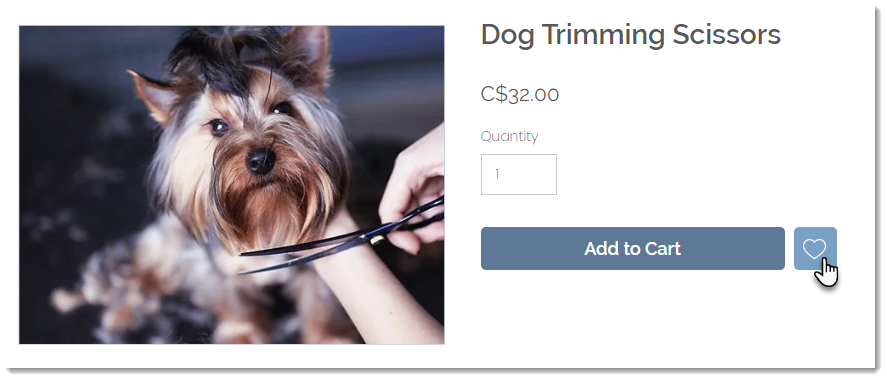
Screenshot of the Product Page in a Wix Stores site, with the wishlist indicated

Later, they can review wishlisted items and choose which ones to purchase.
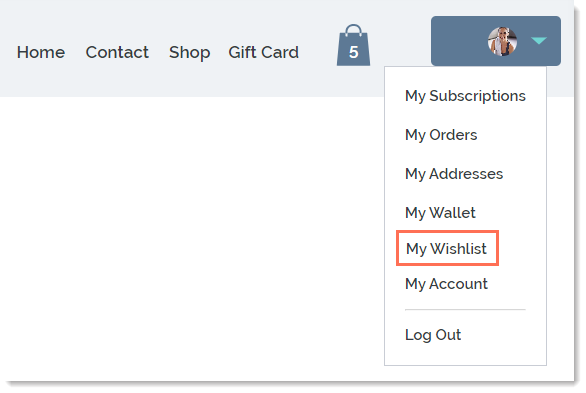
Screenshot of the Members Area drop-down in a Wix Stores site, with the My Wishlist option outlined

Step 1 | Adding and customizing the wishlist icon

Add a wishlist icon to the Product Page so customers can keep track of their favorite products. Then, customize the icon to suit your site's design.

Note:

The wishlist icon appears next to the button you display in the Product Page ( i.e. next to the "Add to Cart" or "Buy Now" buttons). If you don't display these buttons, the wishlist icon itself turns into a button with text.

Wix Editor

Studio Editor

  1. Go to your editor.

  2. Go to your Product page:Click Pages & Menu  on the left side of the editor.
    Click Store Pages.
    Click Product Page.

  3. Click the Product Page element on your page.

  4. Click Settings.

  5. Click the Wishlist tab.

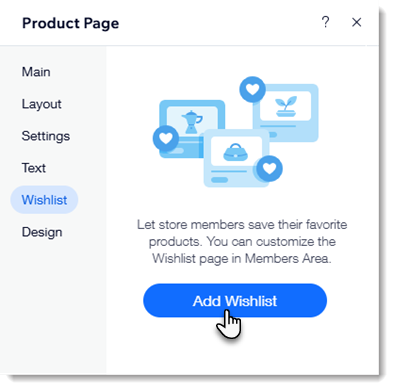
  6. Click Add Wishlist.

Screenshot of the Product Page settings showing where you can add a wishlist

  1. Click the Product Page in the editor again.

  2. Click Settings.

  3. Click the Wishlist tab.

  4. Customize the button using the available customizations.

Step 2 | Customizing the My Wishlist page

The My Wishlist page is where customers can view and keep track of their favorite products. You can optionally add an "Add to Cart" button to make it easy for customers to make purchases.
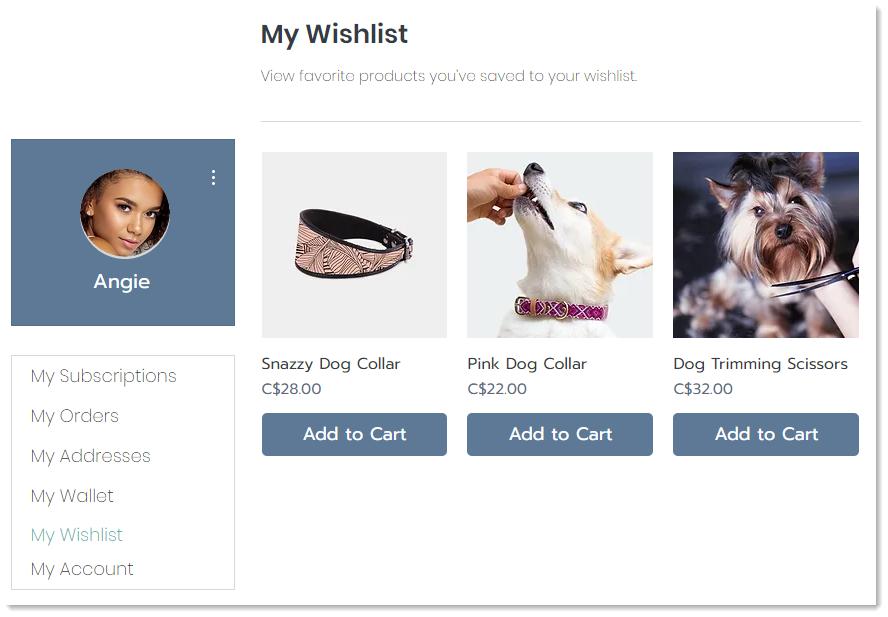
Screenshot of the My wishlist page

Wix Editor

Studio Editor

  1. Click Pages and Menu  on the left side of the Editor.

  2. Click Members Area.

  3. Click the My Wishlist page.

  4. Click the My Wishlist page in the Editor.

  5. Click Settings.

  6. Customize the My Wishlist page using the available options.

FAQs

How can I remove the wishlist from my store?

To remove the wishlist in the Wix Editor:

  1. Click the Product Page in your editor.

  2. Click Settings.

  3. Select the wishlist tab.

  4. Scroll to the bottom and click Remove Wishlist

To remove the wishlist in the Studio Editor:

  1. Click the Product Page in your editor.

  2. Click the Plugins icon .

  3. Click the More Actions icon  next to Wishlist.

  4. Click Remove Plugin.

Need A Professional Website?
Contact Us 
Today!

Wix Retail POS: Allowing Customers to Leave Tips

Wix Retail POS: Setting Up Text Receipts

Wix Retail POS: Allowing Customers to Redeem Loyalty Points

Wix Retail POS: Enabling Automatic Discounts

Wix Retail POS: Receiving Notifications

Wix Retail POS: Selling Physical Gift Cards

Wix Retail POS: Selling Virtual Gift Cards

Wix Retail POS: Managing Discounts

Wix Retail POS: Organizing Your Favorites Screen

Wix Retail POS: Disabling Payment Methods

Wix Retail POS: Managing Tax Collection

Wix Retail POS: About the Retail POS Plan

Wix Retail POS: Using Wix Payments as Your Payment Provider

Wix Retail POS: Troubleshooting Your Wix POS

Wix Retail POS: Using the Moneris Go Terminal Card Reader

Wix Retail POS: Connecting a Network Card Reader

Wix Retail POS: Contacting Wix Customer Care for POS Support

Wix POS Terms of Service

Wix Retail POS: Device Security Guidelines

Wix Retail POS: Troubleshooting Your Barcode Scanner

Wix Retail POS: Troubleshooting Your HP Terminal Receipt Printer

Wix Retail POS: Troubleshooting Your Cash Drawer

Wix Retail POS: Updating and Troubleshooting Your Card Reader

Wix Retail POS: Troubleshooting Your Tablet

Wix Retail POS: Updating the Tablet

Wix Retail POS: Checking the Status of Your Hardware

Wix Retail POS: Setting Up the Receipt Printer

Wix Retail POS: About Your HP Barcode Scanner

Wix Retail POS: Using the BBPOS Chipper 2X Card Reader

Wix Retail POS: Managing Your Cash Drawer

wix experts
Graphic2Traffic web design
©
bottom of page